Archive for the ‘Development’ Category

I recently purchased an LG UltraWide 21:9 display. Why an ultra-wide and not 4K? a) I write code for a living and this is a great way to get two windows full size side-by-side without an extra monitor. b) It was only $130 instead of $400 due to a Best Buy sale. Sold!

I get home, connect it to my Surface Book, and nothing works. The screen just blinks on and off, on and off, blinkety blink, blinkety blink. No Bueno. Changing the cable made the blinkety blink go away, but the display control panel would suggest trying different settings, and wouldn’t light things up.

My friend Shane recommended I get an Active MiniDP to HDMI adapter. So I bought one on Amazon. Still, I didn’t want to wait… that’s 2 days with Prime shipping, and not fast enough.

So, I looked into the MiniDP adapter I was using. I found out it only supports up to 1080P! Maybe it’s DP 1.1 or something. Whatever it is, it couldn’t support a 2560×1440 or thereabouts display.

Fry’s had the answer – I made sure I found a MiniDP to HDMI adapter that clearly stated it supports 4K and MiniDP 1.2. The particular product I purchased was the Cirago Mini DisplayPort to HDMI Display Adapter.

I got home and the adapter worked flawlessly.

I hope that helps anyone having a similar issue!


The built-in Facebook OWIN provider in ASP.NET MVC can open your website to the benefits of logging in via the social networking behemoth. Still, it’s limited when it comes to pulling in profile details such as photo, birthdate, gender, and so forth. I recently implemented retrieval of those profile properties, and will explain how you can do it, too! I feel the obvious benefit is your users don’t need to manually type in their profile details, should you have similar fields in your system.

I’m assuming you’ve created and configured a Facebook app via Facebook’s Dev center, and won’t be going into that process in this article.

Determine Which Profile Fields You Need

Before we write any code, you need to know to which profile details you desire access. Facebook used to be relatively open. Not anymore! Now you need to ask permission for a ton of items, and many are no longer available. Make sure you check permissions at least every 3 months, otherwise you may find your granted permissions are no longer, well, granted, or even accessible.

Here’s a link to everything you can get: https://developers.facebook.com/docs/facebook-login/permissions/

In my case, to access the Profile photo, name information, and some other basic items, I chose:

  • public_profile
  • email
  • user_photos
  • user_about_me

I probably don’t need all these right now, but I may in the future. I figured I’d ask ahead of time.

Once you have your list, continue to the fun coding part…

Enable the Facebook Provider in Startup.Auth.cs

If you haven’t already, you’ll need to enable the Facebook provider via Startup.Auth.cs. Make sure you do this *after* any cookie authentication, so “normal” username/password logins are serviced before Facebook takes over. This should already be the case, as the default ASP.NET MVC template includes the many optional providers afterwards by default.

I suggest keeping the App ID and Secret in your config file – or at least out of code – so you can swap for differing environments as necessary. The code snippet below enables Facebook authentication, and specifies the profile fields for which we’ll be asking read permission:

You don’t have to use what I chose – it’s just what I needed for my particular case. Facebook *does* change allowed permissions and profile item visibility somewhat often. Stay on top of their developer changes – otherwise your site login may unexpectedly break.

// Enable Facebook authentication with permission grant request.
// Otherwise, you just get the user's name.
var options = new FacebookAuthenticationOptions();
options.AppId = ConfigurationManager.AppSettings["Facebook.AppId"];
options.AppSecret = ConfigurationManager.AppSettings["Facebook.AppSecret"];
options.Scope.Add("public_profile");
options.Scope.Add("email");
options.Scope.Add("user_photos");
options.Scope.Add("user_about_me");
app.UseFacebookAuthentication(options);

Install the Facebook NuGet Package

In order to easily get access to the Facebook data, I used the Facebook.NET library. It’s easy enough to install:

Install-Package Facebook

Note: I used version 7.0.6 in this example. You should be able to find the latest version and changelog at https://www.nuget.org/packages/Facebook/7.0.10-beta

Handle the Facebook External Login Callback in AccountController.cs

Once Facebook has been configured, all requests from your website will direct to Facebook, where it will ask permission, and, if granted, will redirect back to the ExternalLoginCallback action in the Account controller. It is here that I suggest you retrieve the data you’ve requested from Facebook. You’ll then modify the associated ExternalLoginConfirmation View with fields to correct or remove any information from Facebook, then continue with the account creation process on your website. That’s the part where you’ll populate the ApplicationUser entity, or whatever you decided to call it.

It’s relatively simple, as shown in the code below. The steps are as follows:

  1. Get the Facebook OAuth token with a simple HttpClient call
  2. Make the request for Profile details using the Facebook.NET library
  3. Optionally, download the Profile photo and save it somewhere

Yes, I could split this out – refactor as you see fit, and feel free to share any optimizations.

Below is the change to ExternalLoginCallback to grab the data from Facebook after the redirect:
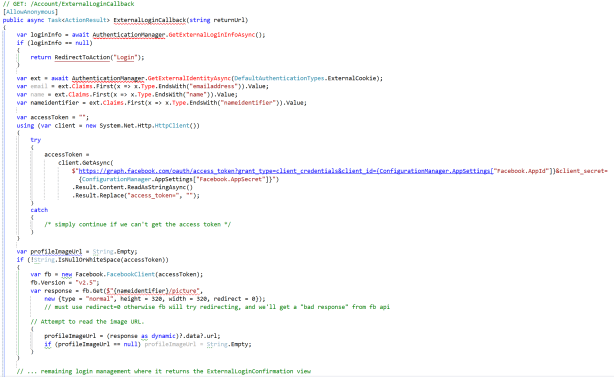
ExternalLoginCallback Code

If you’d like to get the profile image, below is an example:
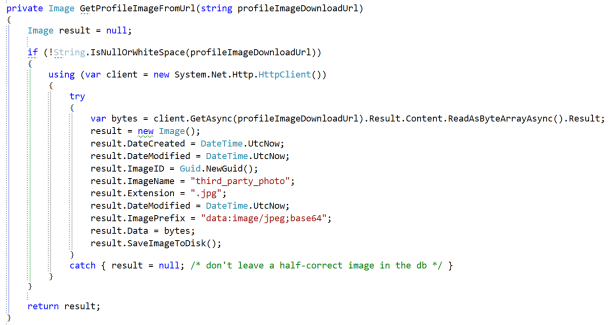
GetProfileImage Code


Moving Forward

I hope this article has helped answer your Facebook integration questions. If you would like additional details, please post in the comments, or message me on Twitter: @Auri

Thank you!

I went back and forth between my code and various Telerik and Stack Overflow demos of how the Kendo grid is supposed to refresh its datasource without reloading the entire grid. Finally, Telerik sent me a code example that included a function that’s not in their API documentation, but darn well should be. So, if you’re having the same issue I did, where you want to call read() on your grid’s datasource, but it simply isn’t working, here’s an example from Telerik that may help you.

The function: getKendoGrid()

Now, I keep my createDataSource() function around so I can swap out the data I’m paging. Their example uses some sample data, but you could simply use their example of creating a datasource to call your back-end JsonResult action in MVC and things can still work magically.

I hope this helps others Smile

<body>
  <div id="grid" />
  <script>
    function createDataSource() {
      return new kendo.data.DataSource({
        transport: {
          read: {
            url: "/echo",
            dataType: "json",
            method: "POST",
           
            // Simulate response
            data: {
              "json": JSON.stringify([{
                firstName: "John",
                lastName: "Smith",
                age: 25
              }])
            }
          }
        },
        pageSize: 10
      });
    }
   
    var ds = createDataSource();
   
    $("#grid").kendoGrid({
      dataSource: ds,
      autobind: false,
      scrollable: false,
      columns: ["firstName", "lastName", "age"]
    });
   
    $("#grid").getKendoGrid().dataSource.read();
  </script>
</body>
</html>

And here’s a colorized version:

image

I know it may be an act of pure sadism, but I see value in having a full development environment available in a package that weighs less than a pound. My Dell Venue 8 Pro runs full Windows 8.1, so why not write code on it? Well, there’s a limitation. I’m chea… err, frugal. So, I bought the 32GB device, on sale for $99 during Microsoft’s “12 Days of Deals” event. After clearing out a lot of space, and after installing all my Windows Store apps, I had just under 6 gigs free. Visual Studio takes roughtly 5.38 gigs for a base install, and more than 7 for a full. I still want to download apps, so using all that precious main storage space isn’t an option.

So, why not use the MicroSD expansion, you say? Great idea! Oh, wait… Visual Studio won’t install on removable media unless it’s Windows To Go certified, which only a handful of USB drives, and no MicroSD cards, can claim privileged membership. What is a developer to do?

Mount Points

It turns out there’s a workaround, but it requires you to “trick” Windows. I want to use that MicroSD and all its 16 gigs of practically unused storage. (Yes, I could have used a 32, but I didn’t have one handy at the time. Anyway…)

Using a feature in NTFS that allows you to permanently point the contents of an empty folder to another drive, in this case the MicroSD, you can install anything you want in that folder, and it won’t affect the available drive space on C:, safely keeping everything in the “remote” storage location. These remote locations are called NTFS Mount Points.

Now, there’s a catch… Even if you have a 32 GB MicroSD, that doesn’t increase your primary drive’s capacity by 32 GB. If your C: drive, in this case, only has 6 gigs free, then that’s what any Windows Installer will see as available. Now, once the installation is underway, it won’t run out of space when installing. However, if you don’t have enough space on C: to install in the first place, it won’t continue. So, before you try this process, make sure you have enough room on the drive for installation as if you were installing without the remote storage location!

Ready? Let’s Go

The entire process is very simple. We’ll start at the Desktop, which you can access on the All Programs menu.

  1. First, make sure you have enough space free on your C: drive, since that’s where Visual Studio will want to install on your tablet.
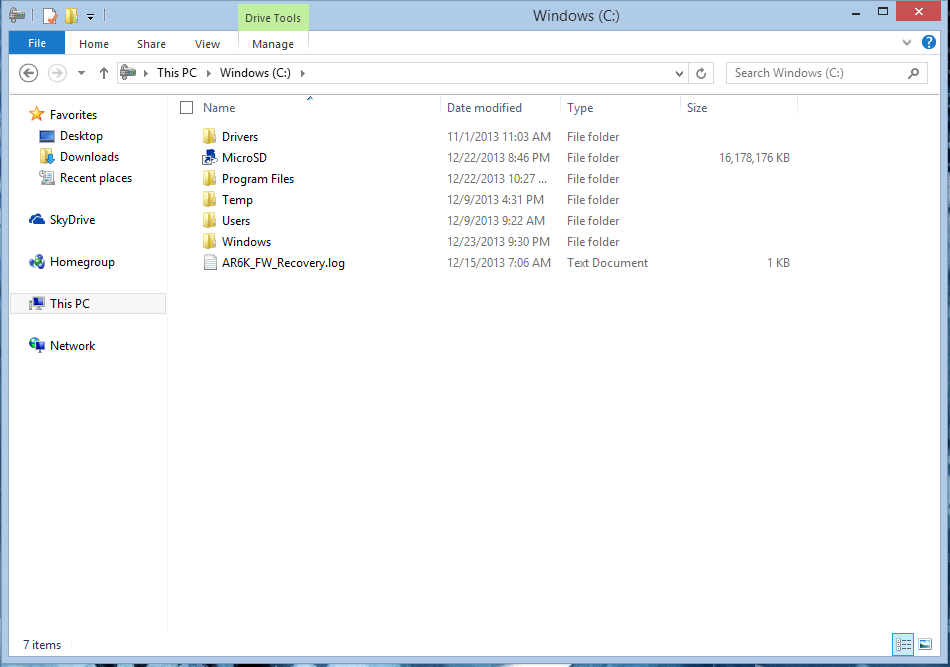
  2. Open Explorer, go to your C: drive, and create an empty folder. I named mine MicroSD, so I know the contents are on the removable media. You might ask why I simply didn’t redirect my Program Files folder. Here’s the reason: That’s a risky move, and the MicroSD card is slower than the built-in SSD. Also, if the MicroSD fails, I can simply reinstall the non-essential programs in that folder, without affecting all my primary apps and overall tablet usability.

    image

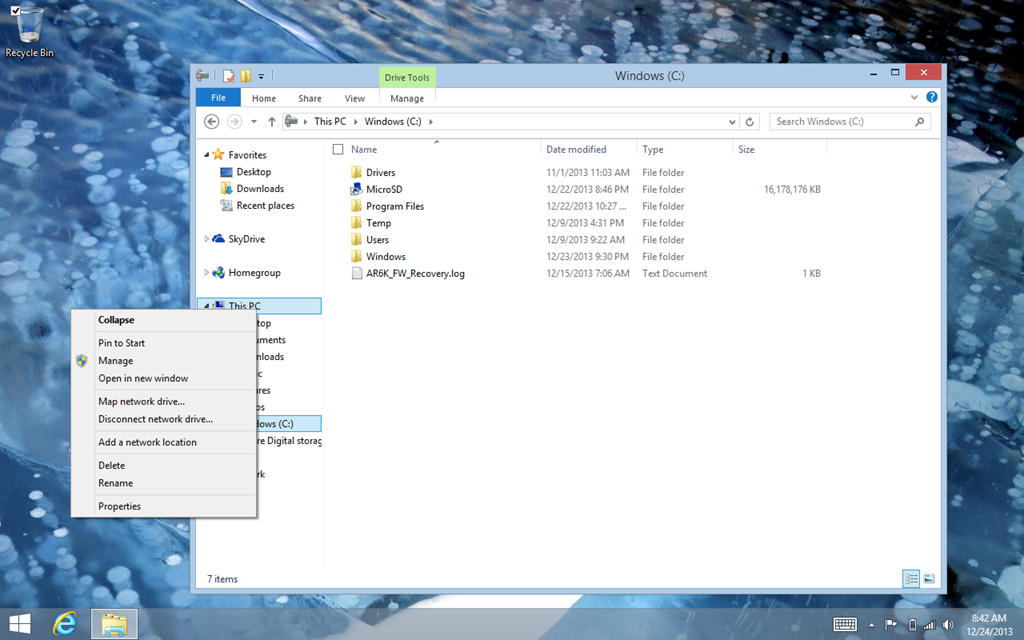
  3. Long-tap This PC in the side panel, and select Manage.

    image

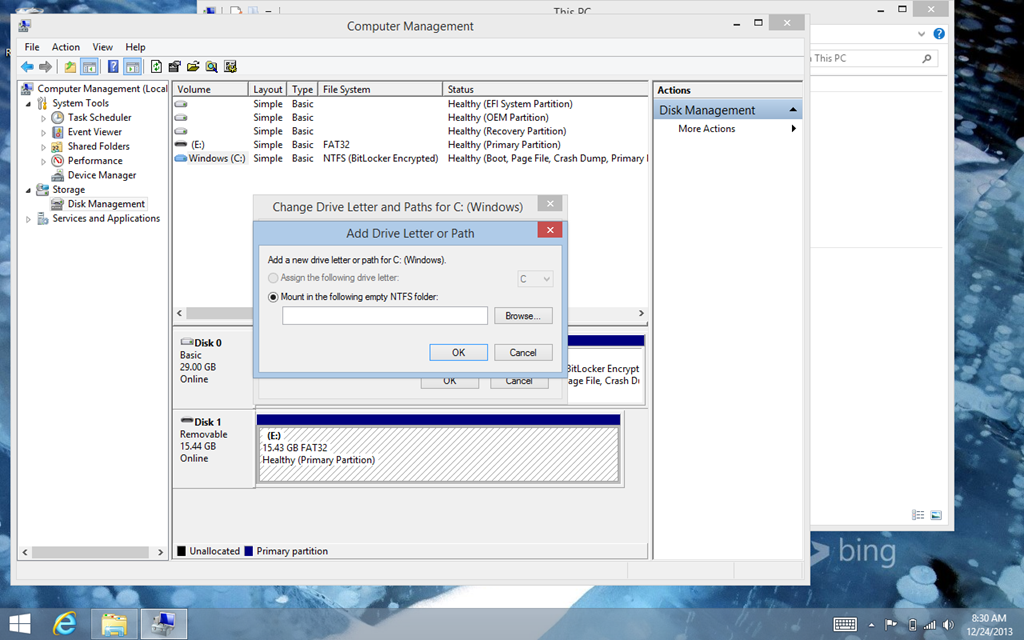
  4. When the Computer Management window appears, tap Disk Management under Storage.
  5. Long-tap your MicroSD card in the list of Volumes on the top, and select Change Drive Letter and Paths.
  6. Tap Add, then tap the option for Mount in the following empty NTFS folder, and select your folder by tapping Browse.

    image

  7. That’s it, now you can install Visual Studio! Simply set the install location to the new folder you created instead of the standard Program Files folder.

A few notes when installing:

  • Remember, this is a tablet with 2 gigs of RAM. Don’t install SQL Server and the like.
  • Don’t run servers on your Venue Pro unless you want to kill the battery. Yeah, it’s Quad Core, but it’s also a low power processor built for on-the-go computing.
  • Visual Studio still installs a lot on your C: drive in the Program Files and Windows folders. It’s a development system, after all. So, be prepared to sacrifice 2-3 gigs of available space there.
  • As you develop, Visual Studio still has its little droppings of temp files. Clean up a bit more often if you’re doing a lot of dev.

What about a keyboard?

That’s what I was thinking… I just ordered the Dell Tablet Wireless Keyboard accessory from Dell’s site. It’s still pending shipping, so once I receive it, I’ll post a review.

I have a link to the accessory in this post.