Archive for the ‘Uncategorized’ Category

W00t! After waiting for it to be approved, my first app has been approved for Windows Mobile Marketplace.

Buzzword Baby can be found in the Entertainment category and creates an endless stream of non-repeated buzzwords. Here’s a direct link to it in the Windows Mobile Marketplace.

image

Here’s the description:

Want to impress your boss? How about using those big shot CEO executive buzzwords, like “didactic activity scenarios” and “cloud-based mobility infrastructure”? Maybe your company needs some wireless fifth generation hardware contingency scenarios?

Well, Buzzword Baby may get you that promotion after all.

Tap “Create Buzz” and Buzzword Baby will give you limitless buzzwords that make sense to executives and marketing personnel. You’ll be laughing – all the way to the bank! Good luck on your next promotion!

Warning: Your personal advancement opportunities may differ.

I actually used this in a client meeting and they said “yeah, I get that WYSIWYG stuff.”

As in the iPhone version, the baby photo is our intern, Doug. He was pretty surprised when he saw his photo in the app. Of course I got permission before I released, and I’m hoping it makes him “famous” 🙂

Please let me know what you think!

Best,

-Auri

Ok, as promised, here are the links I shared with you on Career Day:

Microsoft Beginning Programmer Learning Center: http://msdn.microsoft.com/en-us/beginner/default.aspx

Microsoft Dreamspark: https://www.dreamspark.com/

Learning CSS: http://www.w3.org/Style/CSS/learning

Auri Group Web Site: http://aurigroup.com

My Facebook Page: http://facebook.com/aurir

Now Think Now Site: http://www.nowthinknow.com

I was in Japan this week for CEATEC 2009. Part of our press tour included visiting Panasonic Center in Tokyo. I took about 147 images and created some photosynths for all to enjoy. Being resource-restricted, Japan often sets the bar for “eco” initiatives, making sure less is more, and that resources are never wasted. For example, just like being polite, recycling is part of the culture; you won’t find a trash can every 10 feet as you do in the United States, but you will find many recycling bins with appropriate slots for plastic, paper, and so forth.

The first room is a garden room, where Panasonic is displaying televisions that use less and less energy, washing machines that detect stains and use only the right amount of water to address them, and more. Many of these technologies are available in Panasonic products available today or this year.

>> View

The second room is applied sciences, and how Panasonic is trying to affect future products and consumer behaviors. For example, an angled washing machine so users don’t have to bend over or fully bend down to load or unload the machine.

>> View

Enjoy!

Ouch – $100K fines for garage sale wares. Who knows to what extent it happens, but it’s good to know about this 2008 law.

New Government Policy Imposes Strict Standards on Garage Sales Nationwide

Americans who slap $1 pricetags on their used possessions at garage sales or bazaar events risk being slapped with fines of up to $15 million, thanks to a new government campaign.

The "Resale Round-up," launched by the Consumer Product Safety Commission, enforces new limits on lead in children’s products and makes it illegal to sell any items that don’t meet those limits or have been recalled for any other reason.

The strict standards were set in the 2008 Consumer Product Safety Improvement Act after a series of high-profile recalls of Chinese-made toys.

Read the entire article here.

Well, I’m still baffled why there isn’t a cool Photo Booth app for Windows. Really, I need to find out how to do those filters and release the darn thing.

In the mean time, there is an AWESOME site that does the same thing, and more, right in your Web browser – Cameroid!

Check it out at http://www.cameroid.com.

Yes, it’s free. You don’t even have to login to use it. Nice.

Here are some photos I took using my webcam:

Auri Monkey Auri Matrix Auri Gnome

PING to Windows Live Team: Why not build similar functionality into Windows Live Photo Gallery? Please? 🙂

Well, this was funny… if you’ve seen Shatner do Rocket Man, then you’ll enjoy his interpretation of Palin Prose.

How safe are your CD-Rs?

Posted: July 21, 2009 in Uncategorized

Are you curious how long your data will last on those CD-Rs, DVD-Rs, and so forth? This article from CNet is very interesting.

Going back through his old CD-Rs and transferring the data to hard disk, Adrian Wong of TechARP experienced a failure rate of nearly 10% for discs recorded some 7 to 9 years ago and kept under ideal storage conditions (cool, dark and dry). Of the corrupted CD-Rs, many of them only had a few files corrupted, but two of the CD-Rs were completely unreadable. Neither one of the two CD/DVD drives we used could even recognize the CD-Rs, much less read anything off them.

There doesn¹t seem to be any particular pattern with the disc failures – either with age or with brand. The newest (2002) discs had the highest level of corruptions, followed by the oldest (2000). Of course, those two vintages had the fewest number of samples and the actual results may change radically with a larger sample size.

Even though branded CD-Rs from the likes of Kodak were expected to last longer, they appeared equally susceptible to failure as the cheap, no-brand CD-Rs.

I decided to check through my old CD-Rs. Oddly enough, after checking some 120 discs, I¹ve yet to find a single corrupted disc. I¹m not saying that I don¹t have dead discs, but it would seem that my failure rate for a random selection is less than 10%.

Read the complete article at CNet.

I’d like to see an article on the safety of Solid State Drives (SSDs). The more we store our data only as 1s and 0s, and as hard drives grow larger, the less safe I feel about data loss. People, PLEASE back up! Maybe with a cool Windows Home Server, and paper copies of important documents.

Also, how have you fared with CD-Rs, DVD-Rs, thumb drives, and so forth for backup? Please post comments!

The DTV transition is this Friday, June 12. If you are receiving television with over-the-air analog television, you will no longer receive signal starting that day. So how do you rectify this?

By simply getting a new DTV tuner for your PC, your Windows Vista and Windows 7 Media Centers can automatically start using the new digital channels! For about $80-$120, you can upgrade your system and start receiving more channels than ever before. You can even record digital television with Media Center’s PVR functionality, without having to sign up for cable, satellite, or Uverse!

In case you didn’t know, digital over-the-air channels sport high or higher definition video and audio than you’ve seen or heard with your analog channels. You can also have multiple channels per station, so Fox may have two channels – one “main” station, and one with weather or sports or Cheers reruns all the time. These “subchannels” have a dash after the number, so if Fox was 59, then the channels for Fox would be 59-1, 59-2, 59-3 and so forth.

So how do you get started with upgrading your Media Center to support DTV?

Get a Tuner

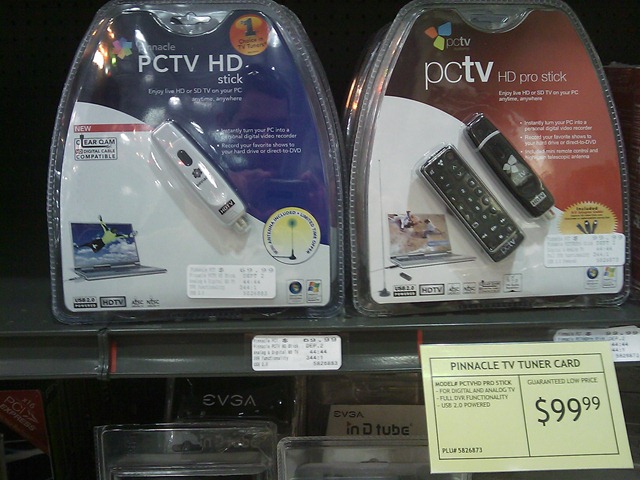
First, find a DTV tuner. Some of these tuners will tune both cable and over-the-air DTV, so you can have the best of both worlds. This is especially true with local channels, which are often broadcast in HD during primetime – no need to spring for the more expensive HD cable package if all you watch is local channels. I’ve filled in the prices from Fry’s as of 6/11/2009:

IMAG0272 Pinnacle HD Stick ($69.99) / HD Pro Stick ($99.99) – I’ve had good luck with the HD Pro. It also includes a great antenna with a magnetic bottom. These are both USB solutions and very easy to install. I also like the ability for this to tune “Clear QAM,” which means it can tune many HD cable channels, if available in your area.

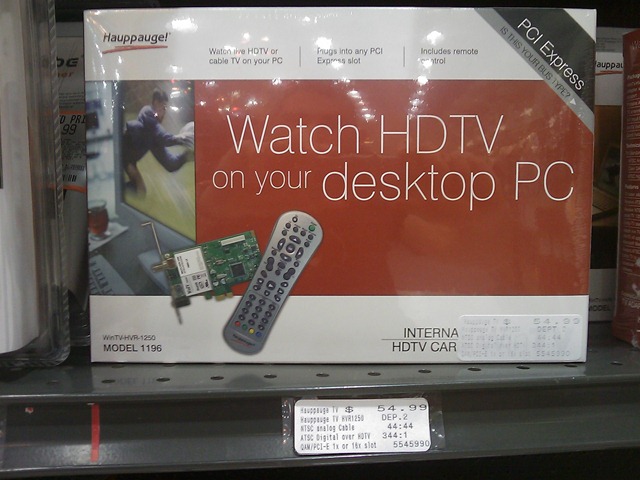
IMAG0270 Hauppauge WinTV HVR ($54.99). This is a PCI Express card. Hauppauge also makes excellent WinTV USB-based solutions.

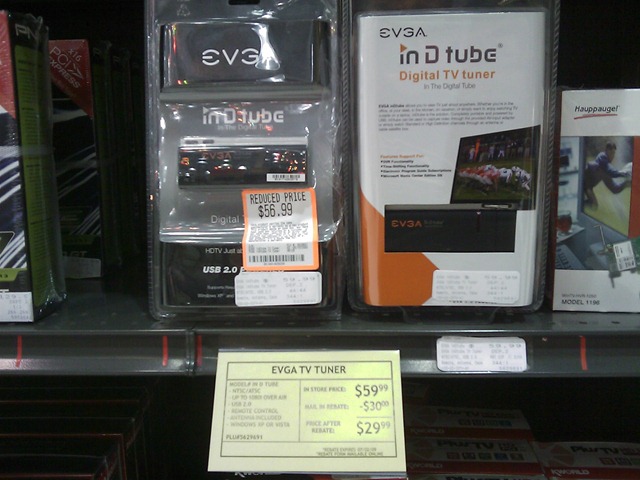
IMAG0271 EVGA TV Tuner ($29.99 after rebate) – I haven’t personally tried this tuner, but for about thirty bucks, it’s probably worth trying. Let me know your mileage. I didn’t see a lot of returned units.  There was a Plus TV product that seemed to have a lot of returns… I don’t know if that’s because of the driver software being buggy (usually the case), or some other reason.

TIP: Make sure you use the Media Center installer if the TV card you choose has a separate installer for such.

Get an Antenna

If your tuner didn’t come with an antenna, go get one. Your local Radio Shack, Fry’s, and Best Buy will have antennas, often for under $50. Just make sure the connector on your tuner is compatible with the connector that comes with the antenna.

Set up Media Center

Once you’ve installed the hardware drivers, you should be able to launch Media Center and it should detect the new tuner and walk you through a Wizard to scan for channels. I can’t cover each tuner card individually, but I can say the manuals are usually very clear on Media Center configuration.

Ok, you’re all set! A quick trip to Fry’s or Best Buy and 15 minutes of using a wizard, and you can start enjoying your television with Media Center!

image WINDOWS 7: BUT WAIT, THERE’S MORE! Windows 7 sports Internet TV access, too! So, not only will you be able to tune DTV – you’ll be able to get many streaming television channels, Netflix, and more starting this October! Sweet!

More Information

The government has really been pushing the HD transition. You’ve probably seen all those ads on TV. Well, they also have quite a great Web site for helping you find info: www.dtv.gov.

There are also many other great resources online:

  • Titan TV – Over-the-air DTV, Cable, and Satellite listings, all in one place, in a TV Guide like format.
  • DTV 2009 Converter Box Web Site – For a free coupon to help you save on a TV converter box for your old analog sets, visit this government Web site.
  • DTV Answers – A Web site from the National Association of Broadcasters (NAB).
  • Windows Media Center Web Site – to learn more about WMC and all of its awesome capabilities.
  • Your local TV station Web sites may have a wealth of information about the conversion and their own DTV offerings.

Want me to cover more? Send me an email or post a comment! Enjoy your DTV!

Many a developer has been salivating, shorting out keyboards whilst waiting for the Windows Mobile 6.5 developer toolkit to arrive. The new phones are due out starting this month, sporting a slick gesture-friendly interface. The Windows Mobile Marketplace, Microsoft’s answer to the iPhone App Store, is coming within the next 60 days as well, opening an entirely new revenue stream for the millions of Microsoft developers out there.

NOTE: You must have the Windows Mobile 6 SDK. The 6.5 release is actually a “Developer Resource Toolkit", which extends the 6.0 SDK to support the new features.

Ready to get started with Windows Mobile 6.5 development now? Here are the download and info links:

Enjoy!

Best,

-Auri

Microsoft has been gradually adding more and more keyboard shortcuts to Windows. They’ve really outdone themselves in Windows 7. Thank goodness for the Windows key!

Try this out once you get the release candidate:

  • image + Up: Maximize current window
  • image + Down: Restore / Minimize current window (finally!!!)
  • image + Left: Snap current window to left, press again to snap to right, and again to restore original position
  • image + Right: Snap current window to right, press again to snap to left, and again to restore original position
  • image + Shift + Left: Jump to left monitor
  • image + Shift + Right: Jump to right monitor
  • image + Home: Minimize / Restore all other windows
  • image + T: Focus the first taskbar entry
  • image + Space: Aero Peek at the desktop and running Gadgets
  • image + G: Bring gadgets to the top
  • image + P: External display options (mirror, extend desktop, etc)
  • image + X: Mobility Center (presentation mode, mute, etc.)
  • image + 1-9: Launch/Switch to that item in the Superbar (new name for the task bar)
  • image + D: Show the Desktop, press again to hide it
  • Here’s a preview of what to expect when you use some of these:

    Using Aero Peek

    Look at all those windows. But I want to see my stocks and the weather!

    image

    Oh, I’ll just press image + Space and…

    image

    Nice! And I just let go of image + Space and I’m back to normal.

    Yes, I could have also pressed image + G. But Aero Peek is cooler.

    External Display Options

    Press Win + P and you get the following super easy way to switch your monitor setup:

    image

    Convenient! No more fumbling around the control panel or remembering “just which function key you have to press.”

    Snap to Right (Snap to Left is opposite)

    Before Snap to Right:

    image

    After Snap to Right:

    image

    Pressing the key continuously will “cycle”, so if you press image+Right, your window will snap to the right as expected. Press it again and it will snap to the left. Press it again and it will come back to where it originated. Yes, Windows remembers the original position, even if you change windows.

    Many of these shortcuts came from this URL.

    If you have any other shortcuts to share, please do!