The DTV transition is this Friday, June 12. If you are receiving television with over-the-air analog television, you will no longer receive signal starting that day. So how do you rectify this?

By simply getting a new DTV tuner for your PC, your Windows Vista and Windows 7 Media Centers can automatically start using the new digital channels! For about $80-$120, you can upgrade your system and start receiving more channels than ever before. You can even record digital television with Media Center’s PVR functionality, without having to sign up for cable, satellite, or Uverse!

In case you didn’t know, digital over-the-air channels sport high or higher definition video and audio than you’ve seen or heard with your analog channels. You can also have multiple channels per station, so Fox may have two channels – one “main” station, and one with weather or sports or Cheers reruns all the time. These “subchannels” have a dash after the number, so if Fox was 59, then the channels for Fox would be 59-1, 59-2, 59-3 and so forth.

So how do you get started with upgrading your Media Center to support DTV?

Get a Tuner

First, find a DTV tuner. Some of these tuners will tune both cable and over-the-air DTV, so you can have the best of both worlds. This is especially true with local channels, which are often broadcast in HD during primetime – no need to spring for the more expensive HD cable package if all you watch is local channels. I’ve filled in the prices from Fry’s as of 6/11/2009:
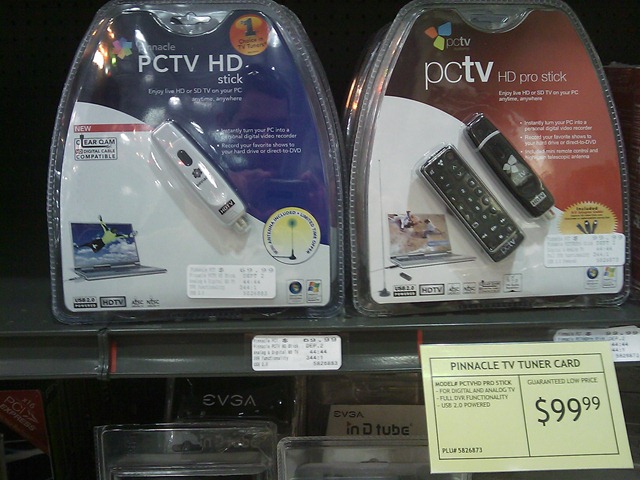
IMAG0272 Pinnacle HD Stick ($69.99) / HD Pro Stick ($99.99) – I’ve had good luck with the HD Pro. It also includes a great antenna with a magnetic bottom. These are both USB solutions and very easy to install. I also like the ability for this to tune “Clear QAM,” which means it can tune many HD cable channels, if available in your area.
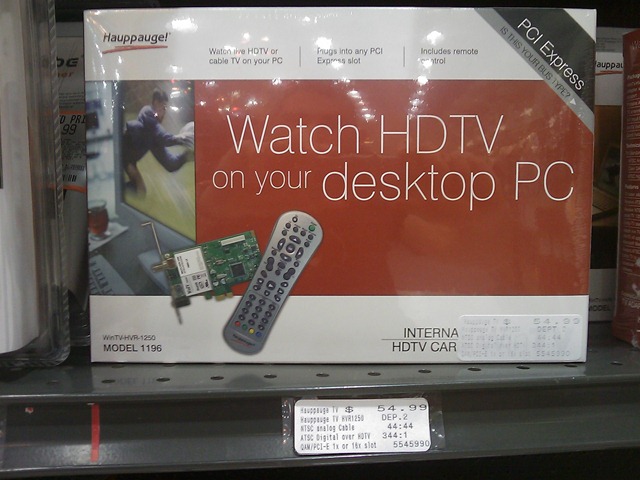
IMAG0270 Hauppauge WinTV HVR ($54.99). This is a PCI Express card. Hauppauge also makes excellent WinTV USB-based solutions.
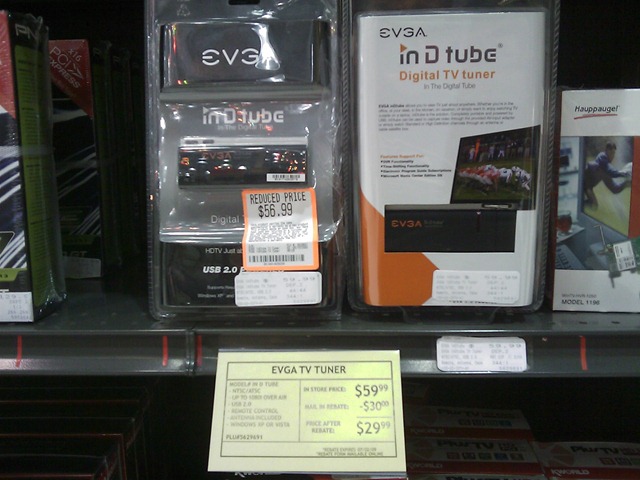
IMAG0271 EVGA TV Tuner ($29.99 after rebate) – I haven’t personally tried this tuner, but for about thirty bucks, it’s probably worth trying. Let me know your mileage. I didn’t see a lot of returned units.  There was a Plus TV product that seemed to have a lot of returns… I don’t know if that’s because of the driver software being buggy (usually the case), or some other reason.

TIP: Make sure you use the Media Center installer if the TV card you choose has a separate installer for such.

Get an Antenna

If your tuner didn’t come with an antenna, go get one. Your local Radio Shack, Fry’s, and Best Buy will have antennas, often for under $50. Just make sure the connector on your tuner is compatible with the connector that comes with the antenna.

Set up Media Center

Once you’ve installed the hardware drivers, you should be able to launch Media Center and it should detect the new tuner and walk you through a Wizard to scan for channels. I can’t cover each tuner card individually, but I can say the manuals are usually very clear on Media Center configuration.

Ok, you’re all set! A quick trip to Fry’s or Best Buy and 15 minutes of using a wizard, and you can start enjoying your television with Media Center!

image WINDOWS 7: BUT WAIT, THERE’S MORE! Windows 7 sports Internet TV access, too! So, not only will you be able to tune DTV – you’ll be able to get many streaming television channels, Netflix, and more starting this October! Sweet!

More Information

The government has really been pushing the HD transition. You’ve probably seen all those ads on TV. Well, they also have quite a great Web site for helping you find info: www.dtv.gov.

There are also many other great resources online:

  • Titan TV – Over-the-air DTV, Cable, and Satellite listings, all in one place, in a TV Guide like format.
  • DTV 2009 Converter Box Web Site – For a free coupon to help you save on a TV converter box for your old analog sets, visit this government Web site.
  • DTV Answers – A Web site from the National Association of Broadcasters (NAB).
  • Windows Media Center Web Site – to learn more about WMC and all of its awesome capabilities.
  • Your local TV station Web sites may have a wealth of information about the conversion and their own DTV offerings.

Want me to cover more? Send me an email or post a comment! Enjoy your DTV!

Many a developer has been salivating, shorting out keyboards whilst waiting for the Windows Mobile 6.5 developer toolkit to arrive. The new phones are due out starting this month, sporting a slick gesture-friendly interface. The Windows Mobile Marketplace, Microsoft’s answer to the iPhone App Store, is coming within the next 60 days as well, opening an entirely new revenue stream for the millions of Microsoft developers out there.

NOTE: You must have the Windows Mobile 6 SDK. The 6.5 release is actually a “Developer Resource Toolkit", which extends the 6.0 SDK to support the new features.

Ready to get started with Windows Mobile 6.5 development now? Here are the download and info links:

Enjoy!

Best,

-Auri

W00t! After waiting for about 11 days for it to be approved, my first iPhone/iPod app is now available!

Buzzword Baby can be found in the Entertainment category. Here’s a direct link to it in the iTunes App Store.

clip_image002

Here’s the description:

Want to impress your boss? How about using those big shot CEO executive buzzwords, like “didactic activity scenarios” and “cloud-based mobility infrastructure”? Maybe your company needs some wireless fifth generation hardware contingency scenarios?

Well, Buzzword Baby may get you that promotion after all.

Tap “Create Buzz” and Buzzword Baby will give you limitless buzzwords that make sense to executives and marketing personnel. You’ll be laughing – all the way to the bank! Good luck on your next promotion!

Warning: Your personal advancement opportunities may differ.

I actually used this in a client meeting and they said “yeah, I get that WYSIWYG stuff.”

The baby photo is our intern, Doug. He was pretty surprised when he saw his photo in the app. Of course I got permission before I released, and I’m hoping it makes him “famous” 🙂

There’s also a Windows Mobile version, of course 🙂 Ping me if you want it.

Please let me know what you think!

Best,

-Auri

If you haven’t heard already, Windows Mobile Marketplace is coming out sometime in the next few months. Building upon the craze of an all-inclusive “App Store,” akin to what Apple has had tremendous success with the iPhone and iPod Touch, the Marketplace is going to bring such to Windows Mobile phones. It is quite possible this strategy will be extended to Zune, XBox, and other Microsoft platforms.

While you cannot submit applications at this time, you can sign up for the Marketplace today. This gets you approved for the Marketplace now, meaning you won’t have to wait [hopefully] for account approval when the Marketplace officially starts accepting application submissions.

It’s not surprising that Microsoft has taken many pages from Apple:

  • $99 entry fee (same as Apple’s)
    • Note this is for the first 5 apps, then $99 per app thereafter (a policy that is subject to change)
  • Developers get 70% (so 70 cents of a 99 cent app)
  • A developer dashboard (similar to Apple’s)
  • Built-in to every Windows Mobile 6.5 phone (Apple’s iTunes App Store is built-in on every iPhone and touch-screen iPod)
  • Having the built-in App Store gives way to impulse purchases, especially 99 cent applications

The Windows Mobile Marketplace will be different in many ways as well:

  • More devices by many manufacturers expands the breadth of your distribution, and increases potential revenue
  • Target devices with capabilities suited to your application’s needs
  • Rely on Microsoft as a development company to make development and deployment easy
  • Businesses tend to use Windows Mobile, opening up a great market segment to independent developers
  • Use Visual Studio to write killer apps in a simple-to-understand framework – .NET
  • No reason to code in Objective C (seriously)

There Are Hurdles, Of Course

Now, to be fair, Microsoft faces a few hurdles Apple doesn’t, namely:

  • Multiple device types, formats, screen resolutions, processor speeds, keyboard capabilities (Apple only has one format, basically)
  • Development time constraints for 12 screen resolutions
  • Much less control over what’s already included on phones, and how OEM software will conflict with built-in applications

Hopefully the market will work out the two issues above. I posted a Wish List on the Windows Mobile Marketplace forum, hoping Microsoft will help us developers out when it comes to deployment. To be fair, Microsoft is selling operating system licenses, not phones. The more manufacturers, the more licenses. However, it’s a chicken and egg problem – getting developers to write applications for the devices running the operating system.

There are already tens of thousands of Windows Mobile applications out there. It is likely many of those will already be available in the app store, and they already run on the majority of Windows Mobile devices, especially those with touch screens (the ones I hope will win out in this “format war” of sorts). So, it’s good to see Microsoft can start with a vast library.

Of course, the downside to this is it’s not a new library, and developers may be turned away after seeing so much competition; especially entrenched competition with a potentially unfair lead into inclusion. Microsoft also faces the risk that of those thousands of applications that are already out there, many of them may be written for older Windows Mobile devices, and thus have compatibility issues, or very outdated interfaces. There is something to be said about iPhone apps – they look pretty – with special thanks to Apple’s UIKit extensions, which provide transitions, flips, acrobatics, shine, and panache with practically a click of a button. Let’s hope Microsoft provides the same.

Developers – Make Money!

The draw to these application stores isn’t just for consumers looking for games to show off to friends at a bar. The revenue possibilities for independent and commercial developers are huge. Impulse purchases are a gimme – 99 cents to try an app, just tap to get it. That’s easy money for the store provider, the phone company (they get a cut of that 30%), and especially the developer. Most independent developers could never afford this type of exposure, and commercial distributors are likely salivating over getting their apps in front of so many people through such an outlet. If you’ve read the stories of people making hundreds of thousands of dollars with Apple’s App Store, you can see why.

Microsoft is really the only other game in town when it comes to serious platform availability. Given that they are incredibly popular in the business arena, and business applications are super easy to write with .NET, independent developers should be flocking to their Marketplace. I hope they do – but then again I’m biased as a Windows Mobile developer who’s done WM dev since the beginning.

Can Apple Be Beat?

Apple exudes iron-fisted control over their platform in a way no other provider can, and they can get away with it, since they own both the hardware and the software. Heck, to some extent, they even control the carrier (for now). Microsoft, Google (Android), RIM (Blackberry) – they are all operating system manufacturers with multiple devices on practically every carrier.

It is likely Apple will want to extend the iPhone to other markets. This could mean different-sized screens and device capabilities. If they release a netbook or tablet-like device, they’ll probably want to use the iTunes App Store to monetize it. So, Apple may end up getting dragged into this device format and software compatibility issue as well. Time will tell.

Moving Forward

At the end of the day, though, it’s all about you. If you’re a developer, you win all the way around. For $99, you get distribution to millions of devices, no matter which store you choose. If you have .NET development skills, you can start writing applications for Windows Mobile devices today, and get them distributed easily. Release a great game, entertainment or business application for 99 cents and maybe make thousands of dollars in a single month. The tools are free, and $99 isn’t too bad, especially since you only have to pay it once, not per application. If it doesn’t do well, at least you can brag to your friends that your app is available phones all over the world 🙂

In the mean time, why not sign up for the Marketplace and prepare yourself for a potentially great revenue stream?

Some helpful resources:


Updates to article:

  • Corrected Android reference
  • Updated fee information to include 5 app limit on $99

So I’ve written my new iPhone app and I need a my bank account, routing number, and bank SWIFT number to get paid by Apple. So, how to get the SWIFT number, you ask?

Go to http://www.swift.com/

Enter your bank’s BIC code, if you have it, or you can do a keyword search and find it. All done!

Note: Your bank may not actually have a SWIFT number. Mine sure didn’t. Time to go open a bank account somewhere else – gotta make some green! 🙂

Best,

-Auri

A bit off topic, but… I just noticed you can boldface and underline text in your Facebook chat conversations.

To boldface text, simply wrap it in asterisks, like so:

I am *boldfacing* text

To underline text, simply wrap it in underscore marks, like so:

I am _underlining_ text

You can even combine styles, like boldfaced underlining, by putting

I am *_boldface underlining_* text

Example of text formatting in Facebook chat

The formatting does not appear to work in status updates. Oh well.

Enjoy!

Best,

-Auri

Clubhouse Tags: facebook, tip

I noticed these “test updates” in Windows Update today (Patch Tuesday, which occurs on the second Tuesday of every month):

image

The updates are:

All three updates have the same description:

This update is a test update to validate Operating System servicing. After you install this item, you may have to restart your computer. This update is provided to you and licensed under the Windows 7 Prerelease License Terms.

According to Microsoft’s site, these are simply used to test updating in Windows 7 and, since they’re based on the same underlying operating system, Windows Server 2008 R2 Beta. If you’re interested in the technical details, click the links for each knowledgebase article above.

After installation, it does not appear these updates affected my system.

If you had any issues, I’d like to know! Lovin’ Windows 7!

Best,

-Auri

Intel’s Atom processor is an ULV (ultra-low voltage) processor making strides in the netbook market. Often teamed with wireless networking and a mediocre to decent graphics solution from Intel, ATI or nVidia, these systems make great budget PCs. Most of the time they come with Windows XP and a gig of RAM, although Windows 7 may change that game.

Compaq offers a $249 desktop PC with a 1.6 GHz Atom processor, Windows XP, and a gig of RAM. It’s a nice looking box that likely has a very small power footprint. It even has a DC adapter (although I actually don’t know much about what that means)! I can see them bundling it with a monitor and printer for $299 soon… Nice for the budget market. I’m curious how Windows 7 will affect it, and I’m hearing good feedback that Windows 7 accomplishes Microsoft’s goal of running well on netbook-grade devices.

For those of you looking for an affordable all-in-one desktop, check out Asus’ EeeTop PC – $549, wireless, and a touchscreen. That beats Dell’s StudioOne 19” and HP’s TouchSmart on price if you’re just looking for an auxiliary PC for the kids or kitchen. It isn’t a high-powered machine – so pay the extra money if you need performance for gaming, business applications, and the like.

If you’re in the market for a budget PC, you can also save on software by checking out my post Finding Free Software For Every Task.

If you want to see these in person, they have ‘em at Fry’s. You can get more information on each product’s respective Web site – click the images below to visit each product’s page.


Continuing my series of Windows 7 Tips & Tricks, here are the final seven tips shared with us by Microsoft as part of the Microsoft Partner Program. Did you know you can have a slide show as your desktop background? What about the new Calculator? You can even literally shake your windows to make others get out of the way. Neat!

  • Tip 1: Change the Scenery.
  • Tip 2: Crunch The Numbers.
  • Tip 3: Smart Printing.
  • Tip 4: Shake It Up.
  • Tip 5: Clean Your Desktop! And Order It Too.
  • Tip 6: Right-Click Mania.
  • Tip 7: Unveil Your Hidden Drives.

Change the Scenery

Windows 7 allows you to personalize your desktop background to suit your many moods with a new shuffle feature for your desktop. You can program your desktop background to shuffle through your favorite images and get a change of scenery as often as you like. To enable the shuffle feature, right-click on your Desktop and select “Personalize,” then “Desktop Background.” Choose the folder where your favorite images or photos are stored and select as many as you like. Make sure you check the “Shuffle” box, and choose how often you’d like your images to shuffle. It’s a simple way to keep your desktop looking fresh and fun.

image

Crunch the Numbers

The new Windows 7 calculator is a number cruncher’s dream. New functionality allows the user to not only calculate in the Standard and Scientific modes, but also in Programmer and Statistics modes. And that’s not all! Ever need conversion formulas for temperature, weight, area, or time? Finding the unit conversion option makes it a snap and takes all the work out of the user’s hands. There are even templates for gas mileage, lease estimations, and mortgage estimations.

image

Smart Printing

Windows 7 allows for several default printers in several locations. Your computer will choose the correct printer for where you are. No need to reset your default or remember what the printer name is; Windows 7 will figure out whether you’re at home or at work with Location Aware Printing.

Shake It Up

Remember the Etch-a-Sketch where you would shake it to make things disappear? Windows 7 uses the same shake concept to help you manage your windows. Windows 7 Aero®Shake allows you to clear the inactive windows from your desktop by “shaking” over the window you’re working. Hover your mouse over the title bar of your active window, left-click and shake from side to side, and all your inactive windows will disappear. To bring them back, repeat the procedure and shake everything back into view.

Clean Your Desktop! And Order It, Too!

You’ve always been able to auto-arrange your desktop icons by right-clicking on the desktop and choosing “Sort By.” Now Windows 7 makes it even easier. To auto-arrange the desktop icons according to your default settings, simply press and hold F5. Order is instantly accomplished.

Right-Click Mania

In Windows 7, right-clicking may just be your secret friend. There are many ways the right-click can simplify your computing experience. Here are just a few:

  1. Right-click any empty spot in your desktop, and you have the control to change the screen resolution.
  2. Right-click any of the icons in the Taskbar to “Unpin this program from the Taskbar.”
  3. Last but not least, right-click the Taskbar Explorer icon to access your most frequently used folders.

image

Unveil Your Hidden Drives

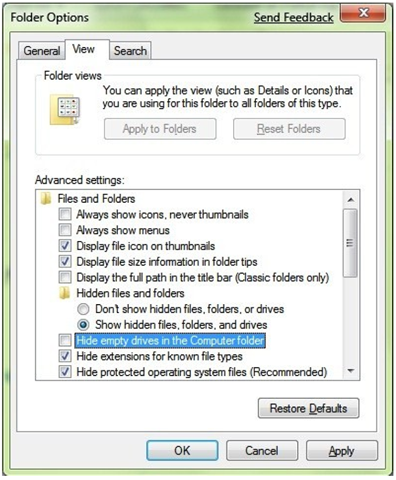
Want to see the drives that aren’t currently in use when you open My Computer? To display empty drives, click Computer → Alt to see the toolbar → Tools → Folder Options → View (tab) → Uncheck “Hide empty drives in the Computer folder.” And they magically appear!

image

Continuing my series of Windows 7 Tips & Tricks, here are seven more shared with us by Microsoft as part of the Microsoft Partner Program. Did you know you can now pin folders? Have you heard about Bitlocker disk protection and how it applies to Windows 7? How about the Windows Troubleshooting Platform? Lots of stuff to learn…

  • Tip 1: Put a “Pin Up” of the Folders You Use Most.
  • Tip 2: Double-Up Your Windows.
  • Tip 3: Clear, Crisp Display—It’s In Your Control.
  • Tip 4: Order and Reason for Your Taskbar.
  • Tip 5: Taskbar Traversing.
  • Tip 6: BitLocker To Go Protection.
  • Tip 7: Your Own Personal Help Desk: Windows Troubleshooting Platform.

Put a Pin Up of the Folders You Use Most

Windows® 7 allows you to “pin up” the folders you use most on your taskbar. Simply hold your mouse over the favorite folder, right click, and drag it onto the taskbar. Windows 7 automatically pins itself to the Explorer Jump List. To open the folder, right click on the Explorer icon and select the folder you want.

image

Double-Up Your Windows

When working within an application, sometimes you just want more of a good thing. To open another window of the same application (assuming the app can run more than one instance), simply hold Shift and click the taskbar icon. You can also middle-click your third mouse button for the same result.

Clear, Crisp Display – It’s In Your Control

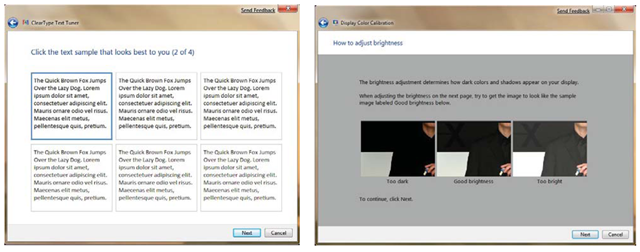
Windows 7 makes it easy for you to adjust your display settings, making text and images easier to view in all the various locations where you work on your computer. Your laptop display may look fine at work but a little dark at home. Adjust the text and image settings easily with two snappy applets: ClearType Text Tuning and Display Color Calibration. Run cttune.exe and dccw.exe, or look them up in the Control Panel. (click the screen shots for a larger view)

image

Order and Reason for Your Taskbar

You can decide the order that your icons show up in your taskbar by simply dragging them to the order you desire. And for the first five icons, you can launch them with a simple keystroke: Any of the first five icons can be opened by pressing image+1, image +2, etc.

Taskbar Traversing

While we’re on the subject of taskbar shortcuts, use image+T to shift your attention to the taskbar. Your machine will make its active screen your taskbar menu, and you can use the arrow keys to select the application you’re interested in. Just hit Enter to launch it. Naturally, to exit this trick, press Esc.

BitLocker To Go Protection

BitLocker® has become a saving grace when it comes to increased laptop security. Windows 7 has taken security even farther with its BitLocker To GoTM feature, which allows you to encrypt removable USB devices and external disks. To enable BitLocker or BitLocker To Go, right click the drive in Windows Explorer and select “Turn on BitLocker…” This can also be managed centrally via Group Policy, so IT administrators can require the USB drive be encrypted before files can be written to it.

image

Your Own Personal Help Desk: Windows Troubleshooting Platform

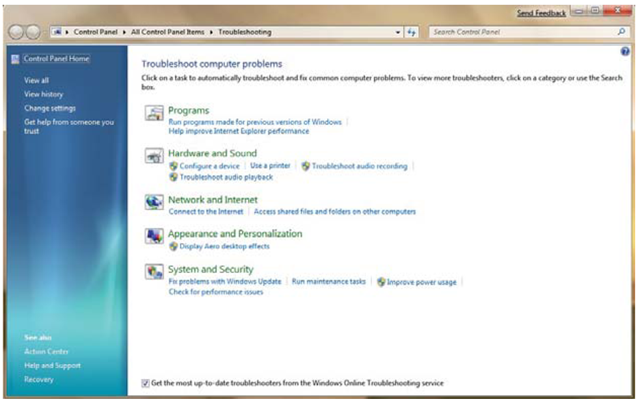
We’ve all experienced minor issues like Windows Aero not displaying or sound controls not functioning. Don’t get stuck in the mud just because your computer seems to be. Windows 7 can save you from having to bite the bullet and call the help desk for every problem that comes up, thanks to the new Windows Troubleshooting Platform. It’s easily accessed by typing “fix” or “Troubleshoot” (without the quotes) in the Start Menu. A list of Windows Troubleshooting Packs allows you to choose from what might be giving you trouble, and the troubleshooter will faithfully attempt to clear up the problem.

image