I installed Windows 7’s “XP Mode” today, which is basically a new version of Virtual PC somewhat embedded into Windows 7. It *is* a separate download, so make sure you get it on May 5 when the general public can grab the Windows 7 RC (Release Candidate). It’s about a 487 MB download. Below are the screen shots from the experience with my notes along the way. FYI, I am running the x64 version – there is also an x86 download.

Note: I go over my experience using XP Mode later on in this article. Feel free to scroll down to “Using XP Mode” if you want to cut to the chase.

Installing XP Mode

First things first, download and install Windows Virtual PC Beta. You’ll need this to run the pre-configured Windows XP hard drive, which is, interestingly, a separate download.
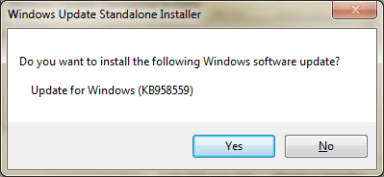
image

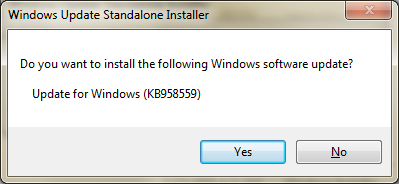
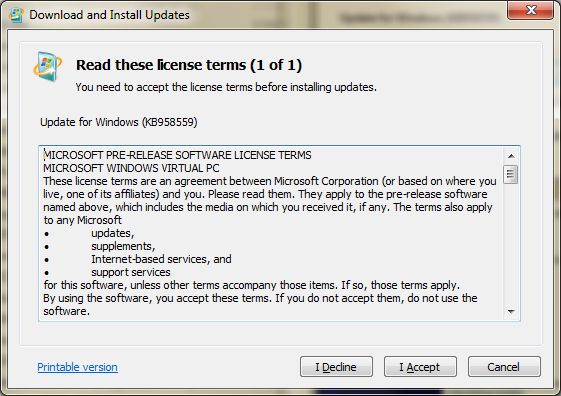
Figure 1. You’ll be asked to install an update when you launch the Windows Virtual PC installer (note that .msu extension). Windows Virtual PC is apparently an “update,” not an installer. OK, whatever.
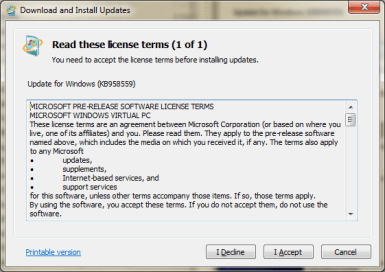
image

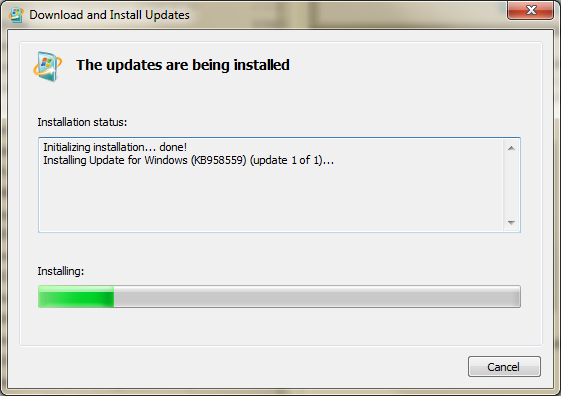
Figure 2. Agree to the EULA for the pre-release software.
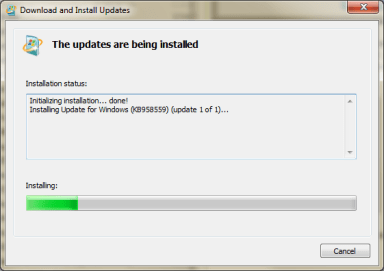
image

Figure 3. Windows Virtual PC gets installed.
image

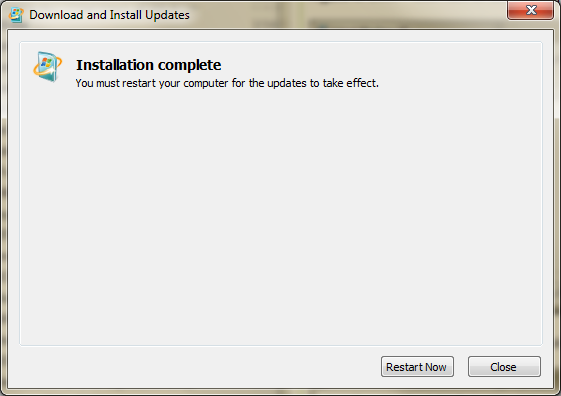
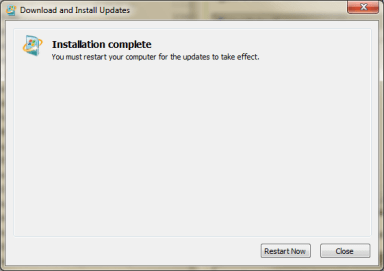
Figure 4. Aww, we have to restart. Be back in a few…

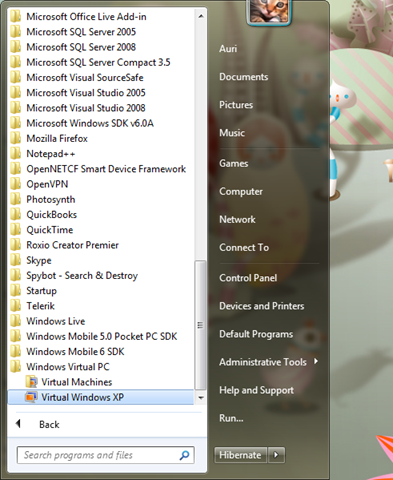
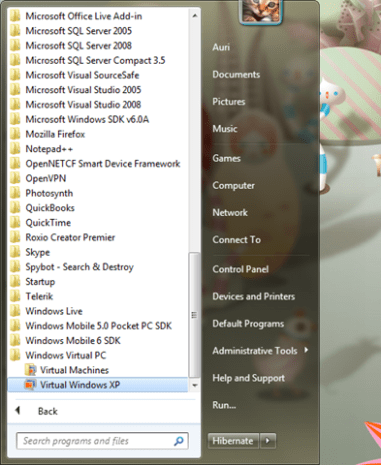
Ok, Windows Virtual PC is now installed, as you can see in the following figure.
image

Figure 5. Windows Virtual PC is installed. w00t!

Note: I, umm, accidentally installed the following XP Mode installer *first*, so my apologies if your experience in the Start menu is a little different at this point. No worries, though, I’m sure everything will turn out just fine. <wink>

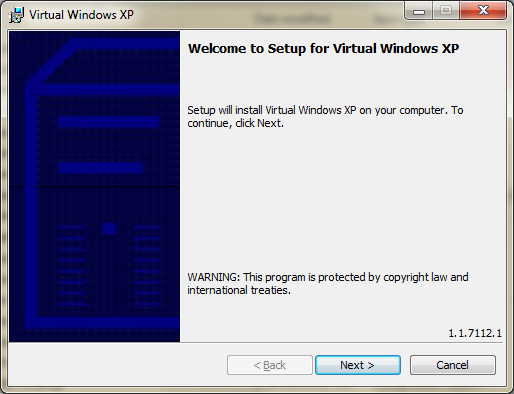
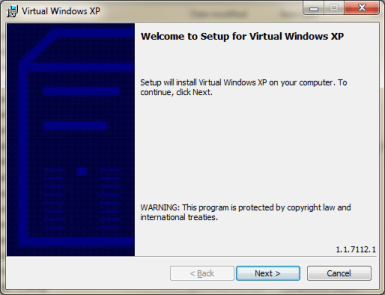
Now it’s time to install the pre-configured hard disk. Oddly enough, it’s called “Setup for Virtual Windows XP”, although it’s really the second step of a two-step process.

Suggestion to Virtual Windows XP team: Include Windows Virtual PC with the installer, basically making this an all-in-one package. I.T. administrators don’t want more installers. We want less 🙂 (for once!)
image

Figure 6. Umm – click Next to continue. Typical.
image

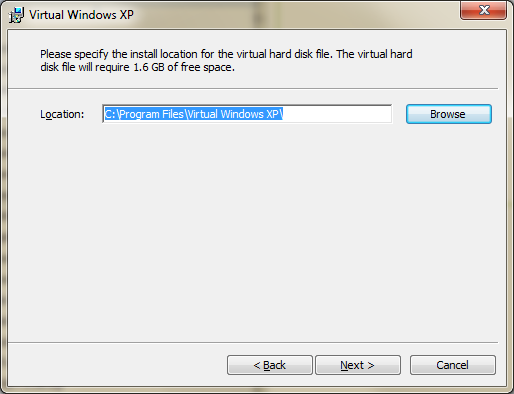
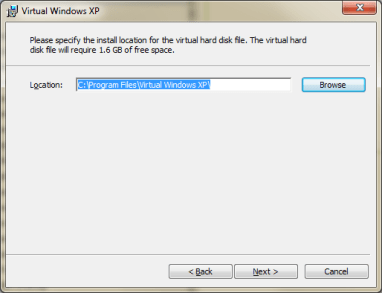
Figure 7. Choosing where to install. Typical.
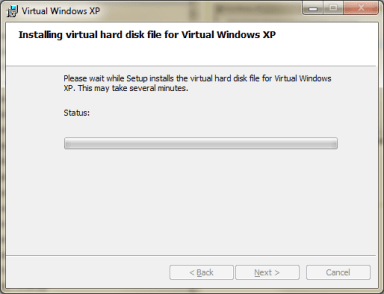
image

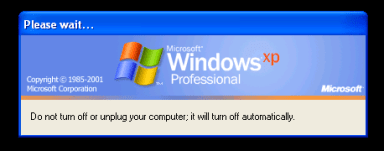
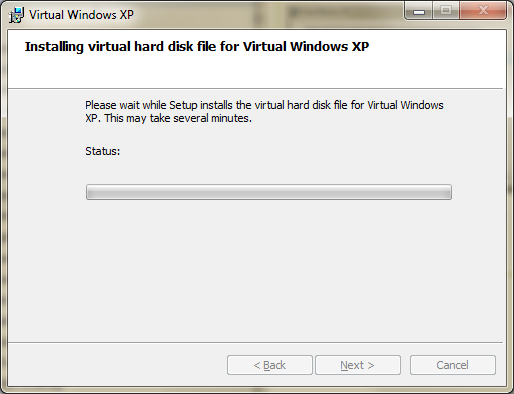
Figure 8. It’s extracting the virtual hard disk (VHD) file for the virtual Windows XP instance. Expected.

(no figure). Uh-oh. UAC kicked in. That’s OK – I’d expect a new Windows 7 feature to ask my permission. UAC isn’t really annoying in Win 7 – it’s actually OK to keep it on. UAC doesn’t let you copy to your clipboard, but that’s a bit expected, considering it’s a protected environment.
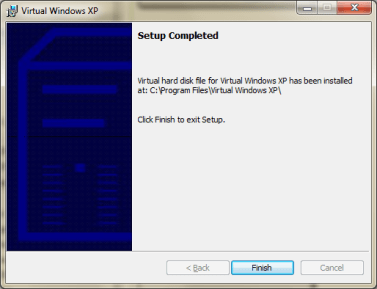
image

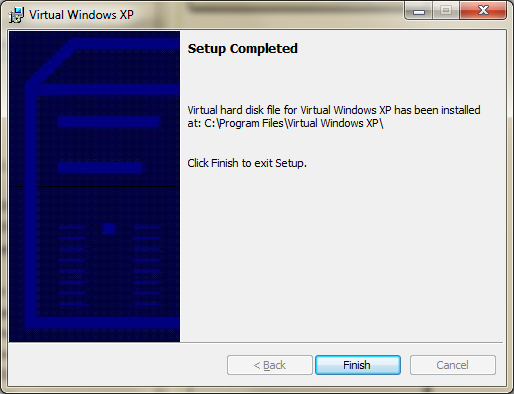
Figure 9. Windows XP mode has been installed. Oddly enough, it tells me the virtual hard disk has been installed. It mentions nothing about XP Mode being installed, except for the window title.

Suggestion for XP Mode team: Add “Start XP Mode” checkbox at this screen, please.

Alright, let’s start this baby up!

Click Windows Virtual PC in the Start menu.

image

Figure 10. Yes, the same as a previous figure. But just for good measure, showing you what I clicked.
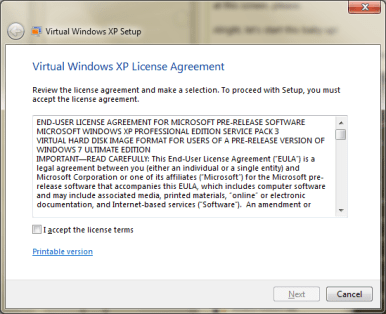
image

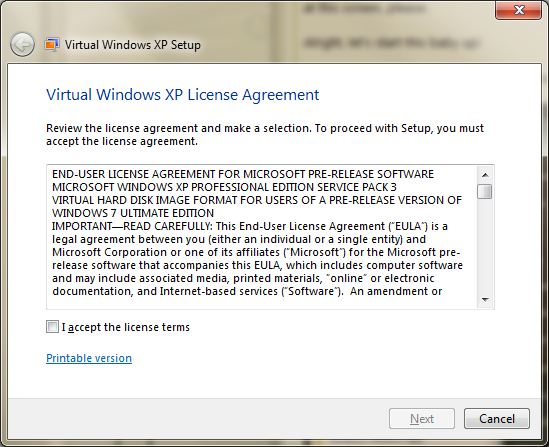
Figure 11. Accept the EULA.

image

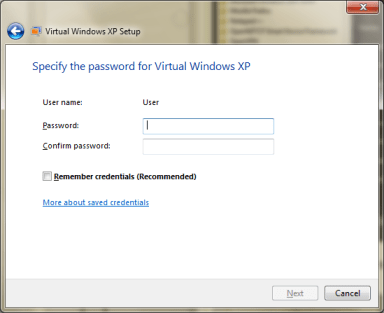
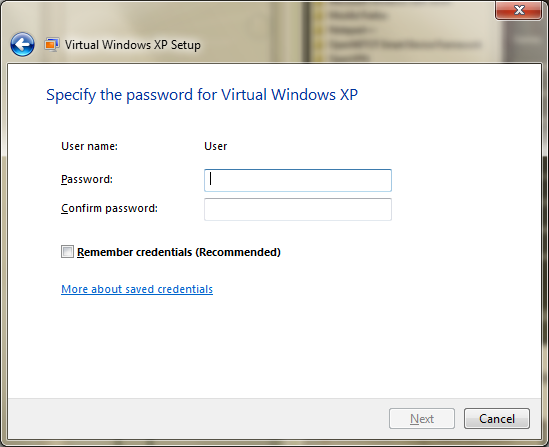
Figure 12. You have to set your credentials. Umm, the username is, well, uhh, User. I wish I could set it to something else. I.T. admins are going to ask for a change here, possibly… since this may have repercussions on domains.
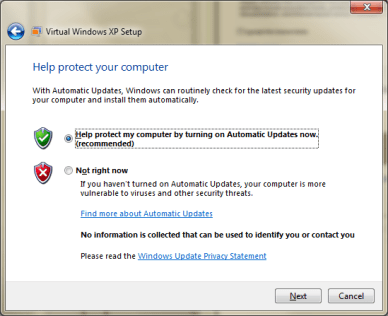
image

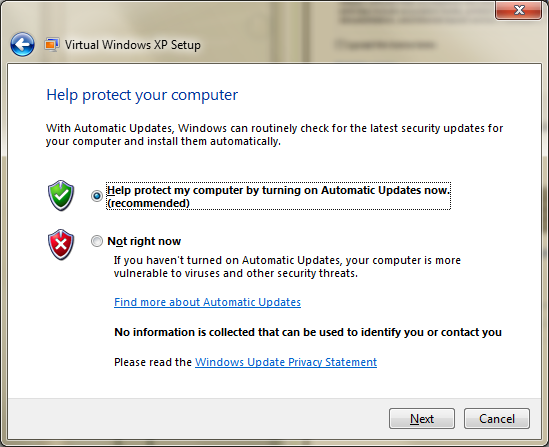
Figure 13. You’ll have to configure Automatic Updates. Shouldn’t this be on by default?

Suggestion for Virtual XP Team: Have an Express setup option to make this faster.

image

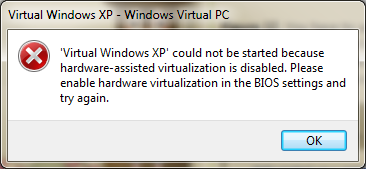
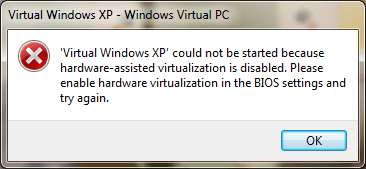
Figure 14. I got sooooooooooo far, and then it wouldn’t run. Well, this sucks. Virtual PC ran without hardware virtualization. Why can’t this version? Anyway, doesn’t mean it won’t run … just means I have to go change the setting in my BIOS. Angry Auri!
image

Figure 15. Umm, yeah. I changed the setting to enable virtualization in my BIOS. Unfortunately, Virtual Windows XP doesn’t believe me. Well, time to play with this more tomorrow… will continue in about 12 hours. Oh, before I go to bed (or drink… you choose), I want to let you know I had to go through all those config steps again. It’s annoying, but just so you know… I can see their reasons for doing it, though.

I’m going to shut down my machine, just in case I should have powered off after changing my BIOS setting.

Using Windows XP Mode

[12 hours and many zZzZs later]

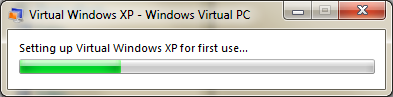
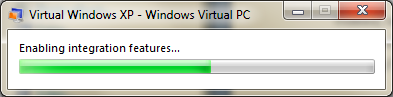
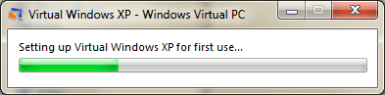
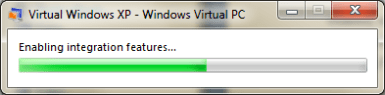
Alright, I’m up. This time I took a different approach and selected Virtual Machines from the Windows Virtual PC folder and double-clicked the Windows XP virtual machine. Seems to be working! It looks like shutting down and restarting again may be what fixed my problem. It appears Windows Virtual PC is setting up Windows XP for first-time use. Good!
image

image

Figure 16. Virtual Windows XP configuring itself. I wonder if there is a way to come up with other virtual machine auto-configurations. This would be helpful for running other OS’ on top of Windows 7. Hmmm!

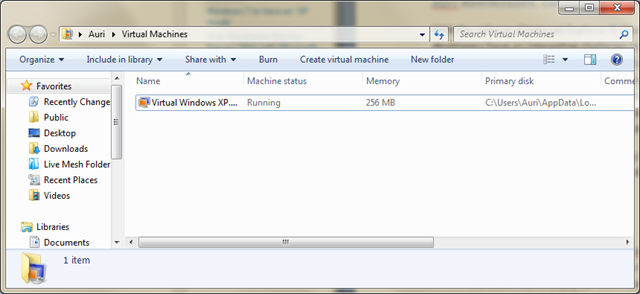
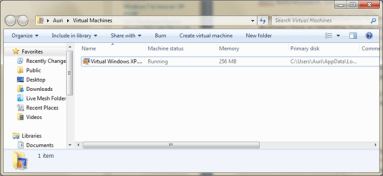
Note the My Virtual Machines folder. This is cool – it tells you the running state of virtual machines. Nice touch! I wonder if this will make it into Windows 7 Server … probably.
image

Figure 17. “My Virtual Machines” folder.

Suggestion for Windows 7 Team: Why did you add the “My” back in to all the main folder names? We have My Documents, My Videos, and so forth. They were gone in Vista. This should be an option you can disable because I’m used to the other way after having used Vista for two years! Now my keyboard shortcuts for accessing folder names don’t work anymore 😛

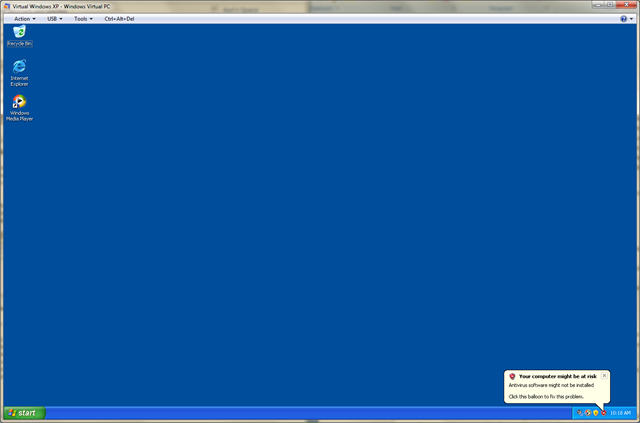
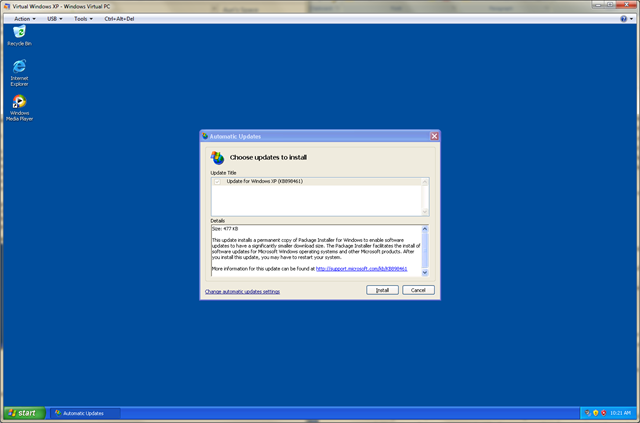
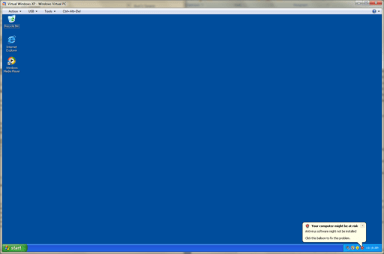
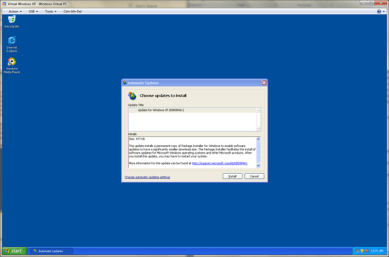
Ok, Windows XP has started up (see Figure 18)! Interestingly enough, there’s no antivirus software in there. I was also greeted with Windows Update letting me know there’s already an update available. Cool, let’s try that out (see Figure 19).
image

Figure 18. Virtual Windows XP is up!

Note: If you want to get free antivirus, go to www.avast.com and download the Home edition. It works great.
image

Figure 19. There’s an update available. KB898461. It does not require a restart.

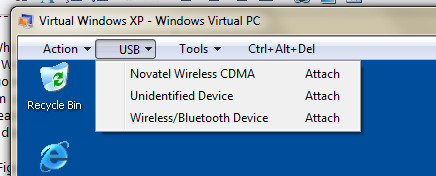
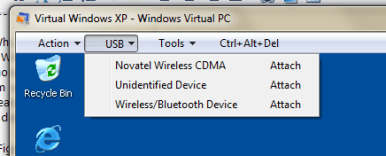
This new version of Windows Virtual PC supports USB devices (see Figure 20). Cool! Now I don’t have to pay for VMWare to get that feature 🙂
image

Figure 20. USB support. Finally!

A few notes about XP mode:

  • IE 6 is installed by default. Specifically, 6.0.2900.5512.xpsp_sp3_gdr.090206-1234.
  • Everything’s very snappy and responsive.
  • You can dock Virtual Windows XP and it will resize appropriately. Cool.
  • It does not appear that all clipboard functionality works when in “full” Windows Virtual PC mode. For example, I tried Alt-Print Screen to get some dialogs into this blog post and they didn’t come through. The Start key also wasn’t caught. However, in “fusion” mode, where you launch apps from the Start menu, Clipboard appears to work fine!
  • Full screen mode is accomplished by maximizing the window. image + Up Arrow accomplishes the same, but does not toggle back.
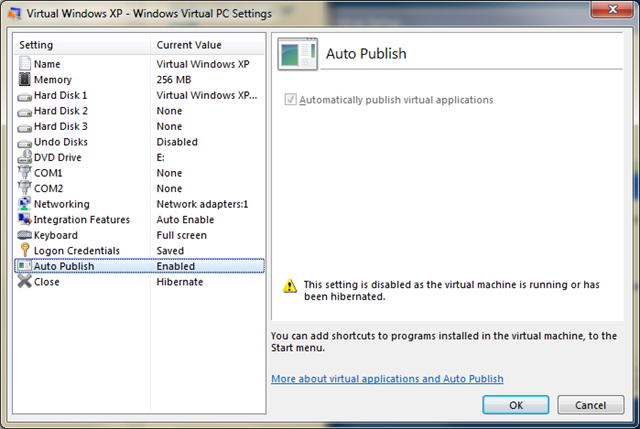
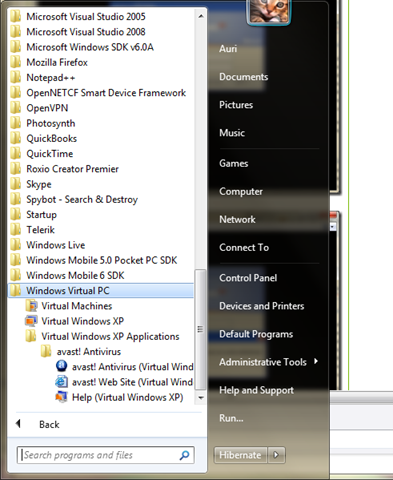
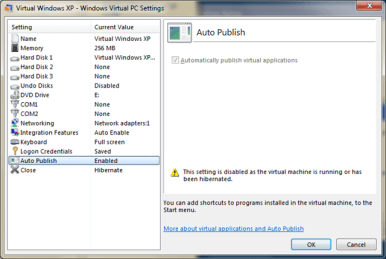
  • You can have programs installed in XP Mode “auto publish” to your Windows 7 programs menu (see Figure 24). That’s cool. This feature is enabled by default.
    • Once an application is installed, you can launch it right from the Windows Virtual PC menu and it runs like any other app (more on that in a bit).
  • The default amount of memory associated with the virtual machine is 256 MB. I.T. admins may want to expand this for resource-intensive apps, but it’s probably fine for the most part.
  • You can assign COM ports to physical serial ports, text files, or named pipes. This may be helpful for legacy hardware.
  • The .NET Framework is not installed by default. Make sure you install this if you have .NET apps to run (you probably do!).
  • Internet access / Network access appears to work “out of the box,” with no special configuration required for a DHCP connection. I was connected via wireless and was able to get online instantly.
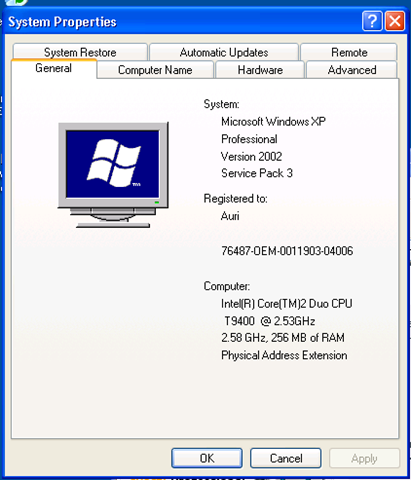
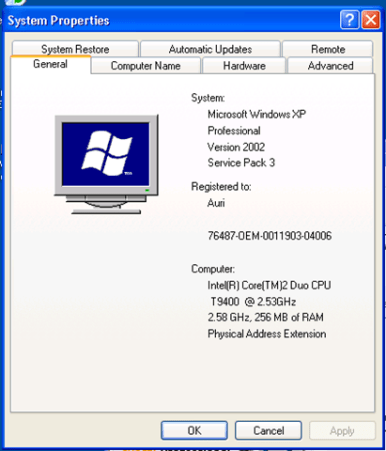
  • The processor used for the virtual machine appears to be the same processor on your machine, instead of the generic processor used in Virtual PC. You’ll see below my Core 2 Duo T9400. This is nice, but may have an impact on multi-platform deployments where disk images are used. Feedback on your experiences here would be appreciated.
image

Figure 21. It’s Windows XP SP3.

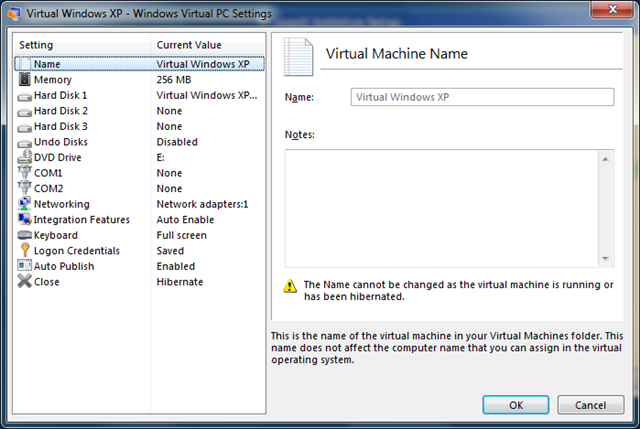
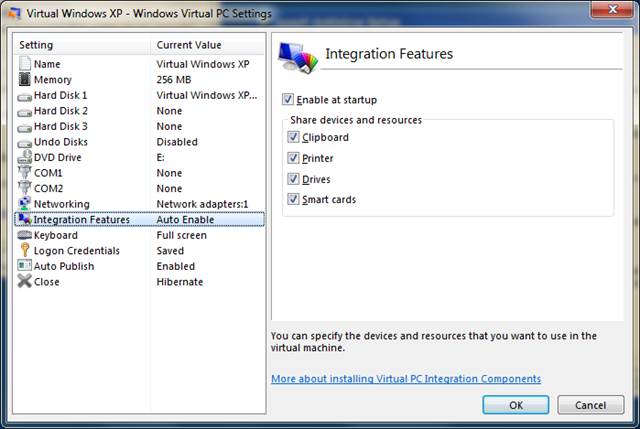
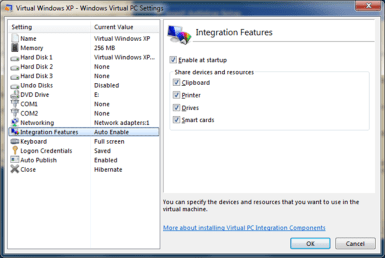
Now it’s time to explore the settings (see Figure 21) and integration features (see Figure 22) of XP Mode. These are accessed from the Tools menu of the window.

image

Figure 22. The Virtual Windows XP virtual machine settings box.
image

Figure 23. The Integration Features settings.
image

image 

Figure 24. Auto Publish mode lets XP Mode integrate installed programs into the Windows 7 programs menu. Items are placed in the Windows Virtual PC folder.

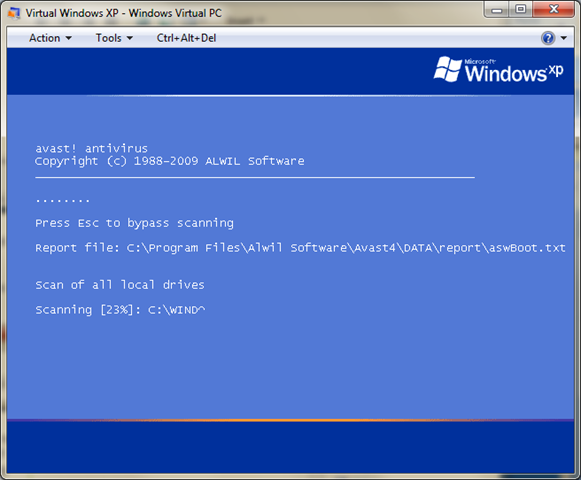
I installed antivirus and had to restart… Let’s see what happens on a boot-time scan.

image

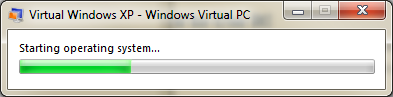
Figure 25. OS startup progress bar. Note that I don’t see the text that would normally appear on the boot-time scan. I wonder if there is a way to override this to see what’s actually happening.

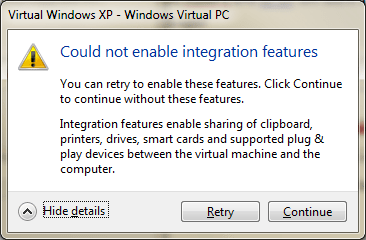
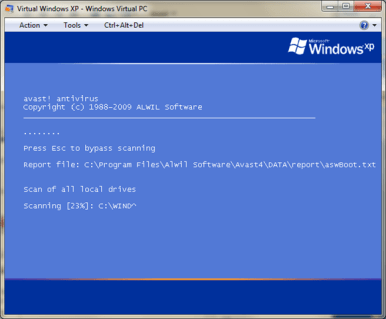
After restarting, I received an error message that Integration Features could not be enabled (see Figure 26). I wonder if the boot-time scan broke it, or if it was the antivirus – the only thing I installed. I clicked Retry and it restarted the operating system and that didn’t work. I clicked Continue and saw what was causing this… my boot time scan from Avast antivirus (see Figure 27).

Note to I.T. Admins: A boot-time chkdsk will probably cause this problem, too.

Note that, with integration features off, Windows Virtual PC “captures” your mouse if you click in the window. You can press the “right” Alt Key and it should release the mouse. However, for some reason, that didn’t work on my Dell. Pressing the Windows key or Alt-tabbing to another window worked, though…

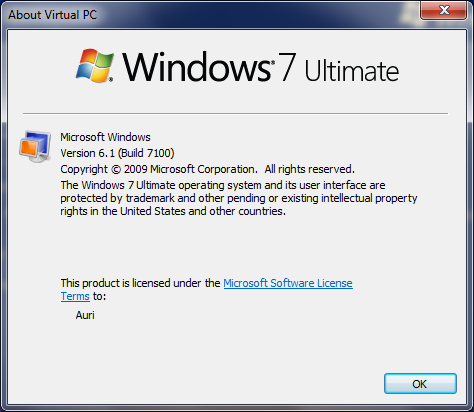
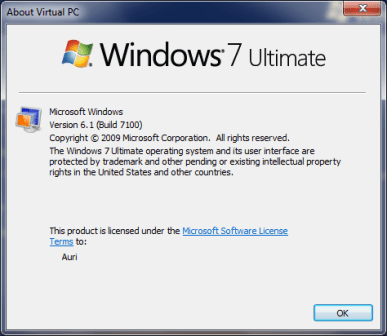
While waiting for the looong scan to take place, I snooped around the help area. I found “About Virtual PC” instead of “About Windows Virtual PC.” Also, has anyone noticed Windows 7 points out that its interface is trademarked? I don’t recall that in earlier versions of Windows (see Figure 28). I wonder if Microsoft is going to be more aggressive in protecting its UI innovations.

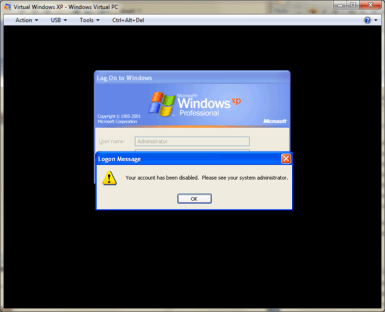
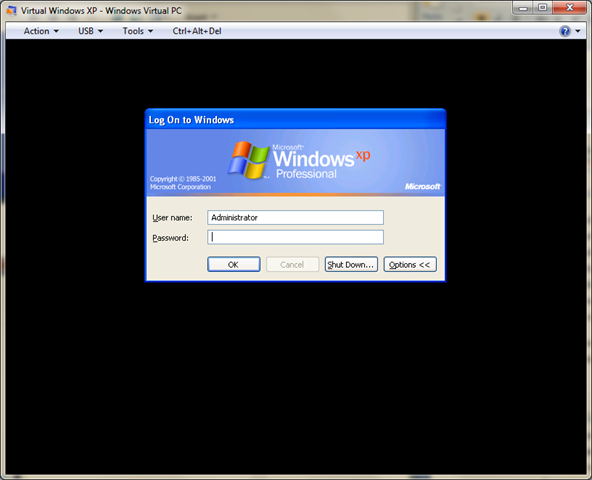
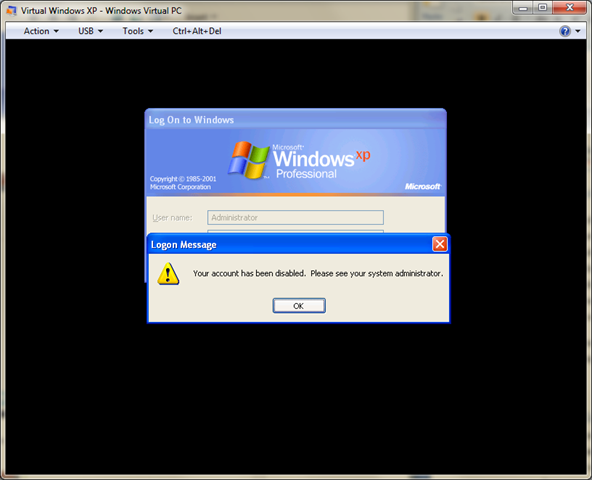
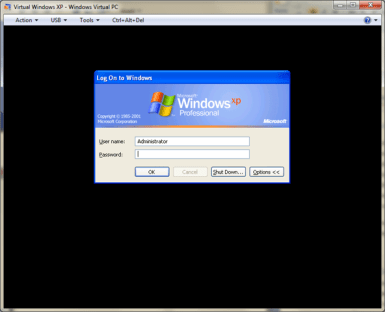
After the scan was complete, I was brought to the Windows login screen. Normally this is bypassed. FYI, this appeared to be a workaround to login as an administrator (see Figure 29). Unfortunately, when I tried to log in, I found out the administrator account had been disabled.

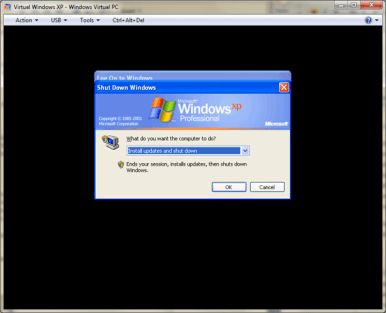
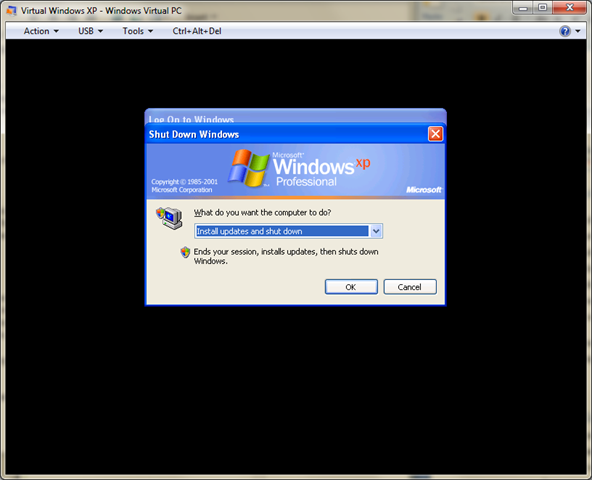
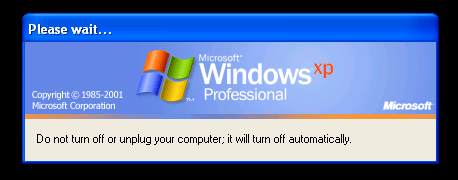
I decided to shut down so I could see if Integration Mode would re-enable, and was surprised to find XP wanted to update again.

Anyway, I restarted and integration mode worked just fine.
image

Figure 26. Apparently something broke my integration features.
image

Figure 27. I.T. admins beware… integration features can’t be enabled if something runs before they’re enabled.
image

Figure 28. The Windows interface is trademarked, as stated in the About Virtual PC dialog.
image

image 

image

image

Figure 29. With Integration Features off, it appears you can log in as Administrator. However, that account is actually disabled.

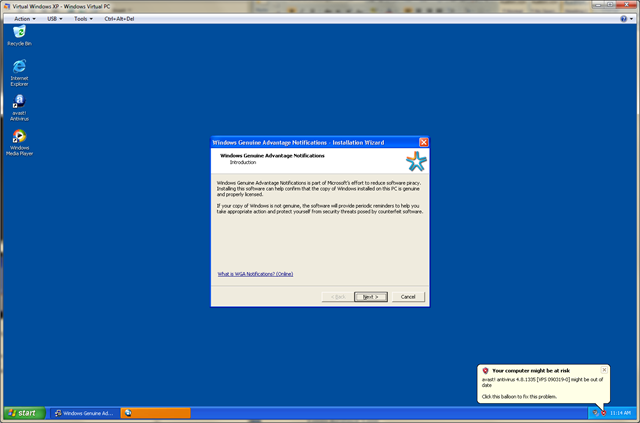
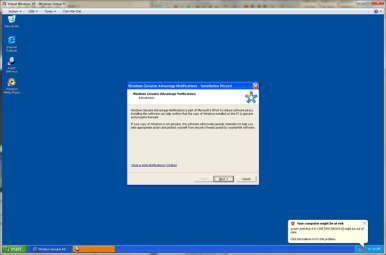
After the 6 updates were installed and I rebooted, I was greeted with the Windows Genuine Advantage (WGA) acceptance dialog (see Figure 30). Hmm.
image

Figure 30. Shouldn’t WGA be installed, configured, and accepted by default?

Launching XP Applications from the Windows 7 Start Menu

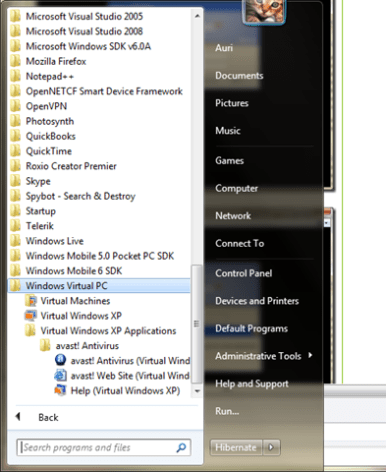
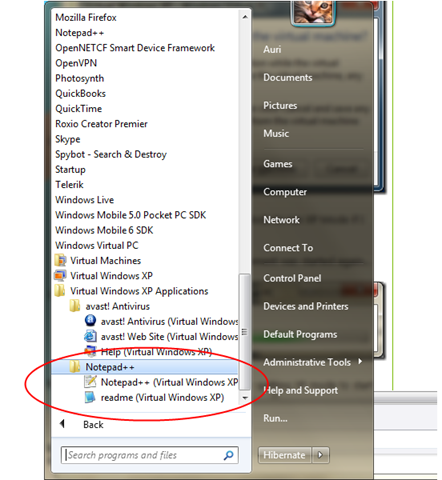
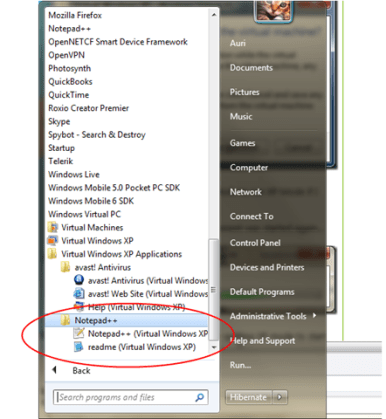
You do not need to run Virtual Windows XP in a window to use XP apps – that would be silly. Instead, to launch an application in XP mode, simply select the app from the Virtual Windows XP Applications program group in Windows 7, as shown in Figure 31 and the app will start right up.
image

Figure 31. The Virtual Windows XP Applications program group shows all the programs you have installed in XP Mode. Note that this does not include applications you have not installed yourself, such as any default software like Notepad.

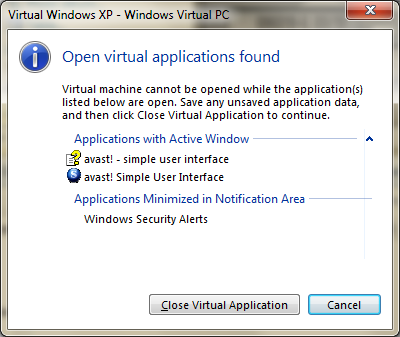
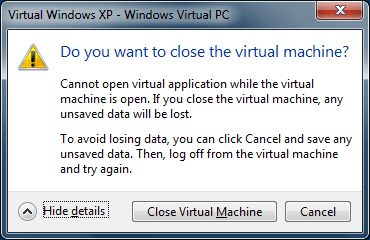
Slight Gotcha: You would expect that, if the XP Mode virtual machine is running, you should be able to just run applications from your Windows 7 start menu and it should run in XP Mode. This is not the case, as shown in the dialog box I received when attempting to do just that (see Figure 32).
image

Figure 32. Huh? I have to close XP Mode to run XP Mode if I started it separately?

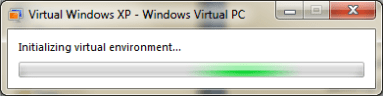
I clicked close, and the Virtual Environment was started again, but it only took a few seconds…
image

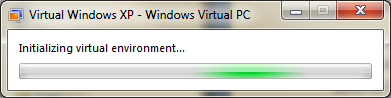
Figure 33. Starting up XP mode after quitting XP mode to start XP mode. <grin>

Ok, this is cool. The app DOES run like it’s integrated into Windows 7. Nice! It’s just like a regular app! Sweet! Yes, I know it’s a bit sadistic to run my XP antivirus app instead of a real app. Great way to trick people.

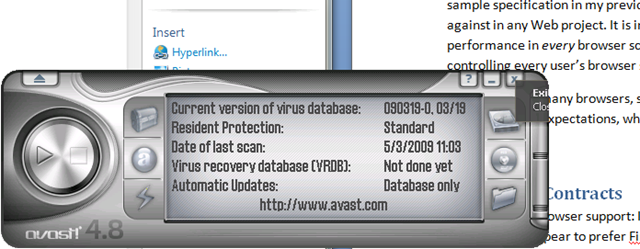
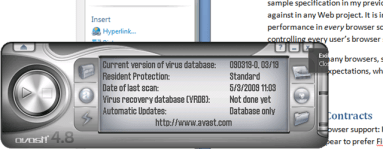
Note that these applications run in the XP Mode sandbox, so you may get occasional graphic glitches (see cut-off tooltip in Figure 34).
image

Figure 34. Running my XP Avast in Windows 7.

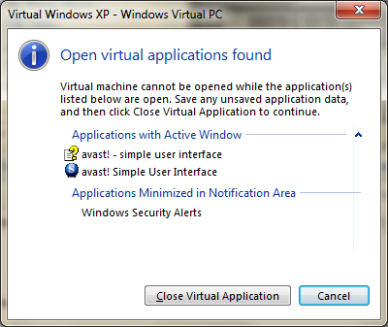
You cannot install software in XP mode if an XP app is running (see Figure 35). You either run the full virtual machine or XP apps. You can have multiple apps running, of course. So, make sure you do all your installations first, or you’ll just be annoyed.
image

Figure 35. If you try to run the virtual machine to install software, you’ll have to quit the running XP apps first.

image

Figure 36. Alt-Print Screen actually worked when running an XP app by itself. Cool – I thought this was broken, but it appears to only have been a problem in “full” virtual machine mode, which you likely will only use to install applications.

Switching modes isn’t a bad experience. XP Mode keeps running, and switches modes very quickly, so there really isn’t much of an annoyance factor.

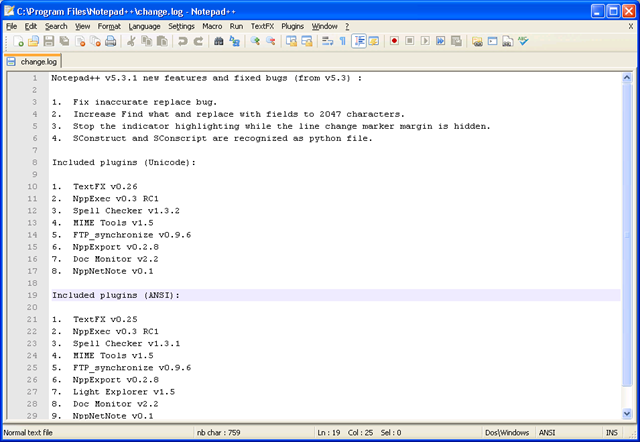
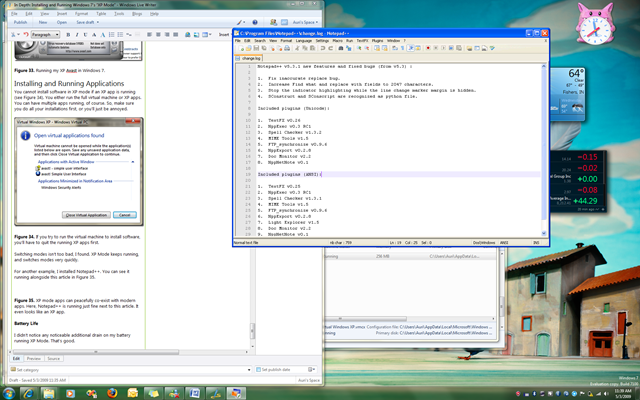
For another example, I installed Notepad++. You can see it running alongside this article in Figure 37.

image

Figure 37. XP mode apps can peacefully co-exist with modern apps. Here, Notepad++ is running just fine next to this article. It even looks like an XP app.

Battery Life

I didn’t notice any noticeable additional drain on my battery running XP Mode. That’s good.

Moving Forward

Overall, the process took about 2 hours to fully configure. I hope there will be a more automated way of installing XP Mode and its default legacy corporate applications. Please, please, please.

XP mode appears awesome, though. The app switching aside, the fusion of XP and modern apps running side by side is nothing short of spectacular. This is partially because, for one of the few times in software, what was expected is what has been delivered. Extending the incredible Windows 7 experience, XP mode gives corporations the bridge they need to move their people to modern systems with mitigated risk.

At this point, I think it would be good to see the feedback from the XP Mode team on their approaches to XP compatibility in Windows 7. If any of them are reading this article, I’d appreciate to a link to their blog! 🙂

Do you have comments, feedback, suggestions? Please post a reply here!

image

Well, I was shopping for a Jawbone 2 and found this deal:
http://www.n1wireless.com/product.cgi?group=19490&product=31650

Enjoy!

Best,

-Auri

Ok, I received a promo email full of Lexus specials today. I like my Lexus, but I’m not buying another one anytime soon. Lucky for me, I am going to buy Sushi soon! This great article was included in the email and caught my interest… (article source here)

(reproduced without permission, please don’t sue me :))

If You Knew Sushi (Like We Know Sushi)
Getting hooked on the “Lexus” of Japanese cuisine.

When we refer to a “Japanese delicacy,” we are not referring to your Lexus; we’re talking about sushi, arguably the “Lexus” of Japanese cuisine. Recently, Lexus Magazine encouraged us to get to know sushi with an article entitled, “10 Sushi Dining Tips.” Now that you know how to eat sushi, here’s some background on what you are eating!

Like many cuisines, sushi comes from rather lowly beginnings. The practice of eating raw fish can be traced back to the 7th century when the Japanese picked up the art of pickling fish from the Chinese. It consisted of packing fish with rice. As the fish fermented, the rice produced a lactic acid that accomplished the pickling process. They called it Nare-Sushi, the 1,300 year-old practice of the pairing of fish and rice.

While Nare-Sushi resulted in a tasty, nutritious and healthful meal, the process took too long, anywhere from two months to a year, tedious even for the ultra-patient Japanese. By the 15th century, there was an alternative referred to today as Nama-Nare, a faster way of pickling fish using rice. Nare-Sushi and Nama-Nare are the forerunners of what we now call sushi.

Thanks to the Japanese flare for invention, sushi became an art form practiced by master preparers, many of whom added a lasting flavor to the delicacy. For example, Matsumoto Yochiichi of what is now Tokyo introduced the use of rice vinegar, an ingredient that not only further quickened the pickling process, but contributed a pleasant tartness to the dish.

The “modern” form of sushi was developed in the 1820s by Hanaya Yohei, the Tokyo sushi vendor credited with combining raw fish with traditional sushi. Instead of meal-size portions, Hanaya sold bite-size portions from a sushi stall near the Tokyo fish market. His morsels are arguable the first recorded examples of “fast food!” Hanaya prepared his sushi on the spot using the freshest fish just like the sushi chefs of today. His “sushi snack bar” was an instant hit and the inspiration for the sushi bars of today.

In Japan, sushi is the most serious of cuisines requiring years of training and study before chefs are considered qualified to serve it. A minimum of 10 years of learning and apprenticing was considered the minimum qualification for an Itamae-San (expert chef) specializing in sushi.

The advent of trans-cific airfreight in the 1970s made it possible to enjoy sushi in the United States. Americans embraced the art form and became knowledgeable sushi gourmets. Among the more popular forms of sushi are Nigiri-Sushi (hand shaped sushi), Oshi-Sushi (pressed sushi), Maki-Sushi (rolled sushi) and Chirashi-sushi (scattered sushi). The differences in various types of sushi are not so much due to form, but to the ingredients and the theatrics of their preparation.

The best sushi experience dazzles the eyes and delights the taste buds. The Itamae-San prepares sushi with the flair and precision of a master craftsman. As you observe its preparation, the sushi chef will proudly stress the freshness of his fish and shellfish. The array of bright colors, shapes and garnishes are as fascinating as the varieties of flavors and sensations.

Unfortunately, the sushi bar has taken on an air of intimidation, at least for the novice. This is why Lexus Magazine published the article, “10 Sushi Dining Tips” based on the advice of Trevor Corson, author of The Story of Sushi, a fascinating book covering every aspect of sushi.

  1. Sit at the bar—this is traditional, and lets you watch the preparation, which is part of the overall experience. It also enables you to interact with your chef.
  2. Order omakase (literally “I leave it up to you”)—you can expect a unique experience, but also a higher bill (it’s OK to suggest a budget).
  3. Don’t mix wasabi and soy sauce for dipping—the chef should have already seasoned the sushi for you. Dipping in a little soy is OK, and if you particularly like wasabi, you can ask the chef to use more.
  4. Eat nigiri (the rice rectangles topped with fish) with your fingers: it’s customary, and lets the chef pack the rice more loosely—which is correct—instead of packing it to accommodate chopsticks.
  5. Turn nigiri fish-side down in your hand to help prevent it from falling apart (especially important if you choose to dip).
  6. Eat ginger only between courses, as a palate cleanser.
  7. Don’t be afraid to experiment. Many people stick with firm, smooth-textured fish, and thereby miss out on other interesting flavors and textures.
  8. Sushi rolls are an American invention that, ironically, has made its way back to Japan. Avoid rolls that contain nontraditional (and unhealthful) ingredients like mayonnaise and sweetened sauces.
  9. Avoid fish that is unsustainable or improperly farmed (see our Sustainable Sushi article for insights from sushi expert Trevor Corson).
  10. It’s traditional to order miso soup at the end of the meal—it aids digestion.

So don’t be intimidated by the sushi bar. Enjoy!

Have you been worried about Windows XP app compatibility in Vista and Windows 7? Is it holding you back from an upgrade? Microsoft may have a trick up its sleeves with Windows 7’s “XP Mode”. Taking advantage of a technology called “virtualization,” which runs one operating system as a “guest” on top of another operating system (the “host”), Microsoft can launch applications and they’ll run using Windows XP, right inside of Windows 7!

A beta of Windows XP Mode should be released to developers and partners next week, and to the general public by May 5, alongside the Windows 7 Release Candidate, so you should be able to get your hands on this for a test drive soon.

A bit of history: Apple had to do this with “Classic” mode in Mac OS X. It was a kludge, but virtualization technology was in its infancy at the time. Apple’s solution could only share files and, to a limited extent, the clipboard. Classic mode didn’t support Mac OS X printers, user settings, and so forth – so it was quite a hassle to run the old Mac OS 9 apps on Mac OS X.

Microsoft, having purchased Connectix, makers of Virtual PC, and given the benefit of time, has learned a lot about virtualization, and has been steadily improving virtualization support in Windows.

So will you be able to work with your Windows XP Mode apps just like regular apps running in Windows 7? You shouldn’t have a problem. This is shown to a good extent in “Unity” mode in emulation apps on the Mac like VMWare Fusion and Parallels. This mode runs Windows apps as though they’re running on the Mac desktop, although it’s not perfect, considering the OS differences (see Figure 1 for an example). Windows XP apps should run side-by-side just fine with Windows 7 apps, and you should technically be able to switch between them with no issues.

Now, most applications today run perfectly fine in Windows Vista and Windows 7. However, this is a great solution from Microsoft to address the needs of those holding out on upgrading their XP installations due to legacy hardware and software concerns. Some solutions just plain need Windows XP. It’s good to see Microsoft doing something serious about this, rather than just telling everyone to upgrade their software. Yes, Microsoft understands that upgrading software isn’t always an option.

No details on the licensing side have been announced so far. This means we don’t yet know if you’ll need both a Windows 7 and a Windows XP license. My guess is you’ll have to enter your old Windows XP license key to “activate” Windows XP mode, and it will just run transparently, like when you use Compatibility Mode in Windows Vista (see figure 2).

I’m definitely curious about how drivers will be handled, and where they get installed, and how application installations are managed.

There’s a great article by Ina Fried over at CNet, so click here to read that article for more information.

image

Figure 1. VMWare Fusion’s “Unity” mode running Windows and Mac apps on the same Mac desktop.

Compatibility Mode in Windows Vista

Figure 2. Will Compatibility Mode in Windows 7 be tweaked to run Windows XP in a virtual machine? I hope it’s this easy!

In a tough economy, free is better than cheap. Luckily for us in the Windows world, there are a lot of completely free, and reliable, applications for us to choose from. Be it productivity software, painting, email, browsing, instant messaging, or many other areas, you can find what you need. CNet’s Download.com has compiled a great list of many products. They call it the “Windows Starter Kit,” but I think it’s more of a one-stop-shop for finding great applications for your PC. I have raved in the past about Download.com, especially since they promise adware-free downloads. That’s cool.

Check out the article at: http://download.cnet.com/8001/2701-19409_4-2-1.html?tag=page;page

Below are the categories they cover in the article:

  • Office and Productivity (word processing, database, spreadsheet, presentation, PDF, and more)
  • Email clients
  • Web Browsers (although IE 8 and Firefox are my favs right now)
  • Image editors and screen capture
  • Music jukeboxes (I don’t personally like iTunes much anymore, preferring Zune instead, but that’s just my 2c, and CNet loves Apple)
  • Video jukeboxes and playback
  • File compression/decompression
  • Instant messaging, Twitter clients, and the like
  • Bit torrent software (although I’m against piracy, which is what most P2P software is used for, I’m listing it here because it’s in the article)
  • Disk utilities (disk defragmenters, process monitors, and more)

Now, they left out a many great applications and utilities:

  • Microsoft’s Zune – talk about a great music player, and the subscription plan is hard to beat.
  • Trillian Lite – A good all-around instant messaging app that supports AIM, MSN, Yahoo, IRC, and other protocols.
  • Microsoft’s Live Software – A complete suite of incredibly robust and free software from Microsoft. Like Apple’s iLife, but with more functionality, and greater breadth. Did you even know about half this stuff?
    • Live Photo Gallery – Manage your photos, touch them up, create panoramas, share on Facebook and Live Spaces.
    • Live Movie Maker – Create movies with an easy point-and-click interface. Then publish to disk, disc, or the Web.
    • Live Mail – Easy to use and supports all types of mail systems, including Hotmail.
    • Live Messenger – A great instant messaging application, supporting video and audio chat, customized themes, and more. Winner of the 2008 CNet Editors Choice award.
    • Live Writer – The best blogging tool out there. Hands down, this software rules.
    • Live Mesh – Effortlessly sync your files across all your systems, remote access all your computers, all with Live Mesh.
    • Live SkyDrive – Share your files with co-workers, friends, and family. 25 GB of free space. Nice.
    • Live Family Safety – Control how your kids access the Internet. Limit searches, block or allow Web sites, control chats in Live Messenger, and more.
    • There are many other Live products, too, so check it out at download.live.com.

Do you have any great free products you’d recommend? Post those recommendations in the Comments!

Best,

-Auri

Have you ever been to a meeting, only to be hit with many text message interruptions? Have you been at work and received messages, and you just *have* to respond? What about being out to dinner, and text messages come flying in?

Wouldn’t it be nice if you could tell them all you’re busy? Just like an instant messenger?

Well now you can. Introducting Mobliza, my free utility to save you from being rude.

Get it now: http://get.mobliza.com

Mobliza installs on any Windows Mobile 6 Professional device, like an HTC Touch Pro or AT&T Fuze. I haven’t tried it with dozens of phones, but it should work fine.

Mobliza has three modes:

AWAY: Automatically create canned messages to tell contacts you’re away. Simply check the Away box and you’re done. Mobliza tracks all the texts that come in, and you can respond if you need to.

image

AUTO: Just for fun – have Mobliza carry on conversations all by itself. Just make sure you’re cool with a computer doing the chatting for you. Seriously.

MOBLIZA: Basically this is the Auto mode, but between you and Mobliza instead of someone sending texts to your phone. It’s more of a game. Try "tell me a joke".

I hope you get a lot of use from this app. It’s saved me in a lot of meetings, when driving, and at dinner.

No longer will you have the urge to respond to every text message when you’re busy doing something else!

Mobliza is Copyright (c) The Auri Group, LLC, a Microsoft Gold Certified Partner.

At MIX ‘09 Microsoft showed off SuperPreview, an incredible tool for Web developers looking to make sure Web sites look the same across all browsers. SuperPreview can cut development and design testing time significantly with these awesome features:

  • Preview ASPX, PHP, JSP, and HTML Web pages as rendered by different browsers side-by-side
  • Previews can be generated by IE6, IE7, IE8, FireFox, and even Safari!
  • Highlight areas in one preview and see them highlighted in the other preview, so you can see where DIVs are having issues
  • Overlay previews on mock-ups or on other previews to see alignment issues – way cool
  • Save development time and client budget by giving this tool to your design and testing teams
  • Much, much more, and it’s FREE

Side by Side Previews:

image

PHP and ASPX pages in SuperPreview: (note these images came from Microsoft’s SuperPreview Features Page)

image

There are obviously some limitations, especially since this is only a beta release, but this should be in your development arsenal.

image Download it here: http://www.microsoft.com/downloads/details.aspx?FamilyID=8E6AC106-525D-45D0-84DB-DCCFF3FAE677&displaylang=en

Microsoft also showed off Expression Blend 3 Preview, with a Sketch Flow feature. Simply “sketch” your site pages with simple WPF controls, and fill in the blanks. Yes, an entire site shell built quickly, with no code. How cool is that? Thanks Microsoft. (to be fair, the Sketch Flow feature was not included in the beta, bummer)

There’s a lot more to be learned, with oodles of videos to watch – just visit the MIX ‘09 site.

Best,

-Auri

Apple’s really been strutting their multi-touch patent power lately. Their legal dogs are on Palm, Google, and maybe even Microsoft. Don’t violate our multi-touch patent!!! But wait… didn’t the movie Minority Report show practically the same gestures? Can Apple patent in 2008 something that’s already been materially presented in 2002, and on the big screen to millions of viewers, no less?

I’d love to hear your comments!

Did Apple Steal Multi-touch Patent from Tom Cruise's Actions  in Minority Report

Ok, at first I thought the issue was the fingerprint reading software. That’s not the case, and I have since deleted that post.

The real problem was a process named APOINT.EXE. It was preventing me from selecting multiple items with my Control key.

To fix the problem:

  1. Launch System Configuration Manager by going to Start, then Run, then typing MSCONFIG
  2. Click the STARTUP tab
  3. Uncheck the box next to the item named ALPS POINTING-DEVICE DRIVER and with the command APOINT.EXE.
  4. Click APPLY and then OK.
  5. Restart your computer. You may have to restart twice.
  6. Problem solved!

I hope this helps!

Best,

-Auri

For those of you who want to relive the lost art of keyboard jockeying, here is a great video I found going over useful keyboard shortcuts in Vista and Windows Explorer. Credit to Tech Republic for this great segment.

The link he discusses in the video for the "76 Keyboard Shortcuts in Windows Vista" can be found here.