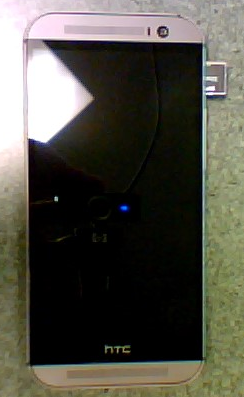
Alright, I found a Moto 360 and I’m enjoying it. The following is not my review. It is a list of bugs Motorola and Google need to fix on this device and across Android Wear. Note this is only what I’ve noticed after one day. I’ll post more as I explore.

  • When you take the phone out of the box, it doesn’t turn on or has a low battery. That’s understandable. What’s not alright is no prompt about the battery level or what to do. It’s simply “Connect your device to Android Wear,” or something to that effect. That’s very un-user-friendly. Where were the UX guys with the setup process?
  • Only one watch face shows the date. $250 and no date? Seriously?
    • Update, thanks to Rich DeMuro: Drag down slightly to see the date.
  • When asking the watch to make a call to a contact with more than one number, it asks "Which One?" However, it doesn’t give you a list. Saying "the first one" works, but I don’t know what I selected until it dials.
  • There’s no confirmation request when sending a text… it just sends it.
  • It sometimes stops listening or lists your options when listening.
  • It sometimes starts listening when it shouldn’t.
  • Carrier messaging apps break the ability to reply to texts. I had to disable Verizon Messaging entirely.
  • Facebook support for displaying the new comments would be nice, like the email display feature.
  • There’s no battery level meter anywhere on the device, or at least that’s obvious.
    • Update, thanks to Rich DeMuro: Drag down slightly from the top to see battery level.
  • The Android Wear app doesn’t show battery level, but Moto Connect does. Weird?
  • Sometimes Google search results take precedence over actions. For example, saying "play ebay by weird al" brings up YouTube results. However, "play technologic by daft punk" plays the song. It’s hit or miss.
  • So far, adding a calendar entry hasn’t worked.
  • There needs to be a notification center to control which notifications are sent to the phone. Yes, you can do it via the App Manager, but it’s horrible.
  • The accelerometer doesn’t always sense the wrist has been moved to a viewing angle.
  • When driving, the accelerometer appears to trigger the display to turn on *a lot*. It’s not good when driving kills your battery.
  • A speaker would be helpful for prompts.

Added 9/15 afternoon:

  • The Motorola Feedback website doesn’t list the Moto360 as a product. So, how do I register it or get support?
  • The device occasionally says its Offline when the phone is only three feet away. I’m thinking this is a bug in the Google Now integration and not an actual communications issue.
  • Asking the device "What is the battery level" always causes the phone to report it’s offline

Added 9/17:

  • Saying “Call <insert name here> on cell” doesn’t work most of the time, but saying the same “on mobile” is generally reliable.
  • Calling “Send text to <insert name here>” sometimes asks “Which one?” but only shows the phone numbers. I wasn’t sure if I was sending to the right person because the name wasn’t listed.
  • Most of the time, when the screen turns on when moving even the slightest, the watch starts listening, even if I don’t say “Ok, Google”. It’s very annoying.
  • It would be nice if “Ok, Google” could be changed to something else. I feel like I’m advertising Google every time I use my watch.
  • The pedometer seems inaccurate, rendering phantom steps as far as I can tell. The inaccuracy extends to the heart rate monitor. After a long workout, the monitor said I was at 74 bpm, then 90. I took my own pulse, and it was quite off the mark.

Added 9/30:

  • The latest build, 4.4W.1 KGW42R, has greatly improved battery life. On an average day of use, unplugging the watch at around 7am, I was still at 20% at roughly 9:45pm. Great job, Motorola!
  • Even with Messaging as the default app, I have no option to Reply to texts when the notification appears. This may be due to HTC overriding some default app, but I’m unsure.

A few tips:

To launch apps, go to the Google screen, then go to Start… and you can select an app.

You can say the following things and it’s really cool:

  • Call <person’s name> on mobile
  • Play the song <song name>
  • Play the song <song name> by <artist name>
  • What is the current stock price of <company name>

I went back and forth between my code and various Telerik and Stack Overflow demos of how the Kendo grid is supposed to refresh its datasource without reloading the entire grid. Finally, Telerik sent me a code example that included a function that’s not in their API documentation, but darn well should be. So, if you’re having the same issue I did, where you want to call read() on your grid’s datasource, but it simply isn’t working, here’s an example from Telerik that may help you.

The function: getKendoGrid()

Now, I keep my createDataSource() function around so I can swap out the data I’m paging. Their example uses some sample data, but you could simply use their example of creating a datasource to call your back-end JsonResult action in MVC and things can still work magically.

I hope this helps others Smile

<body>
  <div id="grid" />
  <script>
    function createDataSource() {
      return new kendo.data.DataSource({
        transport: {
          read: {
            url: "/echo",
            dataType: "json",
            method: "POST",
           
            // Simulate response
            data: {
              "json": JSON.stringify([{
                firstName: "John",
                lastName: "Smith",
                age: 25
              }])
            }
          }
        },
        pageSize: 10
      });
    }
   
    var ds = createDataSource();
   
    $("#grid").kendoGrid({
      dataSource: ds,
      autobind: false,
      scrollable: false,
      columns: ["firstName", "lastName", "age"]
    });
   
    $("#grid").getKendoGrid().dataSource.read();
  </script>
</body>
</html>

And here’s a colorized version:

image

10 Secrets You Should Have Learned with Your Software Engineering Degree – But Probably Didn’t

Link  —  Posted: July 1, 2014 in Uncategorized
Tags: , , , , ,

Quick thought for the day: Microsoft’s OneDrive doesn’t appear to act “smart” when it’s installed on a tablet, or what I prefer to call a Limited Storage Space Device. The premise of OneDrive is clear: store your stuff in the cloud and keep your device clean of clutter, holding local only what you need. Google made the same business case with their Chromebooks and Google Drive, but “cloud-first” is in its teenage years.

On a Limited Storage Device, such as a tablet or a phone, OneDrive should be smart enough to take offline, locally cached files, and make them “online only” again, freeing up the space. It doesn’t do this, and thus silently, and sometimes quickly, eats up storage on the device. Case in point: I recently drove Tail of the Dragon and took hundreds of photos. About one gigabyte of these I copied from my camera to OneDrive. One day later, my Dell Venue Pro 8 tablet started complaining of low drive space. OneDrive had copied the files from the cloud to the device, automatically, even though there was no reason to do so. The device wasn’t requesting those files. Yet, even if for whatever reason there was a valid request, shouldn’t OneDrive have “put them back” in the Cloud?

Microsoft – if you ever listen about device categories you’ve had a tough time understanding – you can’t treat these limited storage devices like mainstream PCs. You have to, pardon the pun, “think differently” and make your software do the same. The above scenario, where your Cloud solution makes a non-mainstream device relatively unusable due to a mainstream PC approach, is very common amongst your current product offerings. My gosh, just look at Office on a tablet.

Thanks for listening Smile

-Auri

I drove Tail of the Dragon May 24 and 25. Uploading photos so everyone can enjoy. Took my MINI Cooper S, a friend, and a ukulele. By the way, Graham is a dry county, so if you’re going to stay in the Tail, or Robbinsville, or anywhere around there, and you want frothy beverages, bring your own.

I’ve been putting off finishing my HTC One M8 review for a couple months. I’m hoping to finish it soon, but for now, here’s my draft…

A Dilemma

Before I start my review, I need to explain the technology dilemma of new phones, and new laptops and desktops, too, for that matter. Technology has come to a performance and feature point that it’s hard for manufacturers to prove any necessity their new products in these categories. Case in point – my previous phone, the Galaxy Nexus, was perfectly fast for everything I did with it. Sure, it wouldn’t launch apps or take photos as quickly as the newer devices, but it was acceptably fast, so much so that, as I shopped for a new product, the newer devices weren’t obviously beneficial.

I imagine my dilemma similarly affects the PC market. For the average consumer, is the laptop of today that much better than the laptop of two years ago? If you spend most of your time plugged in, as many users I’ve met do, will they notice the processor speed? The display? They’ll definitely recognize the SSD speed and touch. Yet their old systems are acceptably fast. Lucky for them, new laptops are affordable. Desktop PCs? That’s a different story – there’s nothing really new about them that you’d need to upgrade, and you don’t see many shipping with SSDs.

Phones, unlike laptops and desktops, are lucky in that they are a) popular to drive consumers to buy when upgrades are unnecessary, and b) have sex appeal. You rarely tell anyone these days about their chic new laptop. Well, you used to… That desire has shifted to the phone, now a mini laptop in itself. Yet, beyond the better battery life, what makes a phone better today, other than you can get a new model up front, and paid off [again] in two years?

Anyway, I ignored all that introspection and needs analysis. I bought HTC One M8.

The Phone

First, let’s talk about the One. It’s beautiful. It’s slick. A bit too slick, as the aluminum is so smooth I often was afraid it would fall out of my hands. Thankfully, HTC provides one free screen replacement in the first six months. I like little support touches like that. The HTC Dot View case solved my grippiness issue, which I’ll discuss below. Wow, though – it’s a beautiful phone. I had a number of people ask me “Hey, what phone is that?” and often times heard “I think I’ll be switching to an Android phone next. Wow, that screen is big.” Maybe Google should be courting HTC for the its next Galaxy phone?

The Camera

The HTC One takes great photos. So why isn’t it my favorite camera? First, we need to explain the difference between HTC’s approach to phone cameras compared to practically everybody else: bigger pixel sensor size versus more pixels. The One sports 2 micron sensors vs. the 1.3 micron sensors used by practically every other flagship phone from Samsung, Google, and even Nokia. However, it only has a 4 megapixel effective resolution, versus 13+ on the others. True, the larger sensors bring in more light, and make the HTC One an excellent low light level camera. But when it comes to image quality, that lack of additional resolution makes every shot a make-it-or-break-it affair. With a 16 megapixel imager, for example, you could get a large shot and crop to something perfect. But with 4 megapixels, you’ve got to get it right the first time, lest you risk cropping to Facebook resolution. Definitely nothing good to print, and sometimes so few pixels there’s nothing good to display, either.

To be fair, the One takes excellent photos. Albeit quite a bit overexposed when there’s too much light… You can’t get balanced exposure between, say, the sky and the grass on a partly cloudy day. If you focus on the grass, the sky turns white. If you focus on the sky, the grass turns almost black. It sounds like something that can be solved with software… I’m hoping HTC has something in the works.

A few bugs I noticed, in case HTC is listening:

  • You can’t add stickers to a photo taken with a flash or low light. I have no idea why.
  • U Focus is not available for flash or low light photos, either.
  • Facebook uploads from the HTC One M8 appear to be very low resolution. I’ve seen this issue on many HTC Android phones. It looks like HTC has their own Facebook for HTC, but I can’t exactly confirm which uploader is being used when sharing.

The Dot View Case – The Sleeper Accessory Success story to what Austin Powers was to Sleeper Movie Successes

Long title, but true. The Dot View case may seem like a gimmick, but it does a great job at what it’s supposed to do. Lined with little holes that form letters and shapes when combined with the One’s screen gestures, you can check the time, make a phone call, answer and decline phone calls, and see if you have any messages all without ever looking at your screen. Samsung and other manufacturers have done similar things by putting cutouts in cases, too. Yet HTC’s approach is unique, and very, very cool. I think many folks who have seen my little demos of the Dot View case are thinking the One is their next phone. Maybe it’s just sheer luck for HTC, but I don’t think I’ve met anyone who’s contract isn’t about to expire this year. Good thing I’m not in charge of a survey! <grin>
Ok, learned this sort of the hard way today… I picked up the brand spanking new HTC One M8 yesterday. So far it’s a fantastic phone. I wanted to add a 32 GB MicroSD card, since it wonderfully supports such expansion. Beware! There’s a little tray that comes out when you use the paper clip in the little hole. Put the MicroSD card in that tray! I thought it was simply a placeholder at first, so I slyly proceeded to simply insert the card into the hole. Whoops!

imageIf you fall into the same trap, it’s easy to get the MicroSD card out. First, you might as well finish the formatting steps – it’s in there anyway. When that’s done, use the paperclip to release the MicroSD card from the tray. Yes, I know it won’t come out all the way. After releasing it via the eject hole, use the side of the paperclip to gently pull the card out from the right side a little bit. Once you can see the plastic of the card, pull it out the rest of the way with your fingers. Problem solved!

Good luck!

-Auri

In an earlier post, I pointed to permissions issues causing SkyDrive to stop syncing. I found another solution that also appears to have worked, causing SkyDrive to sync again. Try moving your SkyDrive folder to another location, such as another drive, an SD card you never remove, or other similar area. I suggest a permanent location, not one you unplug and might forget to re-attach Smile I don’t know how long my fix will last this time, but try it and let me know.
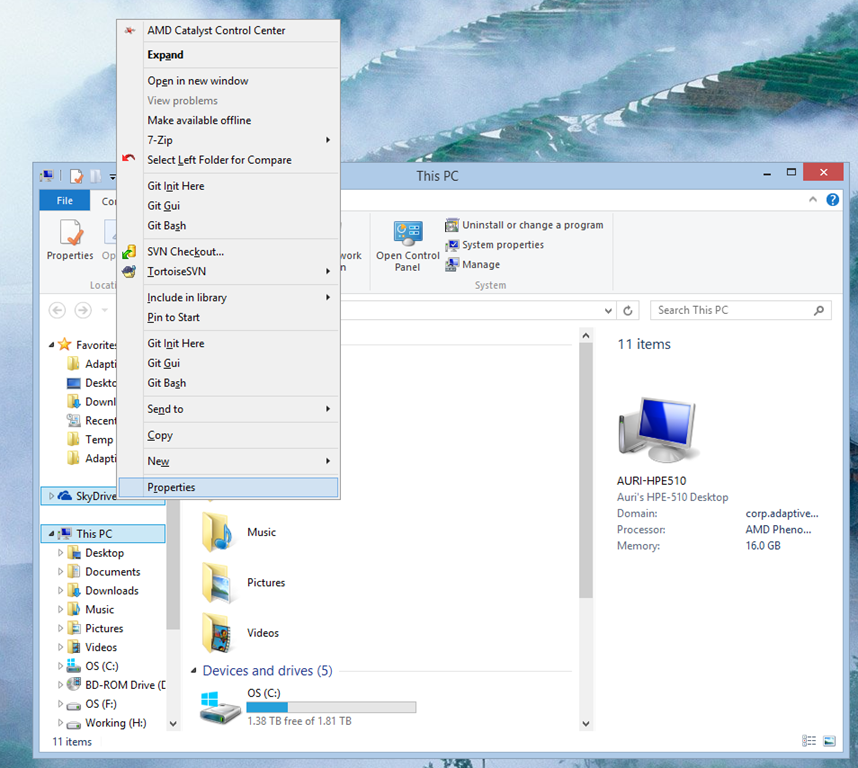
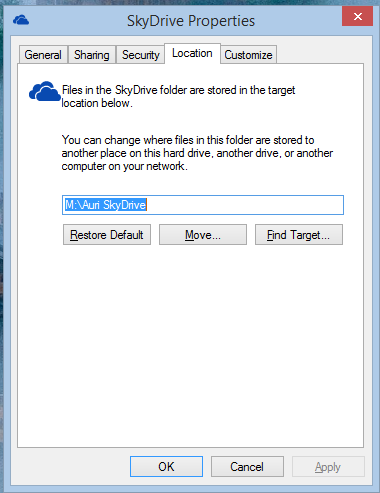
Here’s how you change locations:

1. In Windows Explorer, right-click SkyDrive and select Properties.

image

2. When SkyDrive Properties appears, select the Location tab and click Move.

image

Note: In my example, I’ve already moved the folder. In yours, you will probably see c:\Users\username\SkyDrive

3. Choose the folder to move your files to. I called mine Auri’s SkyDrive and put it on my M: drive. Make sure you have plenty of room for your files! This will not trigger a download of all your files. However, you want to have enough room that the copy of existing files doesn’t fail.

4. Click Apply and wait a while. The window may freeze while Windows does its work. On a side note, if any Microsoft engineers are listening, this would be a great place to enhance the user experience. For example, a please wait indicator.

5. Once Windows has copied all the files to the new location, wait a while for Windows to sync, maybe a day. By then, your files may be back in sync and all will be good in the world.

Good luck!

-Auri

I’ve spent the past few days using Dell’s solution for those who need a keyboard for their Venue Pro 8 tablet. It has come in handy when needing to write emails and edit documents. I have yet to write code with it, although I plan to soon. Unfortunately, while the keyboard and case match the Venue Pro 8 perfectly, it’s hard to recommend this accessory for medium to heavy duty work until Dell treats the keyboard with the attention to detail afforded its laptop-bound brethren.

Every time I use a compact keyboard I am reminded all designers of such keyboards must be sadists. They move keys around to obscenely hard to reach places. Sometimes they remove keys altogether, making the keyboard worthless. Dell’s Tablet Wireless Keyboard for their Venue 8 Pro is no exception. Take a gander at the photo below. Why does the keyboard need two Alt keys? Couldn’t that second Alt be used for the apostrophe, which is explicably a Function key combination? Why is the question mark key on the left, next to a full size shift key, when it could have been put in its normal position next to a smaller right shift key?

image

That’s not to say it’s all bad. Actually, the keyboard itself is quite good for short emails and corrections to documents. Expectations are usually low for compact keyboards, so this is better than some when it comes to comfort. I didn’t make many mistakes, although any time I needed certain punctuation I had to stop and think. It’s the ergonomic and functionality decisions, and aforementioned omissions, that make absolutely no sense. For example:

  • The keyboard has no backlight. If Microsoft can insert a backlight in a keyboard half as thin, why can’t Dell?
  • Two watch batteries are required. Yes, it comes with them, but those things are expensive. Why isn’t there a rechargeable battery that could charge via MicroUSB from the Venue Pro’s USB port?
  • I said it before, but come on – what in the world were they thinking with the apostrophe and quote keys? They’ve moved from a normal location – next to : and ; – to requiring a Function Key combination. But they left { and } intact? Who uses those often while typing in Word or web sites? Maybe developers, like me, but we need the quote and apostrophe, too!
  • The keyboard connects magnetically to the case – which is awesome – except, the keyboard doesn’t deactivate itself when the magnet is engaged. That causes key presses to turn the tablet on, thus draining the battery. It also drains the keyboard’s battery. It sounds like a simple engineering task, magnet turning off the power circuit, but maybe I missed something? The magnet is also a bit weak. Don’t treat this like Microsoft’s Surface keyboard. You’ll want to place the keyboard elsewhere if you’re only going to use the Venue Pro 8 as a tablet.
  • If the on-screen keyboard can fit all keys on the Venue Pro’s screen, why can’t the physical keyboard that has more physical room?

If you were a product manager, would you let this thing ship with such obvious issues?

Those gripes aside, I like the keyboard, and its design complements the Venue Pro 8. The design of the folio case, it’s built-in pen holder, and magnetic grip of the keyboard to the case all make this a worthwhile addition to your Dell Venue Pro accessory list. Just don’t expect to get much work done with it if you need apostrophes, dashes, or quotes.

Pros: Keyboard perfectly matches contours of the Venue Pro 8, and connects magnetically. Package comes with a case that looks very nice and can hold the digitizer pen. Keyboard can be left in the car, at home, and so forth, so you don’t have to carry it around when not needed.

Cons: The keyboard + case combo seems to weigh as much as the Venue Pro, practically doubling the weight. Alcohol must have been involved when deciding the keyboard layout. The magnet is a bit weak. The keyboard isn’t good for any long documents due to the layout’s inexplicable key locations.

SAM_8765

Figure: The keyboard connects magnetically to the flap on the case.

SAM_8764

Figure: The keyboard looks great even when not being used. That doesn’t mean it folds back like the Surface – it will fall off if you treat it like Microsoft’s prodigy.

SAM_8763

Figure: The keyboard runs off two CR2025 3 volt batteries. The tray is a bit difficult to remove.

SAM_8776

Figure: The keyboard.

SAM_8762

Figure: Unwrapping.

SAM_8761

Figure: The packaging. Front.

SAM_8760

Figure: The packaging. Back.

There’s no doubt about it – SkyDrive (now OneDrive) is broken in Windows 8.1. At some point, your files may stop syncing, and Windows simply will not let you know. It happened to me across all devices I had upgraded from 8.0 to 8.1. Many forum posts: here, here, here, and here, are complaining about the problem. The real issue? Nobody knows. Microsoft hasn’t been helpful, either, turning a deaf ear to consumer complaints, and offering no advice in their forums other than to run their SkyDrive troubleshooter. What does that do? It simply restarts the SkyDrive service most of the time, which doesn’t solve the problem.

Researching the issue a bit more, I noticed in the File Manager event log, a message of “Error message: Offline availability: found one item with an empty resourceId, aborting”. That sounded like a permissions/access issue may be causing a file to be unreadable. This lead me to try resetting all the permissions on the SkyDrive folder. Guess what? That process caused other pop-ups to appear. Pop-ups with error messages about file permissions being unable to be changed or accessed. Aha! Progress! If those files can’t be read by SkyDrive’s sync tool, maybe that’s holding up all my syncing!

By moving out those files above and restarting the SkyDrive services, my sync is working again! I don’t know how long this will last, but I hope the steps below will help you troubleshoot the issue on your end.

1. Open Explorer and right-click your SkyDrive folder and select Properties.

image

2. Click Security, then Advanced, and you should see something similar to the dialog below. Make sure SYSTEM, Administrators, and your own user name all have Full control.

image

3. Check the box Replace all child object permission entries with inheritable permissions from this object and click Apply.

4. Make note of any files on which you receive errors so you can find them and move them out of the SkyDrive folder to somewhere else. This appears to be what was tripping things up for SkyDrive on my end.

5. Move the files from Step 4 to a folder outside of SkyDrive. I zipped these up and kept that ZIP folder in SkyDrive. I have not yet found the reason for those files to have issues. It’s possible setting their permissions again may fix it. My guess is some files may have domain credentials attached that may cause trouble, since I sync with my work PC.

6. Open an elevated command prompt by pressing Windows + X and selecting Command Prompt (Admin).

image

7. Shut down SkyDrive by typing skydrive /shutdown in c:\windows\system32. You should be starting in c:\windows\system32, but if not, you can type cd “c:\windows\system32” to get there. Wait two minutes.

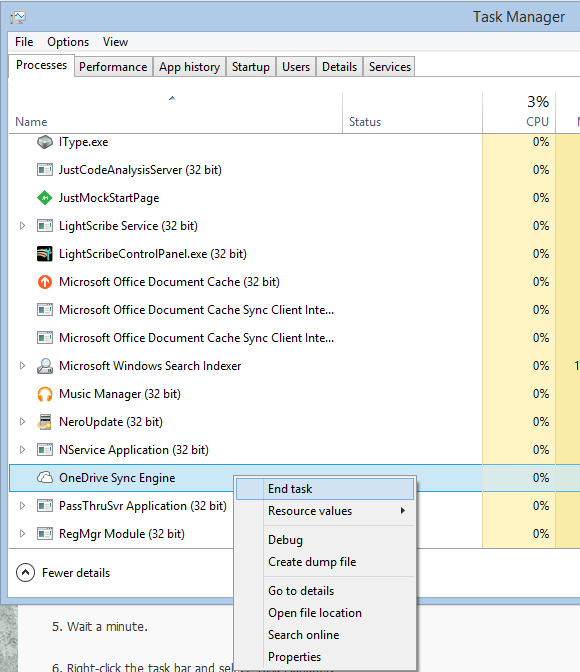
8. Start up SkyDrive by typing skydrive from that same prompt, this time without the /shutdown command, and wait two minutes. Launch the SkyDrive app from the Start menu as well, just to make sure everything’s kickstarted. Check to see if the SkyDrive Sync Engine Host process is running in Task Manager. You can press Control + Shift + Escape to bring up Task Manager, sort by name, and find SkyDrive Sync Engine Host under Processes. If the SkyDrive process doesn’t launch after a couple minutes, try restarting your machine.

image

9. You’ll see a lot of disk activity while SkyDrive appears to scan your files and folders all over again. Depending on the number of files and folders you have to sync, this could take a while.

10. Check again in a few hours and see if your SkyDrive folder online appears to properly match with your machine. If it does, then my fix worked.

Good luck!

Best,

-Auri