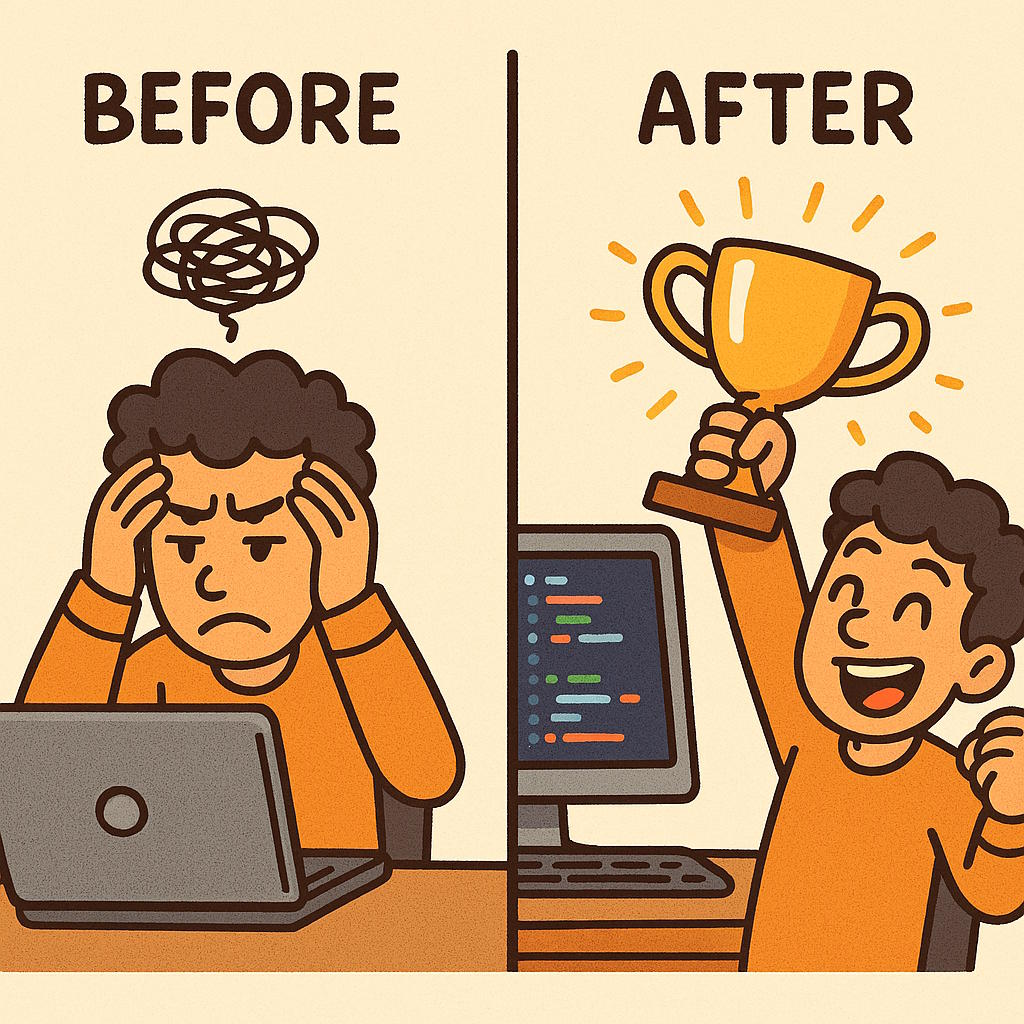
Are you having a bad day? Been working on a problem for hours, days. No matter what you do, what approach you take, the issue won’t budge? Even Copilot/Claude/etc. can’t fix it?
Well, friend — GO GET YOURSELF A WIN!
Stop. Stop what you’re doing right now. Go do something else you KNOW you can work on AND get a WIN. It sounds cheap, but it’s cathartic.
Getting the win motivates you to get over the loss. It treats your imposter syndrome.
We fail all the time as developers. And sadly school teaches people to win — to get A’s. It should be teaching us how to learn from losses — because those can happen a lot more in life than wins.
The beauty is we’re in a career where failure is expected. Definitely not like being a doctor!
It doesn’t matter how many F’s you get as long as you get an A. Sometimes you need to get yourself some A’s to get yourself out of the funk.
To change your focus.
So, the next time you’re stuck and the universe is pushing against you, learn to stop.
Go get a win.
Then pick up the troubling problem a day later.
And maybe that will get you another win.
This approach has worked for me many times, and for other devs I’ve suggested it to.
Did it work for you? Let me know what you think in the comments.
Having submitted an app with In-App purchases – specifically, subscriptions – to Apple’s store, our development team at M3 learned a lot about what will prevent a successful app submission. I hope this compiled list helps you get your app approved quickly, and prevent weeks of headaches.
I will update this article from time to time as more lessons are learned. I hope this article – and all the developer experience I’m relaying on behalf of others and myself – helps you!
An In-App Purchase Must Be Approved Before the App is Released
An In-App Purchase must be in the “Approved” state before it can be used in your app. This means Apple must test any new In-App Purchase Product or Subscription in your app release before anyone can purchase it, including you.
You Must Test In-App Purchases Work – Use the Sandbox Account
As explained above, it can seem like a “chicken and egg” problem. How do you test a product in production when it first must pass testing to get into production? This is where Sandbox accounts come into play. Under Users & Access in App Store Connect, you can assign Apple IDs that are allowed to purchase.
Note that these purchases don’t cost anything, but they can also expire. Make sure you stay on top of your sandbox purchases. Also, make sure you track the original purchase IDs coming back from the API. These will come in handy later when you need to restore subscriptions, which is anothe requirement.
Your App Must Provide a Mechanism to Restore the Subscription
It’s not enough to simply check Apple’s server to see if there is a valid subscription. You must offer an option in the UI (user interface) to explicitly restore.
It’s possible you will still be rejected for this reason. That can be due to Apple’s tester not being able to find the option. So, when you submit your testing instructions, make sure you point out where the option is. If they still say it isn’t there, politely reply to them with a screen shot proving you have such a feature.
You Must Show What the Expired Subscription Experience Looks Like
Make sure you provide an account, with credentials, that can be used to show off the app when a subscription has expired. Just include the credentials in the testing instructions. This should be a different account than the sample credentials you provide Apple for general testing.
Your App Must Clearly Explain What Benefits a Subscription Has vs. a Free Account
You must clearly describe what you get with a free account vs. a paid account. If there is no obvious benefit, Apple may reject you.
Your App Must Clearly Explain The Renewal Terms and Price
You must also be clear about your renewal terms, such as monthly, yearly, and so forth, and pricing. If it’s not clear, Apple can reject you.
It Must be Easy to Cancel Within Your App
It’s not enough that Apple lets you cancel from the App Store UI. You must also provide a button to allow cancelling your subscription.
When Verifying a Subscription Exists, Check BOTH Production AND Sandbox Environments
Apple may subscribe via Sandbox. So, if you only check Production when restoring accounts, you will fail to be approved because Apple won’t be able to restore their subscription. Always check Production first, then fall back to Sandbox.
Note Subscriptions Are Tied to Apple Accounts, Not Your Service’s Accounts
This was a big one. You can only have one subscription of each type per Apple account. However, your service may support multiple accounts. Make sure you track which account from your service subscribed, and tie that to the Apple original subscription ID. If you don’t, it’s possible you’ll be handing out “free” accounts to creating additional accounts under the same Apple ID.
You Can’t Generate Promo Codes Until the App is Approved
Unlike Google, Apple will only let you generate promo codes AFTER the app has been approved. Also, for subscriptions, Apple limits you to 100 promo codes with a 30 day expiration. Make sure you factor this into your testing and soft rollout plans.
Create Separate Test Accounts for Apple to Use
Don’t give Apple accounts your developers are using. Give them accounts that are in the exact state you need them to see. Developer accounts are too “in flux” to be reliable, and your own developers may interfere with Apple’s testing.
Be Thankful for (and take advantage of) Apple’s Feedback System
Apple likely has access to more testers than you do. There are aspects of In App Purchases you may not know how to test, or that you had to test in the first place. So, if you feel your app is in a submittable state and want to see if you covered everything, submit a build to Apple. They can give you a sanity check / smoke test you didn’t miss anything. If you pass the In App Purchases part of Apple’s testing, the rest may be smoother sailing 😉
Ever want to run your AWS lambda functions locally so you can debug efficiently? Well, the documentation for doing so isn’t in one nice, convenient location. Still, the tools ARE THERE. You just need instructions on what to set up and how. That’s what this article will attempt to help you accomplish.
Assumptions
I’m assuming a Windows and Visual Studio environment here. If that’s not your go-to, I’m imagining the adjustments are small. If you’d like to share your adjustments, I’m happy to update this article.
I’m also assuming you started your project with the AWS Lambda Project (.NET Core, C#) template.
Pre-requisites
Before you can debug, the following must be installed:
Visual Studio 2022 or higher – look at the date this article was written
AWS Lambda Mock Test Tool – install the version appropriate for your project’s .NET target, such as -8.0 for .NET 8
Java 1.7 or higher Runtime, if debugging DynamoDb locally, otherwise no need
Lambda Mock Test Tool Install Shortcut
You can install the Mock Test Tool from the command line easily. Just open PowerShell and run the following command:
dotnet tool install -g Amazon.Lambda.TestTool-8.0
Note the -8.0 needs to match the .NET version. Here are some versions to choose from, which will update from time to time. See the Github repo in Pre-requisites for the latest table.
.NET Core Version
Tool NuGet Package
Tool executable
.NET Core 2.1 (Deprecated)
Amazon.Lambda.TestTool-2.1
dotnet-lambda-test-tool-2.1.exe
.NET Core 3.1 (Deprecated)
Amazon.Lambda.TestTool-3.1
dotnet-lambda-test-tool-3.1.exe
.NET 5.0 (Deprecated)
Amazon.Lambda.TestTool-5.0
dotnet-lambda-test-tool-5.0.exe
.NET 6.0
Amazon.Lambda.TestTool-6.0
dotnet-lambda-test-tool-6.0.exe
.NET 7.0 (Deprecated)
Amazon.Lambda.TestTool-7.0
dotnet-lambda-test-tool-7.0.exe
.NET 8.0
Amazon.Lambda.TestTool-8.0
dotnet-lambda-test-tool-8.0.exe
.NET 9.0
Amazon.Lambda.TestTool-9.0
dotnet-lambda-test-tool-9.0.exe
Configuring Your Project
In your project, you will need to make some adjustments in order to debug.
Update launchSettings.json
In the project’s launchSettings.json file, make sure you are pointing to the Mock Lamda Test Tool profile and environmentVariables are specified. Something like this:
The DYNAMODB_ENDPOINT is optional, and your tastes for naming environment variables may vary.
Make sure the workingDirectory and executablePath are set to the appropriate version of your installed .NET and Lambda Mock Test Tool versions.
Update aws-lambda-tools-defaults.json
You must also tell the Lambda Mock Test Tool where to find the function to point your requests. You can only test one function at a time (sorry), but it’s easy to update.
Populate the function-handler setting in the aws-lambda-tools-defaults.json file as follows:
{
  "Information": [
    "This file provides default values for the deployment wizard inside Visual Studio and the AWS Lambda commands added to the .NET Core CLI.",
    "To learn more about the Lambda commands with the .NET Core CLI execute the following command at the command line in the project root directory.",
    "dotnet lambda help",
    "All the command line options for the Lambda command can be specified in this file."
  ],
  "profile": "default",
  "region": "us-east-1",
  "configuration": "Release",
  "function-architecture": "arm64",
  "function-runtime": "dotnet8",
  "function-memory-size": 128,
  "function-timeout": 30,
  "function-handler": "assemblyName::fullClassPath::nameOfFunction",
  "framework": "net8.0",
  "package-type": "Zip"
}
See it there, on line 15? Populate it as follows:
assemblyName: The name of your assembly. For example, OhMyLambda.
fullClassPath: The full path of the class containing your function. For example, OhMyLambda.MyFunctionClass
nameOfFunction: The name of your function, such as Handler
So, if you had a class like this:
// Assembly attribute to enable the Lambda function's JSON input to be converted into a .NET class.
[assembly: LambdaSerializer(typeof(Amazon.Lambda.Serialization.SystemTextJson.DefaultLambdaJsonSerializer))]

namespace OhMyLambda.Functions;

public class MyFunctionClass(IAmazonDynamoDB dynamoDbClient)
{
    public MyFunctionClass() : this(CreateDynamoDbClient()) { }

    public async Task<APIGatewayProxyResponse> Handler(APIGatewayProxyRequest request, ILambdaContext context)
    {
          ... more code here ...
Before debugging, make sure you see Mock Lambda Test Tool as your startup option. You should also have DynamoDb running if it’s needed.
Starting DynamoDb
If you also need DynamoDb to be running, you should start it before debugging. If you have installed DynamoDb Local from the link above, you need to get AWS Credentials and THEN start it.
To get AWS credentials for the local instance, open PowerShell and run aws configure and use the following credentials:
AWS Access Key ID [None]: fakeMyKeyId
AWS Secret Access Key [None]: fakeSecretAccessKey
Default Region Name [None]: fakeRegion
Default output format [None]: (just hit enter)
This will take care of being able to access DynamoDb locally with the proper credentials
Once the credentials have been set, you can launch DynamoDb as follows:
I added this to a batch file to quickly run it from File Explorer.
This will launch DynamoDb. You can press Control-C to end its process when you’re done.
Debugging
You should be all set now. Simply launch the debugger and you should see the Mock Lambda Test Tool appear in your default web browser. It will look something like this:
If you don’t see your function details, or the top two dropdowns are empty, you have an error in your configuration. Make sure that function-handler is correct!
Triggering the Lambda
So how do you send the payload and trigger the Lambda? Amazon has you covered – just select API Gateway AWS Proxy from the Example Requests dropdown. Then, fill in the “body” with the proper JSON-formatted-as-string. Hit Execute Function, and the request will be made and should trigger your debug breakpoint, assuming you’ve set one.
The End
That’s it! You should be able to debug now! I hope this helped. If you have any updates or questions, feel free to hit me up. You can find me on LinkedIn: https://www.linkedin.com/in/aurirahimzadeh
I originally posted this as a LinkedIn contribution. Making sure you can read it on my blog 😀
If it’s your first programming language, the language itself doesn’t matter. It’s the thought process that counts. The training to:
think logically,
break a problem or process into its component parts, and
understanding how those parts intermingle.
If you’re just looking to learn another programming language, you don’t need to spend money. There are FANTASTIC free tutorials out there. Check out Microsoft Learn https://learn.microsoft.com/en-us/training/ as a good starting point. You can follow entire tracks, or just one-off topics. There are videos, code examples, coding environments, tips and tricks, and more. To be fair, MS Learn is not the only option, but I only have 750 characters and you have a search engine.
I recently enjoyed a “fireside chat” at the Indy .NET Consortium, a meetup I run for local .NET developers.
I’ve had some good conversations with interns and others recently who have struggled with or had insights into this transition. My experience as a young developer was a bit different, because I didn’t take the traditional path of high school -> college -> workforce. Mine was high school -> college -> co-op -> left-school to work and create career -> go back to school -> leave school to work again -> work for startup -> work for consulting firm -> start a business -> shut down business and go back to workforce.
Our October 5 meetup talked about how the traditional path can be a bit jarring. The way I explained it to my employees was “In school, you can get an A, B, C, D, or F. And that’s OK. You learn from it. But in the workforce, you either get an A or an F. You can have as many Fs as you want, as long as you end up with an A. Sometimes, within reason, I’ll accept an A- or B+, but it’s rare. We’re paid to deliver, not pass lessons.”
A friend reached out today and asked “Hey, I need my splash screen to be themed based on whether Dark Mode is selected on the Android device.” I had never done that before, so I was curious how it should be done.
Dark Mode is new to Android 10, a.k.a. Android Q. Not as tasty, but hey, gotta ship something. It has a range of benefits, such as lower energy consumption, looking cool, and frustrating developers without budget for theme-aware apps.
It turns out, after some sleuthing, it’s relatively straightforward.
First, this article assumes you’re following the “splash screen as a theme” approach, which you can learn more about here. The example is for Xamarin.Forms, but the same approach applies to regular Android development.
Basically, you have a “splashscreen” style, and you set it as your app’s theme in the Android manifest. Then, you “swap” to the real theme in MainActivity. For example, what I use in an app, located in resources/values/styles.xml:
Note my drawable. I want a different drawable for my dark vs. light (normal) theme. Here’s what is different:
The parent is now Theme.AppCompat.DayNight
I’ve added a different set of drawable folders for the Dark theme images. These are the same folder names, with -night appended to the end:
In this example, I haven’t yet added the other folder variations, but you get the point.
The theme swap code in MainActivity is as follows:
protected override void OnCreate(Bundle savedInstanceState)
{     TabLayoutResource = Resource.Layout.Tabbar;     ToolbarResource = Resource.Layout.Toolbar;     // Swap back to the normal app theme. We used Splash so we didn't have to create a special activity.      // Cute hack, and better approach.     // Idea from URL: https://xamarinhelp.com/creating-splash-screen-xamarin-forms/     Window.RequestFeature(WindowFeatures.ActionBar);     SetTheme(Resource.Style.MainTheme);
That’s all there is to it. If Dark mode is enabled, the splash.png from the -night folder will be used, otherwise the normal image will takes its rightful place.
If you have any questions, please hit me up in the comments.
I recently read a “Coding Question” thread, and a developer was asking what we all thought about this article. I wanted to hold on to my replies, so I’m posting it here for posterity 🙂
Auri:
Only a Sith deals in absolutes. There are use cases for everything, with exceptions.
Auri:
Seriously, though, I’d write tests to ensure the states that you want work as expected.
Auri:
And now that I’ve had my coffee:
Exceptions are a necessary construct. If something doesn’t go as planned, we need a way to handle it. In his article, he’s against blindly swallowing exceptions. That’s generally sound advice. Ask yourself: “Is this an expected exception? If so, do I have a specific exception handler for it, or am I just using the generic catch-all? Have other exceptions occurred? If so, is this one expected? Didn’t I read about C# support for exception switch statements? Did I just shiver?”
Like I was explaining before, only a Sith deals in absolutes. The way I see it, if an error is unexpected, I should have specific use cases for how to handle that exception. I should, generally, never blindly swallow with no logging, or simply re-throw and assume the code above will address. At least, not without a custom/known/non-generic exception I can check up the chain, or include in an integration test. Good article about testing [written by a friend] here, btw: https://arktronic.com/weblog/2015-11-01/automated-software-testing-part-1-reasoning/
At the very least, and I try to follow this rule as much as possible, LOG in any exception for tracking and pro-active/offensive development. Better that you can read logs, or run scripts to let you know about exceptions, and help things go right, than to be blind with a “well, the code seems to work, so let it be” approach. That’s the key goal, really: Help things go right. There are exceptions [heh] to this rule, like simple utility apps whose job is to bulk process data, and exceptions are part of the game. Still, I try to make sure to log, even with those. Unexpected/unintended bugs tend to appear when you’re dealing with massive amounts of data, and logs give a perspective you can’t see from debugging.
CEATEC, the Combined Electronics and Technology exhibition in Makuhari, Japan is this week. The latest innovations from Japanese companies are showcased here, often many months before Americans get a taste. I’ll be posting a reporter’s notebook in a bit. For now, enjoy clicking through videos and photos of cool things found on the show floor!
Panasonic’s Cocotto Children’s Companion Robot
Bowing Vision Violin Improvement Sensors & App
Hitachi Robot for the Elderly, and those with Dimentia
Omron “Ping Pong” Robot, Now with “Smash” Shot Abilities
au’s AR Climbing Wall
Unisys’ Manufacturing Robot That Follows Lines
VR Racer
Takara Tomy Programmable Robot
Dry Ice Locomotion
Airline Customer Service Bot Attendant
Feel the Biker’s Heartbeat
Wind Sensors Paired with Fun Animations
The Trouble with Tribbles – Qoobo Robot
Spider-Like Robot from Bandai
Semi-Transparent Display with Water Effect
Bandai BN Bot
Model Train
Kunshan Plasma
The Many Faces of Robots at CEATEC
There were MANY robots at CEATEC. Many just sit there and answer basic questions. Still, some, like Omron’s Ping Pong robot, can learn and adapt and make a difference.
Micro Adventure was a series books in the 1980s where you had to write computer programs to get from chapter to chapter. It was a great way to learn coding for a geeky kid looking for a good story related to computers. A few months ago, I was granted rights to use the books on a website, and now it’s in beta! Check out the site and let me know what you think!


 Auri's Blog