Archive for the ‘Microsoft’ Category

I’ve been struggling with carrying a Mac and PC for Xamarin development for a couple years now. Wouldn’t it be nice to just run OS X in a VM so I could use my Surface Book and not mess with the Apple ecosystem more than necessary? Well, I finally got it working, thanks in large part to the work that’s been done by many people, links of which I’ll credit in this article. Thanks, all!

vm

Requirements

  • macOS X Sierra Installer, or a machine with Sierra installed – extraction details below
  • Intel powered machine, preferably i5 or higher
  • 16GB or larger thumb drive, preferably USB 3
  • VirtualBox 5.x
  • Visual Studio 2015 or higher
  • If on a laptop, you’re plugged in

Create the OS X Installer USB Drive

First things first – you’ll need a Mac running Sierra and at least a 16 GB USB thumb drive. We’ll be using Unibeast, Multibeast, and the Clover bootloader. I imagine you own both Mac OS and the drive. I’d go the USB 3.0 or higher route so things run a bit faster. We’ll be extracting a Sierra installer in a moment. If you’re all set with the above, follow the instructions at the awesome Tony Mac x86 website. Special thanks to the Hackintosh website. When asked whether to use UEFI or Legacy boot mode, choose Legacy. Here is a marked-up PDF of the article in case the link doesn’t work.

In a nutshell, here’s what you’ll be doing in this step:

  1. Insert the thumb drive into the Mac. Launch Disk Utility and format the USB drive with the name USB and the format of GUID Partition Map.
  2. Download the macOS Sierra installer via the App Store. The installer will be saved in your Applications folder. Make a copy of it somewhere, just in case it gets deleted and you need it again. Don’t move the installer.
  3. Download and Run Unibeast and follow the prompts. Use Legacy boot mode. You’ll need a [free] account on the Tony Mac x86 site to download, fyi.
  4. Let Unibeast create the thumb drive. This will take about 10 minutes on a USB 3 drive.
  5. Download and Copy Multibeast to the newly created Unibeast drive.
  6. You’re now ready to start configuring VirtualBox.

Create the VirtualBox USB Drive Shim

You have a USB thumb drive, but VirtualBox doesn’t make it easy to boot from such a device. You’ll need to create a fake virtual disk that points to the USB drive. This tutorial walks you through it. Here’s a PDF if that link doesn’t work.

In a nutshell, here’s what you’ll be doing in this step:

  1. Open Disk Management and get the Disk Number of the thumb drive, as shown below
  2. Open command prompt as an administrator
  3. Navigate to %programfiles%\oracle\virtualbox
  4. Run the command
    VBoxManage internalcommands createrawvmdk -filename C:\usb.vmdk -rawdisk \\.\PhysicalDrive#

    to create the virtual drive pointer

  5. You’re now ready to create the VirtualBox virtual machine.

disk-number

Create the VM

Windows won’t allow VirtualBox to use the USB shim you just created unless you launch with administrator privileges. Right-click VirtualBox and select Run as Administrator. VirtualBox should open. Then, follow the instructions on this page. Ignore the download portion – you already have an install thumb drive, and you just want the VM configuration steps. If that link doesn’t work, here’s a PDF.

In a nutshell, here’s what you’ll be doing in this step:

  1. Create a new Virtual Machine, name it Sierra – although that’s not a requirement – and choose OS X 64-bit as the guest OS. VirtualBox’s settings aren’t fully correct, but we’ll get there.
  2. Choose 4 GB of RAM. I didn’t test with any other memory configs. So, YMMV if you go another route.
  3. When asked which drive to use, choose an existing drive, and select the USB shim you created in the previous section. The example above saved the file as usb.vmdk at the root of C:
  4. You should now have a VM, like every other time you’ve used VirtualBox 🙂
  5. Add another Virtual Disk to stand in as your Mac’s hard drive. I suggest VDI format, dynamically sized, and 60 GB in size. Ignore that my screen shot shoes 40 GB <grin> In future steps you’ll need to install XCode and Xamarin Studio. Don’t skimp on size here or you’ll be reinstalling later. Much sad.

Note: XCode uses a lot of space when it updates. Don’t skimp on virtual disk size. If that’s a big deal, save the VM’s drive to a location that will have enough space.

Once you’ve added the hard drive, you’ll need to finish configuring the VM. You already have an installer on the thumb drive.

Aside from the defaults, confirm the settings you have match settings below. I’ve also included some screen shots a little further down.

  1. After performing the steps above, you’ll be using the following settings in your VM:
    • System, Motherboard, Base Memory: 4096 MB
    • System, Motherboard, Boot Order: Only Optical and Hard Disk checked
    • System, Motherboard, Pointing Device: USB Tablet
    • System, Motherboard, Chipset: ICH9
    • System, Motherboard, Extended Features: Enable I/O APIC, Enable EFI, Hardware Clock in UTC Time, all checked
    • System, Processor, Processors: 2 CPUs
    • System, Processor, Execution Cap: 100%
    • System, Processor, Enable PAE/NX: Checked
    • Display, Screen, Video Memory: 128 MB
    • Display, Screen, Monitor Count: 1
    • Display, Screen, Scale Factor: 100% (you can change this later if you’re on a high-res display)
    • Display, Screen, Accelerator: 3D and 2D both unchecked
    • Storage: One controller, first item is USB shim, then the hard drive and “Empty” optical drive. The order of those two don’t matter.

After configuring the VM in the UI, close VirtualBox and run the following commands, of which I’ve created a convenient all-in-one script here. You may need to edit it depending on what you named your VM.

These make the appropriate settings to fool OS X to thinking you’re on a real Mac.

cd "C:\Program Files\Oracle\VirtualBox\"

VBoxManage modifyvm "Your VM Name" --cpuidset 00000001 000106e5 00100800 0098e3fd bfebfbff

VBoxManage setextradata "Your VM Name" "VBoxInternal/Devices/efi/0/Config/DmiSystemProduct" "iMac11,3"

VBoxManage setextradata "Your VM Name" "VBoxInternal/Devices/efi/0/Config/DmiSystemVersion" "1.0"

VBoxManage setextradata "Your VM Name" "VBoxInternal/Devices/efi/0/Config/DmiBoardProduct" "Iloveapple"

VBoxManage setextradata "Your VM Name" "VBoxInternal/Devices/smc/0/Config/DeviceKey" "ourhardworkbythesewordsguardedpleasedontsteal(c)AppleComputerInc"

VBoxManage setextradata "Your VM Name" "VBoxInternal/Devices/smc/0/Config/GetKeyFromRealSMC" 1

Boot the VM and Install Sierra

Alright, we’re ready to boot! Re-launch VirtualBox as an administrator and start up. After a bunch of Unix style text scrolling, you should see the Apple logo appear and begin to load macOS. If not, something’s configured wrong.  Read through the above steps and see what you missed. Of course, things may have changed over time, and this tutorial may no longer be valid. Bummer if that’s the case! Much sad. I want you to be much happy.

NOTE: If things appear frozen during boot, wait a minute. In sanity checking this on another machine with a friend, his seemed to be frozen, and then resumed. A watched installer never boils… [terrible joke]

The instructions for installing Sierra are pretty straightforward:

  1. When the installer appears, select the Utilities menu on top, then Disk Utility.
  2. Format the Virtual Hard Disk. I named mine VBox, but that doesn’t matter. Make sure the format is GUID Partition Map and Mac OS Journaled. Do not select the case sensitive option.
  3. When formatting is complete, quit Disk Utility and you’ll be back at the installer.
  4. Select the freshly formatted hard drive and start the install process.
  5. Wait. It took about 20 minutes to install on my 6th Gen Core i7 SSD Surface Book. YMMV.
  6. Keep an eye on the installer. When it’s done, remove the thumb drive. Otherwise, it’ll boot back into the installer. If that happens, wait for the installer to boot so you don’t corrupt anything, then remove the thumb drive, and restart the VM.
  7. When the Mac boots back up, follow the prompts. Do *not* use an Apple account – it won’t let you. Make note of the username – it will be in lowercase – you’ll need that when you enter a username and password for Visual Studio later. Don’t worry about the Apple Account issue, though – this won’t affect your ability to install XCode or use the App Store.
  8. Once setup is complete, shut down the Mac.
  9. In the VM’s settings, remove the USB shim.
  10. OS X is now installed.

From this point forward, you no longer need to run VirtualBox as an administrator. Yay!

NOTE: After configuring OS X, you may be presented with a dialog stating the keyboard cannot be identified. Don’t worry – just follow the prompts and you’ll be all set.

Install Xcode

For OS X to act as a build server, you must have Xcode and Xamarin Studio installed. Let’s install and configure Xcode first.

To complete this step, do the following:

  1. Open the App Store on the Mac
  2. Search for Xcode
  3. Click Get to install it. You’ll need to enter your Apple account credentials.
  4. Wait a while – it’s big and takes a while to install. About 30 minutes on my machine.
  5. Once installed, Launch Xcode, agree to any terms, and let it finish installing components.
  6. When Xcode is finished configuring, open the Xcode menu, select Preferences, then Accounts, and click the + symbol. Enter your Apple Developer Account details.
  7. Great! Xcode is configured! Time to get Xamarin set up.

virtualbox_sierra_20_11_2016_08_48_44

Install Xamarin Studio

Xamarin Studio handles installing the OS X build agent so you can debug apps with Visual Studio, while performing the necessary build and simulation tasks on the Mac. This is required for licensing reasons, and Apple being a closed system for iOS developers. Boo.

Note: Xamarin Studio may be called Visual Studio for Mac by the time you read this.

  1. First, open Safari – unless you installed something else on the Mac already – and download Xamarin Studio for Mac. This is simple – go to Xamarin.com, and download the installer.
  2. Open the installer on your Mac from the Downloads folder, and click Open when it warns you that it’s an application downloaded from the Internet.
  3. Install everything except Android. You can do Android dev on your PC, so I feel there’s no reason to install it again here. Again, YMMV – do as you wish 🙂 This process can take a while due to downloading and installing many items.
    • Note: I’m not sure if you need Profiler or Workbooks, so I kept them in there. I’m thinking it’s an insignificant difference.
    • Another Note: The installer will say it’s installing Android SDK anyway, not sure why! 🙂 I complained to Microsoft about this – it didn’t make sense to me.
  4. Once Xamarin Studio is installed, start it and make sure it comes up.
  5. Under the Xamarin Studio menu item – which may be Visual Studio by the time you read this – select Check for Updates and make sure everything’s up to date.
  6. Note to Visual Studio 2017 Release Candidate Users: If you’re running Visual Studio 2017 Release Candidate, it [annoyingly] installs and targets the alpha channel of Xamarin. You’ll need to switch to the Alpha channel in Xamarin Studio to match this, otherwise Visual Studio will refuse to compile/build/debug through the Mac instance. A channel switching option is available in the Check for Updates menu to address this issue.

virtualbox_sierra_20_11_2016_09_23_19

Configure the Mac for Remote Login

In order to connect to the Mac from Visual Studio, we’ll need to open a port on the Mac side. The process is described in this article.

In a nutshell, here’s what you’ll be doing in this step:

  1. Press Windows-Space, which translates to Apple-Space, and type remote login to open the Sharing control panel.
  2. Check the box for Remote Login, and select All Users, or at least ensure your user account is in there. You’re on a private network only accessible by your machine, so I see few security issues here. Behind the scenes, this is opening Port 22 for SSH access to your Mac.

virtualbox_sierra_20_11_2016_10_01_03

Alright, we should be all configured! Let’s switch back to Windows!

Configure VirtualBox Networking and Port Forwarding for Remote Debugging

Now that the Mac is configured, we have to tell VirtualBox how to allow your computer to talk with it. We do this by configuring Port Forwarding in VirtualBox.

  1. Open command prompt and type ipconfig.
  2. Take note of the Ethernet adapter VirtualBox Host-Only Network, which may be #2, #3 etc. You want the one with an IP address. Copy that IP address to the clipboard.
  3. In VirtualBox, open the Settings of your VM, and select Network, then Advanced, then Port Forwarding.
  4. Add a new rule. I named mine Remote Access.
  5. For Protocol, choose TCP.
  6. For Host IP, paste in your host adapter IP.
  7. For Host Port, enter 22.
  8. For Guest Port, enter 22.
  9. For Guest IP, go to your Mac, use Windows-Space to search for Network Utility, and type in the IP that appears there.

getting-host-ip

port-forwarding

port-forwarding

Note: It’s possible the Guest IP will change from time to time. This is especially true if the Mac isn’t the only virtual machine you run. If you can no longer connect, check whether you need to update the Guest IP.

VirtualBox is now configured! If you want to verify this, you can launch bash shell on your Windows 10 machine and type ssh username@ipaddress, accept the certificate, and enter your password when prompted. If you can type ls and see your Mac’s files, all is good in the world.

Link Visual Studio to macOS

Alright, hard part’s over. Now we need to configure Visual Studio. The steps for accomplishing this can be found at the same link above, or you can just click here if you don’t want to scroll. There’s also a tutorial in Visual Studio.

In a nutshell, here’s what you’ll be doing in this step:

  1. Launch Visual Studio.
  2. Type Control-Q to access the Quick Access Menu, and type iOS Settings. This will take you to the Xamarin iOS settings pane.
  3. Choose Find Xamarin Mac Agent, follow the prompts to ensure you’ve configured everything properly.
  4. In Enter Mac name or IP address enter your VirtualBox host adapter’s IP. If everything’s configured properly, you should be prompted to enter your Mac’s username and password.
  5. If all went well, a lock-like icon should appear next to the IP address, as shown below. If not, make sure the version of Xamarin installed in Visual Studio is the same as that on the Mac. See my note above about Visual Studio 2017 and its Xamarin Alpha Channel issue.

And, Go!

If everything went well, you should now be able to do all your Windows and Xamarin / Mac development on one machine!

Please provide feedback in the comments. Enjoy!

Tips / Updates

  • If you’d like to tweak the video resolution, you can follow this article. The command is:
VBoxManage setextradata "VM name" VBoxInternal2/EfiGopMode N

Where N can be one of 0,1,2,3,4,5 referring to the 640x480, 800x600, 1024x768, 1280x1024, 1440x900, 1920x1200 screen resolution respectively
  • My goal with this article is to build a machine for building a build/test VM. I am not trying to replace a Mac environment for doing lots of work on the Mac side of things.


The built-in Facebook OWIN provider in ASP.NET MVC can open your website to the benefits of logging in via the social networking behemoth. Still, it’s limited when it comes to pulling in profile details such as photo, birthdate, gender, and so forth. I recently implemented retrieval of those profile properties, and will explain how you can do it, too! I feel the obvious benefit is your users don’t need to manually type in their profile details, should you have similar fields in your system.

I’m assuming you’ve created and configured a Facebook app via Facebook’s Dev center, and won’t be going into that process in this article.

Determine Which Profile Fields You Need

Before we write any code, you need to know to which profile details you desire access. Facebook used to be relatively open. Not anymore! Now you need to ask permission for a ton of items, and many are no longer available. Make sure you check permissions at least every 3 months, otherwise you may find your granted permissions are no longer, well, granted, or even accessible.

Here’s a link to everything you can get: https://developers.facebook.com/docs/facebook-login/permissions/

In my case, to access the Profile photo, name information, and some other basic items, I chose:

  • public_profile
  • email
  • user_photos
  • user_about_me

I probably don’t need all these right now, but I may in the future. I figured I’d ask ahead of time.

Once you have your list, continue to the fun coding part…

Enable the Facebook Provider in Startup.Auth.cs

If you haven’t already, you’ll need to enable the Facebook provider via Startup.Auth.cs. Make sure you do this *after* any cookie authentication, so “normal” username/password logins are serviced before Facebook takes over. This should already be the case, as the default ASP.NET MVC template includes the many optional providers afterwards by default.

I suggest keeping the App ID and Secret in your config file – or at least out of code – so you can swap for differing environments as necessary. The code snippet below enables Facebook authentication, and specifies the profile fields for which we’ll be asking read permission:

You don’t have to use what I chose – it’s just what I needed for my particular case. Facebook *does* change allowed permissions and profile item visibility somewhat often. Stay on top of their developer changes – otherwise your site login may unexpectedly break.

// Enable Facebook authentication with permission grant request.
// Otherwise, you just get the user's name.
var options = new FacebookAuthenticationOptions();
options.AppId = ConfigurationManager.AppSettings["Facebook.AppId"];
options.AppSecret = ConfigurationManager.AppSettings["Facebook.AppSecret"];
options.Scope.Add("public_profile");
options.Scope.Add("email");
options.Scope.Add("user_photos");
options.Scope.Add("user_about_me");
app.UseFacebookAuthentication(options);

Install the Facebook NuGet Package

In order to easily get access to the Facebook data, I used the Facebook.NET library. It’s easy enough to install:

Install-Package Facebook

Note: I used version 7.0.6 in this example. You should be able to find the latest version and changelog at https://www.nuget.org/packages/Facebook/7.0.10-beta

Handle the Facebook External Login Callback in AccountController.cs

Once Facebook has been configured, all requests from your website will direct to Facebook, where it will ask permission, and, if granted, will redirect back to the ExternalLoginCallback action in the Account controller. It is here that I suggest you retrieve the data you’ve requested from Facebook. You’ll then modify the associated ExternalLoginConfirmation View with fields to correct or remove any information from Facebook, then continue with the account creation process on your website. That’s the part where you’ll populate the ApplicationUser entity, or whatever you decided to call it.

It’s relatively simple, as shown in the code below. The steps are as follows:

  1. Get the Facebook OAuth token with a simple HttpClient call
  2. Make the request for Profile details using the Facebook.NET library
  3. Optionally, download the Profile photo and save it somewhere

Yes, I could split this out – refactor as you see fit, and feel free to share any optimizations.

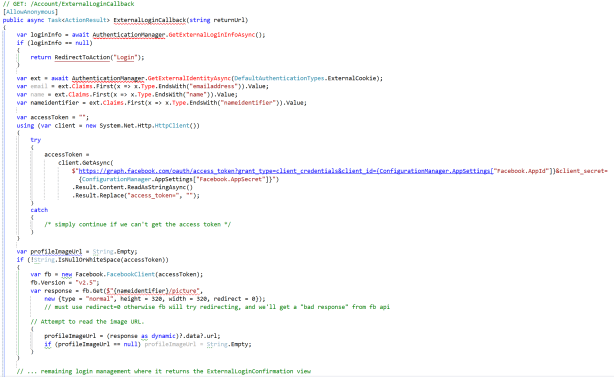
Below is the change to ExternalLoginCallback to grab the data from Facebook after the redirect:

ExternalLoginCallback Code

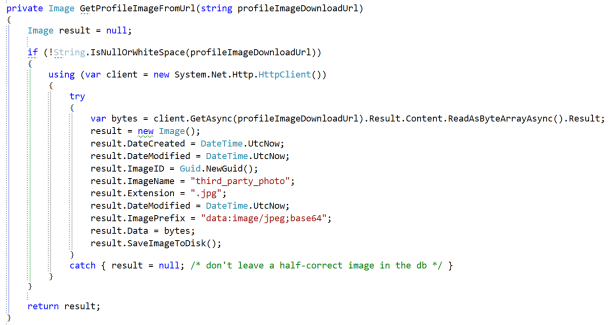
If you’d like to get the profile image, below is an example:

GetProfileImage Code


Moving Forward

I hope this article has helped answer your Facebook integration questions. If you would like additional details, please post in the comments, or message me on Twitter: @Auri

Thank you!

I was recently having trouble telling Jira to connect to a named SQL Server instance. Using Jira’s configuration manager, I should be able to use the SERVERNAME\INSTANCENAME syntax like every other modern application. Well, not with Jira. I found the solution and here ya go:

In the database field in the configuration manager, which you can launch from bin\config.bat in the Atlassian Jira Program Files folder, type

SERVERNAME;instance=INSTANCENAME

Oh, did Atlassian forget to tell you to install Java Runtime Edition on your server? Of course they did… Go ahead and install it if you haven’t, but make sure you pay very close attention and don’t click I Agree to install Yahoo and junkware on your machine. Because, well, Oracle.

This information was lovingly sourced from the comments on: https://confluence.atlassian.com/jira/connecting-to-named-instances-in-sql-server-173435.html

Enjoy!

I recently ran into a need to use the LAME MP3 encoder in a customer’s website. Problem was, once I deployed to Azure, I received an error of “Unable to load DLL libmp3lame.32.dll”. Uh oh! “But it’s in the bin folder!” I screamed silently at Starbucks. So, I binged the issue and found a good answer on StackOverflow. I’m sharing here because it helped unstick me, and I imagine others may be running to this issue with libraries other than LAME.

I ended up adding the function to my Global.asax, in addition to importing namespaces System.IO and System.Linq:

/// <summary>
/// Updates PATH variable in hosting instance to allow referring to items in this project's /bin folder.
/// Very helpful with Azure.
/// </summary>
public static void CheckAddBinPath()
{
    // find path to 'bin' folder
    var binPath = Path.Combine(new string[] { AppDomain.CurrentDomain.BaseDirectory, "bin" });
    // get current search path from environment
    var path = Environment.GetEnvironmentVariable("PATH") ?? "";
 
    // add 'bin' folder to search path if not already present
    if (!path.Split(Path.PathSeparator).Contains(binPath, StringComparer.CurrentCultureIgnoreCase))
    {
        path = string.Join(Path.PathSeparator.ToString(), new string[] { path, binPath });
        Environment.SetEnvironmentVariable("PATH", path);
    }
}

Then in Application start I simply added:

// Sometimes files aren't loaded properly from bin. Hint to the app to load from /bin, too.
CheckAddBinPath();

I hope that helps!

I’ve discussed at length how to fix SkyDrive sync issues. Check out Another possible solution for OneDrive / SkyDrive sync issues and Possible OneDrive / SkyDrive sync fix for Windows 8. I have found that sometimes even resetting SkyDrive doesn’t fix the problem. Microsoft will charge you for a brute force approach, but I figured out one more option if nothing you’ve tried has started syncing back up again. Before you follow these steps, try the other two – this is a last ditch resort!

1. Make sure all other desktop and “modern” applications are NOT running. Only File Explorer should be running. Word, Chrome, whatever – they should all be closed.

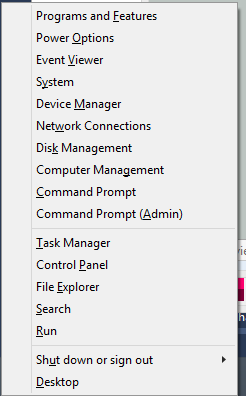
2. Press Windows Key + X, select Command Prompt (Admin), and the Windows command prompt should appear.

3. Make sure the OneDrive app isn’t running – right-click it and select Close if you see it in the taskbar.

4. Type skydrive /shutdown

5. Wait a minute.

6. Right-click the task bar and select Task Manager.

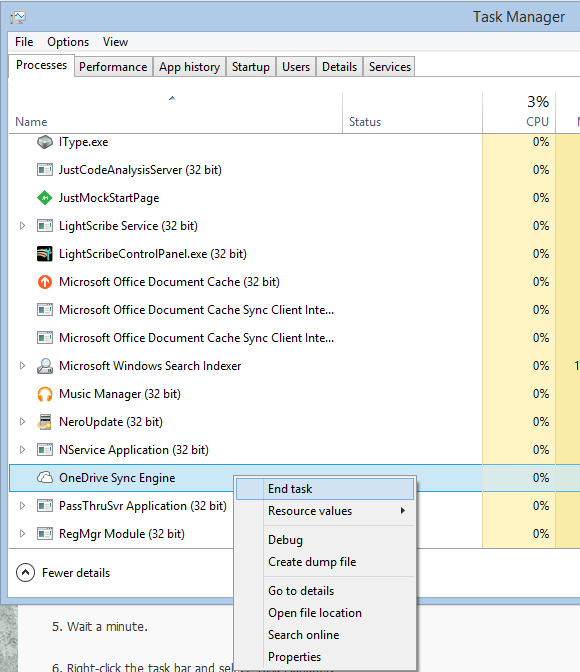
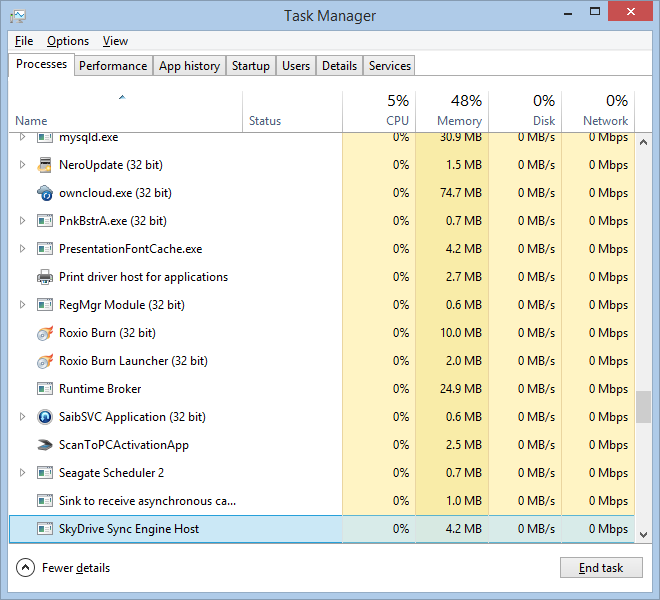
7. Keep trying to end the OneDrive Sync Engine process until it disappears, as shown in the figure below. This may take a few tries.

image

8. Open the following folder:
C:\Users\your user account name\AppData\Local\Microsoft\Windows\SkyDrive\settings
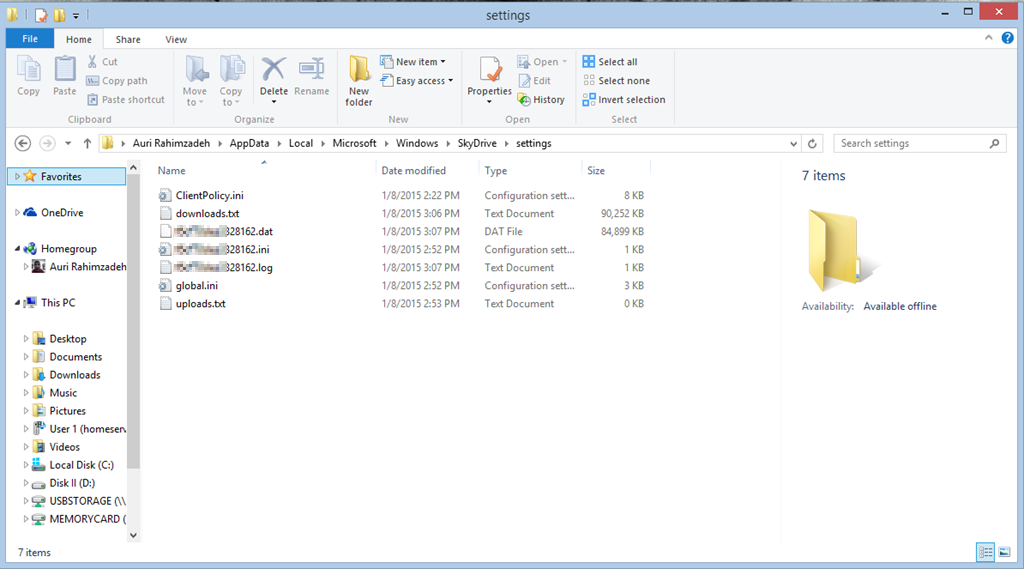
and you’ll see something like the figure below:

image

9. Delete all the files except for ClientPolicy.ini and global.ini.

10. Once they have been deleted, type the following: shutdown -r -t 0

11. Your computer should restart.

12. Log back in and your files should start resyncing. You’ll probably see results within a few hours. This will depend on the total number of files you have on OneDrive. You’ll also see downloads.txt and another funky-looking file start growing in size. If you see that, you know things are working, and OneDrive has started rebuilding everything.

I’ve been underwhelmed by Microsoft’s response for documentation regarding SkyDrive and its inner workings. So, I’m on a mission to break things down. I’ll update this blog post as I find more information. As always, any info provided here is used at your own risk. I take no responsibility if you hose a system.

In case you want to see all the SkyDrive process settings:

C:\Users\<your account name>\AppData\Local\Microsoft\Windows\SkyDrive\settings

There are two files of interest:

global.ini and ClientPolicy.ini

There were some settings that surprised me in ClientPolicy.ini:

  • MaxFileSizeBytes = 2147483647 Is the 2 GB max file size mentioned on MSFT’s site? They should probably mention that, since all shipping systems are 64-bit and video files and ISOs can be pretty big.
    • Update 7-Jan-2015: It appears Microsoft has upped this to 10 terabytes.
  • Tier1MaxFileSizeBytes = 2147483647 These would be Microsoft’s Office file types
  • Tier1FileInclusionList = |doc|docm|docx|dot|dotm|dotx|odc|odp|ods|odt|pot|potm|potx|pps|ppsm|ppsx|ppt|pptm|pptx|rtf|vdw|vdx|vsd|vsdm|vsdx|vssm|vssx|vst|vstm|vstx|vsw|vsx|vtx|xla|xlam|xlm|xls|xlsb|xlsm|xlsx|xlt|xltm|xltx|xlw|
  • MaxItemsInOneFolder = 150000 I wonder if this caused my earlier sync problems, since I had more than 150K files in a folder, and then I deleted the folder. Maybe that messed up Microsoft’s storage system in the cloud? When I finally had a Microsoft technician look at my account, things magically started working a day later. I didn’t change anything, but what happened on their end?
  • MaxClientMBTransferredPerDay = 131072
    • Update 7-Jan-2015: It appears Microsoft has upped this to over 250000. Makes sense, given average home broadband speeds.
  • MaxClientRequestsPerDay = 500000 So what happens if you reach your limit?
  • NumberOfConcurrentUploads = 3 I’d rather have more, but it appears the next setting helps here, even though it’s not accessible via the SkyDrive app.
  • AllowUserOverrideOfConcurrentUploads = true
  • SyncTelemetryURL = http://wlepsi3.redmond.corp.microsoft.com/SyncDiag.ashx This one bothers me a bit. What is this URL tracking? And why isn’t it over SSL?
  • LowDiskSpaceLimitMB = 3072 If you want to override the low disk space limit… I’m going to try this on my Dell Venue Pro 8. Update: It worked! Yay!
    • Update 7-Jan-2015: It appears Microsoft has lowered this to 200MB. Much better for tablets! Of course, in the future, tablets will probably have 64GB, 128GB or more by default due to lowered storage costs.
  • AutomaticVerboseLoggingEnabled = true I wonder where the log file is. There’s one in this folder, but it’s used by the SkyDrive process. I’ll play with that in a VM so I don’t mess anything up Smile

I’m also curious as to why SkyDrive.exe can’t be opened in a decompiler. If I request it, the file system says the file doesn’t exist. Is c:\windows\system32\SkyDrive.exe simply a shim? Very interesting.

Breaking down the SkyDrive process, I found what appears to be additional command line parameters. I have not tested these as of yet.

/shutdown
/register
/unregister
/installperfcounters
/uninstallperfcounters
/background
/watson

Until next time… enjoy!

Best,

-Auri

I went back and forth between my code and various Telerik and Stack Overflow demos of how the Kendo grid is supposed to refresh its datasource without reloading the entire grid. Finally, Telerik sent me a code example that included a function that’s not in their API documentation, but darn well should be. So, if you’re having the same issue I did, where you want to call read() on your grid’s datasource, but it simply isn’t working, here’s an example from Telerik that may help you.

The function: getKendoGrid()

Now, I keep my createDataSource() function around so I can swap out the data I’m paging. Their example uses some sample data, but you could simply use their example of creating a datasource to call your back-end JsonResult action in MVC and things can still work magically.

I hope this helps others Smile

<body>
  <div id="grid" />
  <script>
    function createDataSource() {
      return new kendo.data.DataSource({
        transport: {
          read: {
            url: "/echo",
            dataType: "json",
            method: "POST",
           
            // Simulate response
            data: {
              "json": JSON.stringify([{
                firstName: "John",
                lastName: "Smith",
                age: 25
              }])
            }
          }
        },
        pageSize: 10
      });
    }
   
    var ds = createDataSource();
   
    $("#grid").kendoGrid({
      dataSource: ds,
      autobind: false,
      scrollable: false,
      columns: ["firstName", "lastName", "age"]
    });
   
    $("#grid").getKendoGrid().dataSource.read();
  </script>
</body>
</html>

And here’s a colorized version:

image

Quick thought for the day: Microsoft’s OneDrive doesn’t appear to act “smart” when it’s installed on a tablet, or what I prefer to call a Limited Storage Space Device. The premise of OneDrive is clear: store your stuff in the cloud and keep your device clean of clutter, holding local only what you need. Google made the same business case with their Chromebooks and Google Drive, but “cloud-first” is in its teenage years.

On a Limited Storage Device, such as a tablet or a phone, OneDrive should be smart enough to take offline, locally cached files, and make them “online only” again, freeing up the space. It doesn’t do this, and thus silently, and sometimes quickly, eats up storage on the device. Case in point: I recently drove Tail of the Dragon and took hundreds of photos. About one gigabyte of these I copied from my camera to OneDrive. One day later, my Dell Venue Pro 8 tablet started complaining of low drive space. OneDrive had copied the files from the cloud to the device, automatically, even though there was no reason to do so. The device wasn’t requesting those files. Yet, even if for whatever reason there was a valid request, shouldn’t OneDrive have “put them back” in the Cloud?

Microsoft – if you ever listen about device categories you’ve had a tough time understanding – you can’t treat these limited storage devices like mainstream PCs. You have to, pardon the pun, “think differently” and make your software do the same. The above scenario, where your Cloud solution makes a non-mainstream device relatively unusable due to a mainstream PC approach, is very common amongst your current product offerings. My gosh, just look at Office on a tablet.

Thanks for listening Smile

-Auri

There’s no doubt about it – SkyDrive (now OneDrive) is broken in Windows 8.1. At some point, your files may stop syncing, and Windows simply will not let you know. It happened to me across all devices I had upgraded from 8.0 to 8.1. Many forum posts: here, here, here, and here, are complaining about the problem. The real issue? Nobody knows. Microsoft hasn’t been helpful, either, turning a deaf ear to consumer complaints, and offering no advice in their forums other than to run their SkyDrive troubleshooter. What does that do? It simply restarts the SkyDrive service most of the time, which doesn’t solve the problem.

Researching the issue a bit more, I noticed in the File Manager event log, a message of “Error message: Offline availability: found one item with an empty resourceId, aborting”. That sounded like a permissions/access issue may be causing a file to be unreadable. This lead me to try resetting all the permissions on the SkyDrive folder. Guess what? That process caused other pop-ups to appear. Pop-ups with error messages about file permissions being unable to be changed or accessed. Aha! Progress! If those files can’t be read by SkyDrive’s sync tool, maybe that’s holding up all my syncing!

By moving out those files above and restarting the SkyDrive services, my sync is working again! I don’t know how long this will last, but I hope the steps below will help you troubleshoot the issue on your end.

1. Open Explorer and right-click your SkyDrive folder and select Properties.

image

2. Click Security, then Advanced, and you should see something similar to the dialog below. Make sure SYSTEM, Administrators, and your own user name all have Full control.

image

3. Check the box Replace all child object permission entries with inheritable permissions from this object and click Apply.

4. Make note of any files on which you receive errors so you can find them and move them out of the SkyDrive folder to somewhere else. This appears to be what was tripping things up for SkyDrive on my end.

5. Move the files from Step 4 to a folder outside of SkyDrive. I zipped these up and kept that ZIP folder in SkyDrive. I have not yet found the reason for those files to have issues. It’s possible setting their permissions again may fix it. My guess is some files may have domain credentials attached that may cause trouble, since I sync with my work PC.

6. Open an elevated command prompt by pressing Windows + X and selecting Command Prompt (Admin).

image

7. Shut down SkyDrive by typing skydrive /shutdown in c:\windows\system32. You should be starting in c:\windows\system32, but if not, you can type cd “c:\windows\system32” to get there. Wait two minutes.

8. Start up SkyDrive by typing skydrive from that same prompt, this time without the /shutdown command, and wait two minutes. Launch the SkyDrive app from the Start menu as well, just to make sure everything’s kickstarted. Check to see if the SkyDrive Sync Engine Host process is running in Task Manager. You can press Control + Shift + Escape to bring up Task Manager, sort by name, and find SkyDrive Sync Engine Host under Processes. If the SkyDrive process doesn’t launch after a couple minutes, try restarting your machine.

image

9. You’ll see a lot of disk activity while SkyDrive appears to scan your files and folders all over again. Depending on the number of files and folders you have to sync, this could take a while.

10. Check again in a few hours and see if your SkyDrive folder online appears to properly match with your machine. If it does, then my fix worked.

Good luck!

Best,

-Auri

I picked up a Dell Venue 8 Pro for $99 as part of Microsoft’s 12 Days of Presents spree. Here are some tips & tricks for the more techy folks out there:

How to Access the BIOS

Press the power button once. Then hold down the Volume Down button until the Dell logo disappears. You don’t need a keyboard – it has an on-screen mouse mapped to the touch screen. Cool, eh?

To access the Advanced settings of the BIOS, follow the instructions through Step 7 below:

How to Speed Up SSD Disk Access by Modifying the EFI / BIOS

Thanks to Sasha for the following steps, which can increase speeds by over 50%!

1) From Windows, bring up the charms (swipe in from right)
2) Select Settings -> Change PC Settings, or Start, then All Apps, then PC Settings.
3) Choose Update and Recovery -> Recovery
4) Under Advanced Startup, select Restart Now
5) From this blue menu, select Troubleshoot, then select Advanced Options
6) Select UEFI Firmware Settings, then click Restart
7) Now, the BIOS shows up, hit the on-screen ESC button ONLY ONCE.
8) You’re now in the Main “tab”, with a vertical list of options, from here you must select Advanced, this lets you see all the BIOS settings and is different from hitting the Advanced tab across the top.
9) Select LPSS & SCC Configuration
10) Select SCC eMMC 4.5 HS200 Support and select Enabled (Mine was disabled by default)
12) Select DDR50 Support for SDCard and select Enabled (Mine was disabled by default)
13) Press F10 on the on-screen keyboard to save, then Save Settings and Exit and you’re all set.

Getting Back ~5 Gigabytes of Space by Removing Recovery Partition

The Dell Recovery Partition is essential for restoring your machine should something catastrophic happen. To add insult to injury, Dell often runs out of stock of recovery media, and won’t send you such after a year or two has passed. That’s hit me before, and it’s not fun. So, make sure you’ve backed it up!

Once you’ve backed up that recovery partition, there’s no point in keeping it. Get those gigs back!

Here’s how:

NOTE: Make sure you have at least 50% of your battery left for this process. I wouldn’t do this when hitting the lower ends of the battery spectrum.

  1. Go to All Applications and scroll all the way right to the Dell group. Tap the My Dell application.
  2. Click Backup, even if it says no backup software is installed.
  3. Click the Download Local Backup button. This will provide a link to download Dell Backup and Recovery, which you should download and install. Basically, once you click the Download button, select Run and wait for Setup to do its job. This process can take a long time. Even the download appears to be huge. It’s probably downloading the latest recovery data, but that’s just a guess.
  4. After the software has installed, it will request a restart. So, restart the tablet.
  5. Go to All Applications and back to the Dell group. Note the new Dell Backup and… option. Tap it.
  6. Wait a few moments for the cool clock animation to complete, then agree to whatever terms are presented, or not.
  7. Tap the Reinstall Disks option. This is the equivalent of a Factory Restore partition backup.
  8. Tap USB Flash Drive, which is probably the only real option you have with this unit. This includes use of the Micro SD card, which is what I used, since I didn’t have a USB adapter handy. If you decide to use an external burner, that’s cool, too. But… why?
  9. Select your USB drive, or the MicroSD card. I backed up to an 8 GB MicroSD. Dell estimates the backup at 4.03 GB, so 8 GB should suit you just fine.
  10. Tap Start, then tap Yes when asked if you’re sure about wiping out the USB or MicroSD drive. Of course you’re sure! (right?)
  11. Wait until it’s done.
  12. When it’s complete, click OK, and put the backup media in a safe place. I put it in my Venue Pro’s box.
  13. Go back to Start, then All Programs, then Desktop.
  14. Hold down on the Start button and select Command Prompt (Admin).
  15. Type diskpart to launch the Disk Partition manager.
  16. Type list partition to see the available partitions.
  17. Type select partition X, where X is the number of the approximately 4 gigabyte recovery partition. On my Venue, it was 6.
  18. Make sure you see “Partition X is now the selected partition”!!!
  19. Type delete partition override and hit enter.
  20. You should be greeting with “DiskPart successfully deleted the selected partition.”
  21. Type exit to quit DiskPart, then exit again to quit Command Prompt.
  22. Now that the partition is gone, we need to expand the size of the main partition.
  23. Open an Explorer window and long press This PC, then select Manage.
  24. When Computer Management appears, select Disk Management under Storage.
  25. You should see the 4.64 gigabytes or so we freed up showing as Unallocated.
  26. Long press your C: drive and select Extend Volume….
  27. The Extend Volume Wizard appears. Click Next.
  28. You’ll be asked where the space to extend the volume should come from. Everything should already be filled out to assign the maximum unallocated space. Simply tap Next or adjust as desired and click Next.
  29. The wizard will confirm the extension settings. Click Finish.
  30. There you go! Your C: drive is now almost five gigabytes larger!

UPDATE: You can also back up to a USB drive by acquiring a USB OTG, or “On-The-Go”, adapter. Pick one up from Fry’s, SKU number 7582626, here. This will also enable you to use thumb drives and such on your Dell Venue 8 Pro.

Disable the Annoying Backlight

Dell’s power management settings for the backlight are wretched, making the display dim almost all the time. Let’s get around that, shall we?

  1. Swipe out the charms menu, then select Settings, then Change PC Settings on the bottom.
  2. Select PC and devices.
  3. Select Power and sleep.
  4. Set Adjust my screen brightness automatically to Off.