I’ve posted this in Microsoft’s forums, but in case anyone else is running into this issue, I’d like to know…

Situation:

– I have a home security camera. All motion detected photos are saved to a folder on a home machine, located in my local SkyDrive folder. I forgot to clean up this folder, so there were hundreds of thousands (~90 gigs) of files in the individual daily folders in this folder.

– On SkyDrive.com, to speed up the delete process, I deleted all folders I no longer wanted. Remember, this is 90 gigs or so. I figured this would delete those files from my home machine.

– Upon deletion, SkyDrive started copying all those deleted files to *every connected device’s Recycle Bin*, including my Windows tablet with its scant 32 gig drive!!!

– Now all my machines’ primary drives are filling up due to the Recycle Bin being filled by SkyDrive. This is especially troubling on the tablet, which is crashing often due to being out of space as it fills up every 30 mins or so, syncing over WiFi. No, I don’t have SkyDrive set to sync any folders to that device.

– All machines are running Windows 8.1. The tablet came with 8.1, and the desktops and laptop were upgraded to 8.1 from 8.0.

Bug:

– If a file is deleted on SkyDrive, it should not immediately be transferred to all connected devices. This is especially true for tablets.

Solutions / Workarounds:

– None known.

– Feature request possibility: This should be a feature that can be enabled or disabled, and disabled by default.

– Fix: Microsoft should disable the copying of deleted files to all connected devices, and come up with a better solution for handling this scenario.

I’m looking forward to feedback, as this has caused tremendous amounts of trouble in my ability to use Windows devices. It’s almost pointless to have a Windows tablet, since my online SkyDrive activity is not cognisent (sp?) of what device types to which its connected.

Thanks,

-Auri

I know it may be an act of pure sadism, but I see value in having a full development environment available in a package that weighs less than a pound. My Dell Venue 8 Pro runs full Windows 8.1, so why not write code on it? Well, there’s a limitation. I’m chea… err, frugal. So, I bought the 32GB device, on sale for $99 during Microsoft’s “12 Days of Deals” event. After clearing out a lot of space, and after installing all my Windows Store apps, I had just under 6 gigs free. Visual Studio takes roughtly 5.38 gigs for a base install, and more than 7 for a full. I still want to download apps, so using all that precious main storage space isn’t an option.

So, why not use the MicroSD expansion, you say? Great idea! Oh, wait… Visual Studio won’t install on removable media unless it’s Windows To Go certified, which only a handful of USB drives, and no MicroSD cards, can claim privileged membership. What is a developer to do?

Mount Points

It turns out there’s a workaround, but it requires you to “trick” Windows. I want to use that MicroSD and all its 16 gigs of practically unused storage. (Yes, I could have used a 32, but I didn’t have one handy at the time. Anyway…)

Using a feature in NTFS that allows you to permanently point the contents of an empty folder to another drive, in this case the MicroSD, you can install anything you want in that folder, and it won’t affect the available drive space on C:, safely keeping everything in the “remote” storage location. These remote locations are called NTFS Mount Points.

Now, there’s a catch… Even if you have a 32 GB MicroSD, that doesn’t increase your primary drive’s capacity by 32 GB. If your C: drive, in this case, only has 6 gigs free, then that’s what any Windows Installer will see as available. Now, once the installation is underway, it won’t run out of space when installing. However, if you don’t have enough space on C: to install in the first place, it won’t continue. So, before you try this process, make sure you have enough room on the drive for installation as if you were installing without the remote storage location!

Ready? Let’s Go

The entire process is very simple. We’ll start at the Desktop, which you can access on the All Programs menu.

  1. First, make sure you have enough space free on your C: drive, since that’s where Visual Studio will want to install on your tablet.
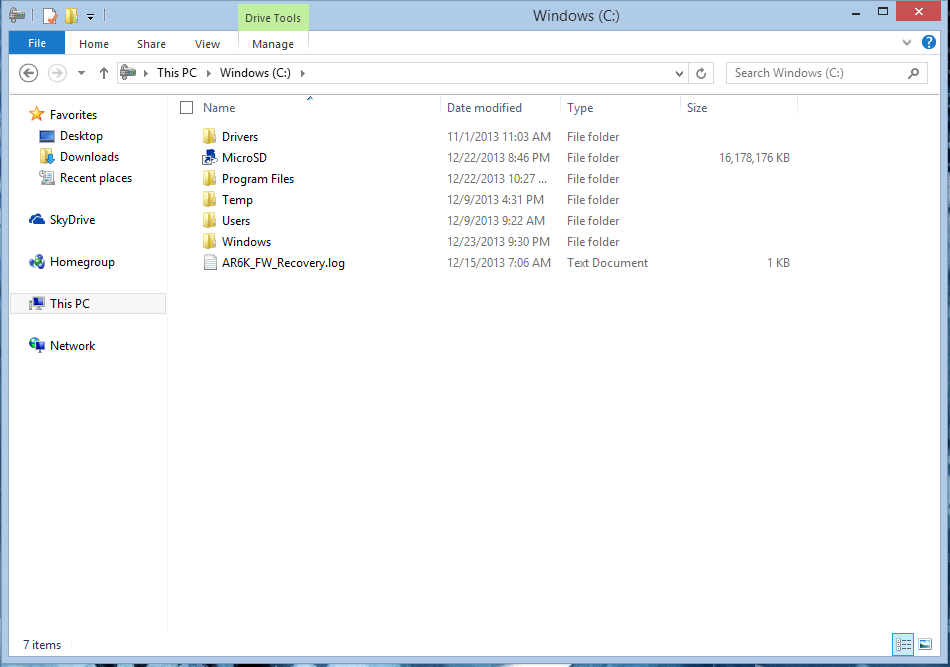
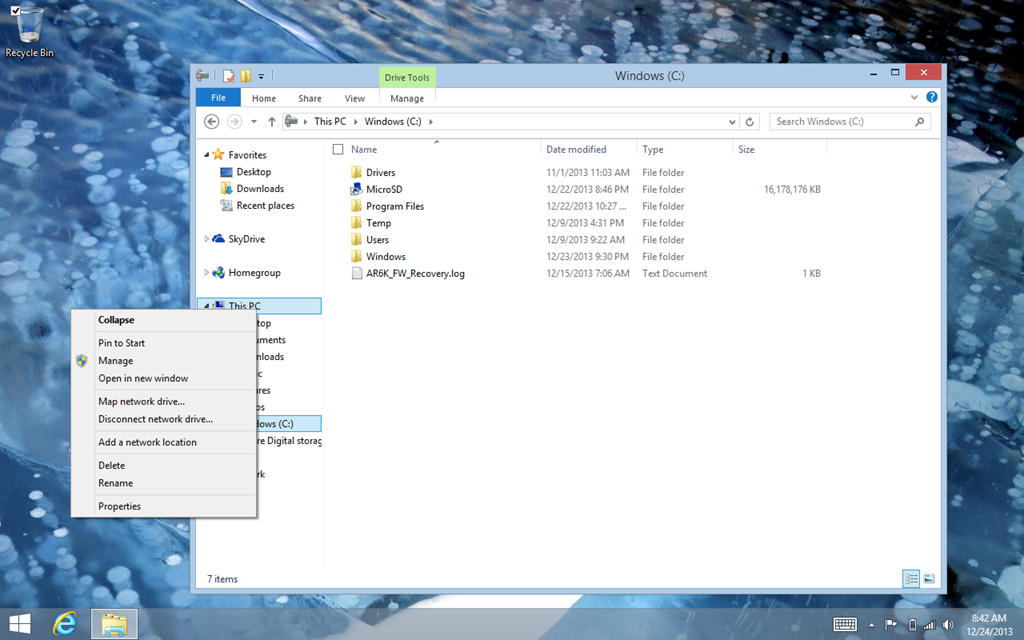
  2. Open Explorer, go to your C: drive, and create an empty folder. I named mine MicroSD, so I know the contents are on the removable media. You might ask why I simply didn’t redirect my Program Files folder. Here’s the reason: That’s a risky move, and the MicroSD card is slower than the built-in SSD. Also, if the MicroSD fails, I can simply reinstall the non-essential programs in that folder, without affecting all my primary apps and overall tablet usability.

    image

  3. Long-tap This PC in the side panel, and select Manage.

    image

  4. When the Computer Management window appears, tap Disk Management under Storage.
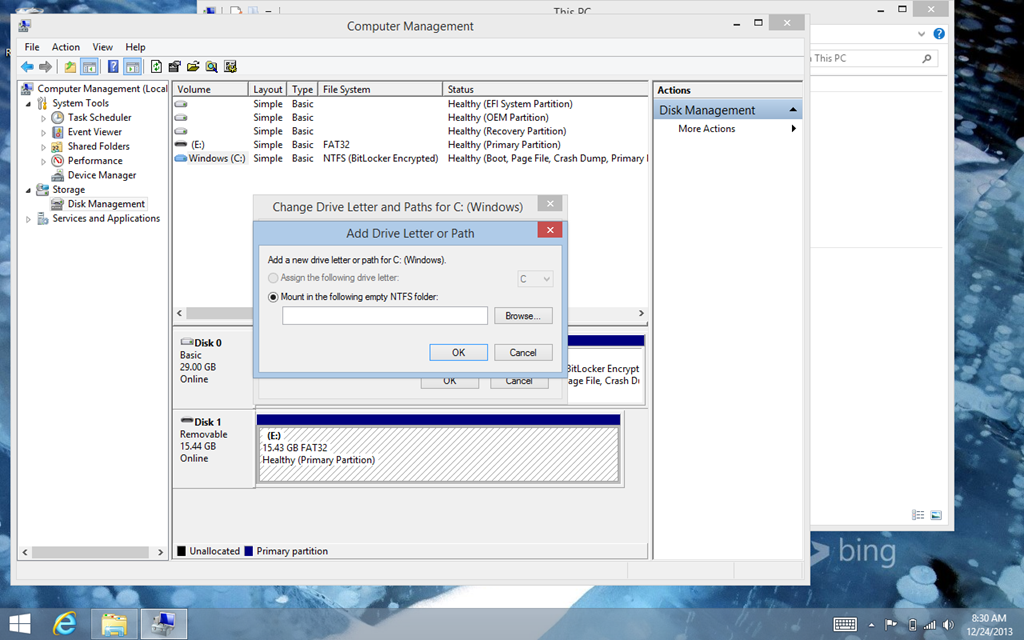
  5. Long-tap your MicroSD card in the list of Volumes on the top, and select Change Drive Letter and Paths.
  6. Tap Add, then tap the option for Mount in the following empty NTFS folder, and select your folder by tapping Browse.

    image

  7. That’s it, now you can install Visual Studio! Simply set the install location to the new folder you created instead of the standard Program Files folder.

A few notes when installing:

  • Remember, this is a tablet with 2 gigs of RAM. Don’t install SQL Server and the like.
  • Don’t run servers on your Venue Pro unless you want to kill the battery. Yeah, it’s Quad Core, but it’s also a low power processor built for on-the-go computing.
  • Visual Studio still installs a lot on your C: drive in the Program Files and Windows folders. It’s a development system, after all. So, be prepared to sacrifice 2-3 gigs of available space there.
  • As you develop, Visual Studio still has its little droppings of temp files. Clean up a bit more often if you’re doing a lot of dev.

What about a keyboard?

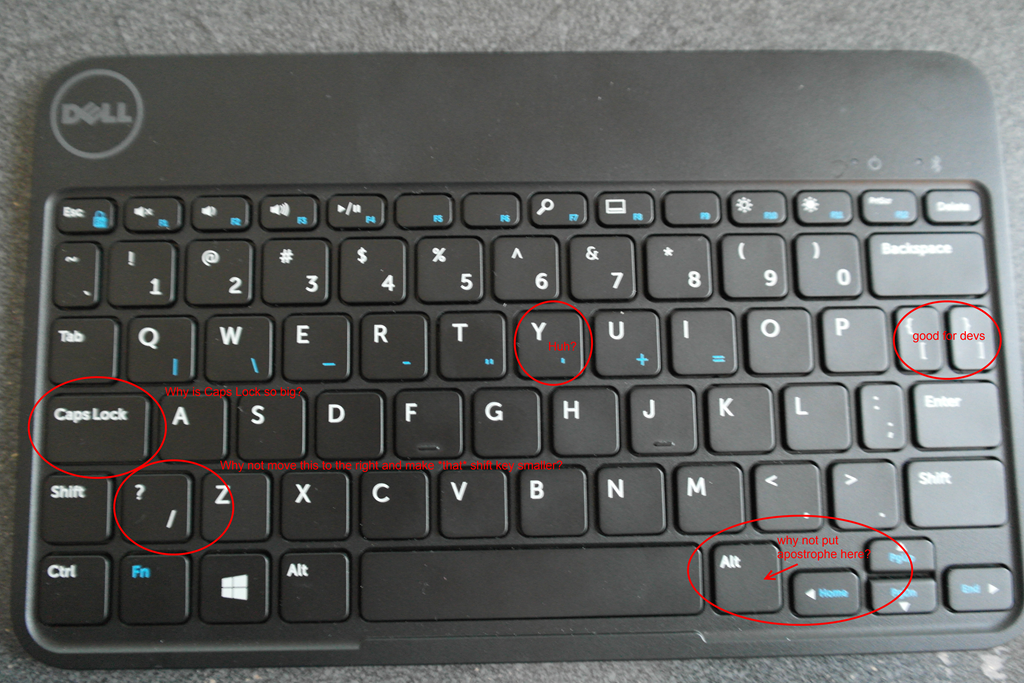
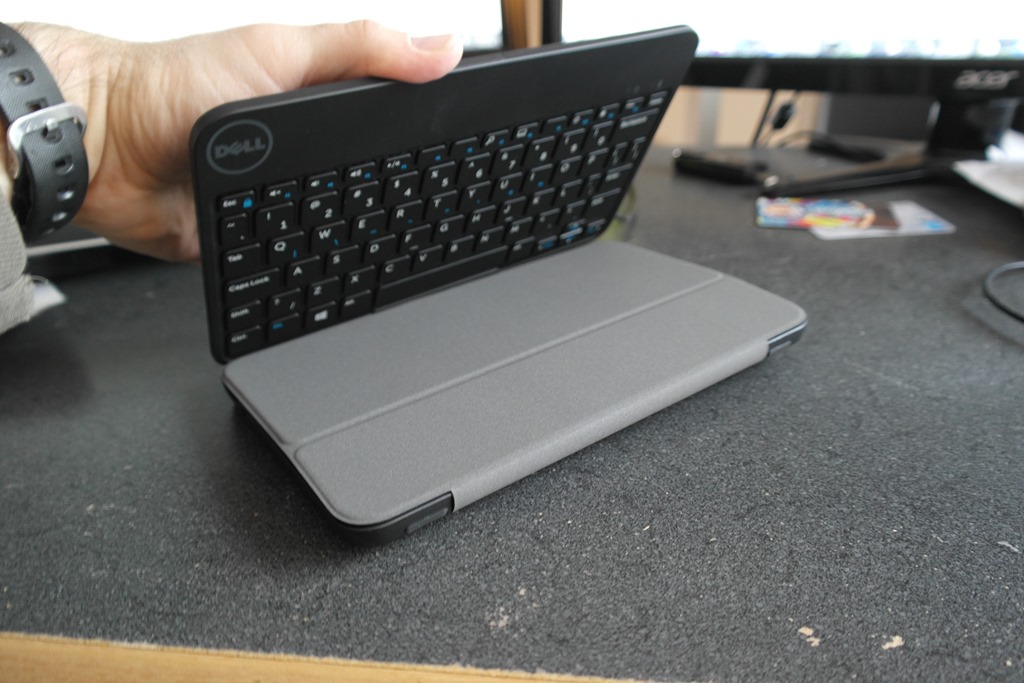
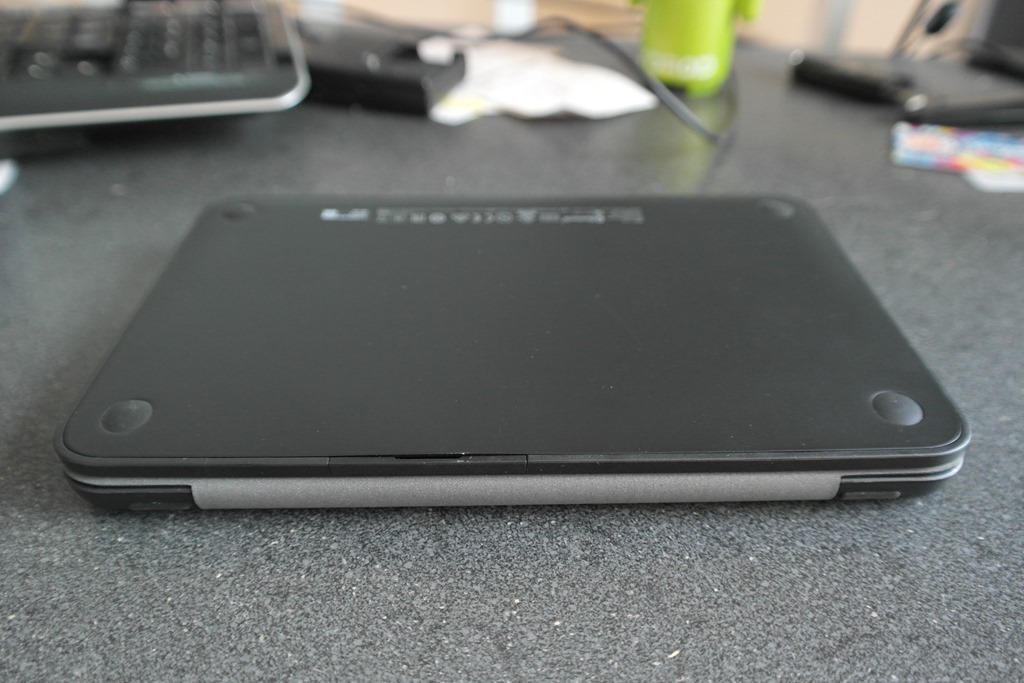
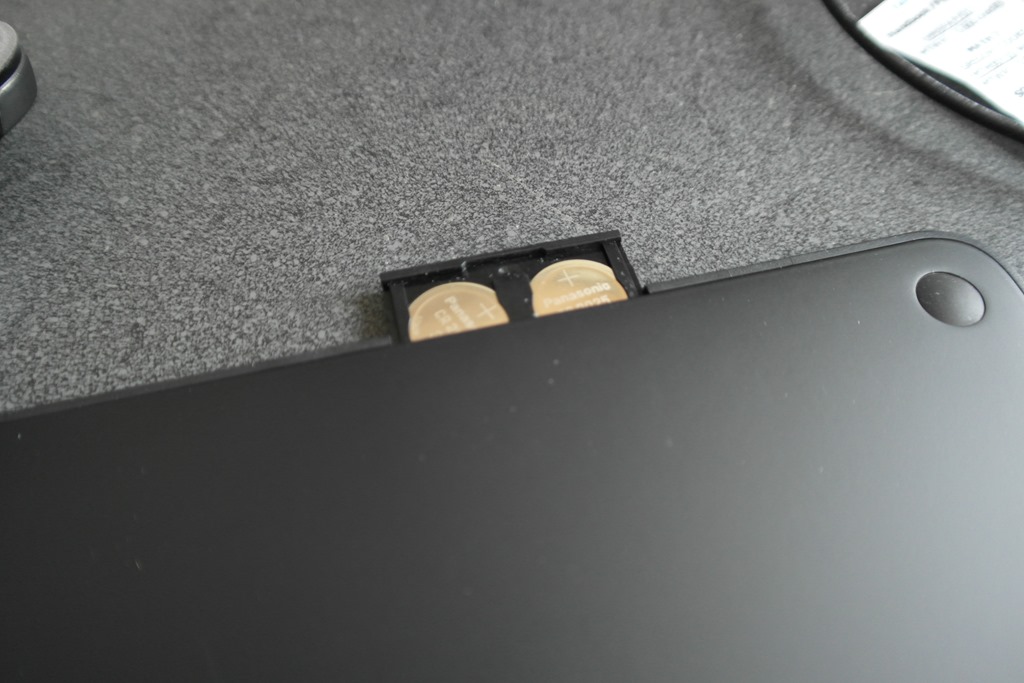
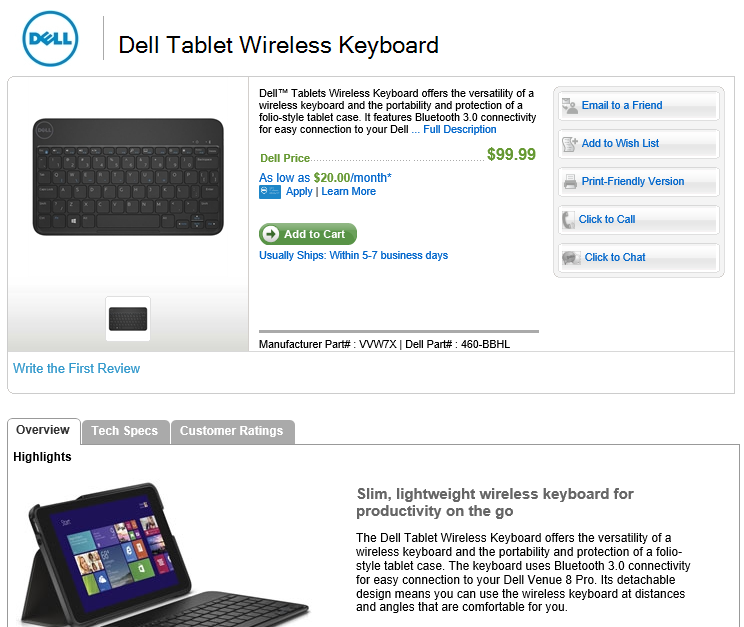
That’s what I was thinking… I just ordered the Dell Tablet Wireless Keyboard accessory from Dell’s site. It’s still pending shipping, so once I receive it, I’ll post a review.

I have a link to the accessory in this post.

I’ve been looking around on the Venue 8 Pro product page for the Wireless Keyboard accessory, but it always says “Coming Soon.” Checking with Dell Sales Support, I was able to get the link. I’ll order one and give a review.

Here’s the link: http://accessories.us.dell.com/sna/productdetail.aspx?c=us&l=en&s=dhs&cs=19&sku=460-BBHL&baynote_bnrank=0&baynote_irrank=0&~ck=baynoteSearch

Enjoy, and Happy Holidays!

-Auri

image

UPDATE (13-Dec-2013): Microsoft has a fix: http://answers.microsoft.com/en-us/windows/forum/windows8_1-networking/dell-venue-pro-loses-wireless-connection-after/bc8a1426-fdb8-466d-b074-c80a06e70d76 and direct link to update http://www.microsoft.com/en-us/download/details.aspx?id=40755

UPDATE (10-Dec-2013): Updated to include fix for WiFi problems caused by latest Patch Tuesday installs.

My WiFi stopped working on my Dell Venue Pro 8. Uninstalling Microsoft Updates KB2887595 and KB2903939 fixed the problem.

TIP: After uninstalling these updates, you can go back to Windows Update via the method below, scan for updates, then right-click the updates and select Hide this Update so Windows doesn’t repeatedly try to reinstall it.

To do this:

1. On the Start menu, swipe down to All Applications

2. Scroll all the way right and tap Control Panel

3. When Control Panel appears on the desktop, search for Windows Update by typing in the search box, and tap it

4. On the left pane there will be an option for View Installed Updates. Tap it.

5. Find Update for Microsoft Windows (KB2887595) and tap it, then tap Uninstall. If you also have update KB2903939, don’t restart yet. Otherwise, skip to step 7.

6. Find Update for Microsoft Windows (KB2903939) and tap it, then tap Uninstall.

7. Restart.

8. Your WiFi should be working again.

I picked up a Dell Venue 8 Pro for $99 as part of Microsoft’s 12 Days of Presents spree. Here are some tips & tricks for the more techy folks out there:

How to Access the BIOS

Press the power button once. Then hold down the Volume Down button until the Dell logo disappears. You don’t need a keyboard – it has an on-screen mouse mapped to the touch screen. Cool, eh?

To access the Advanced settings of the BIOS, follow the instructions through Step 7 below:

How to Speed Up SSD Disk Access by Modifying the EFI / BIOS

Thanks to Sasha for the following steps, which can increase speeds by over 50%!

1) From Windows, bring up the charms (swipe in from right)
2) Select Settings -> Change PC Settings, or Start, then All Apps, then PC Settings.
3) Choose Update and Recovery -> Recovery
4) Under Advanced Startup, select Restart Now
5) From this blue menu, select Troubleshoot, then select Advanced Options
6) Select UEFI Firmware Settings, then click Restart
7) Now, the BIOS shows up, hit the on-screen ESC button ONLY ONCE.
8) You’re now in the Main “tab”, with a vertical list of options, from here you must select Advanced, this lets you see all the BIOS settings and is different from hitting the Advanced tab across the top.
9) Select LPSS & SCC Configuration
10) Select SCC eMMC 4.5 HS200 Support and select Enabled (Mine was disabled by default)
12) Select DDR50 Support for SDCard and select Enabled (Mine was disabled by default)
13) Press F10 on the on-screen keyboard to save, then Save Settings and Exit and you’re all set.

Getting Back ~5 Gigabytes of Space by Removing Recovery Partition

The Dell Recovery Partition is essential for restoring your machine should something catastrophic happen. To add insult to injury, Dell often runs out of stock of recovery media, and won’t send you such after a year or two has passed. That’s hit me before, and it’s not fun. So, make sure you’ve backed it up!

Once you’ve backed up that recovery partition, there’s no point in keeping it. Get those gigs back!

Here’s how:

NOTE: Make sure you have at least 50% of your battery left for this process. I wouldn’t do this when hitting the lower ends of the battery spectrum.

  1. Go to All Applications and scroll all the way right to the Dell group. Tap the My Dell application.
  2. Click Backup, even if it says no backup software is installed.
  3. Click the Download Local Backup button. This will provide a link to download Dell Backup and Recovery, which you should download and install. Basically, once you click the Download button, select Run and wait for Setup to do its job. This process can take a long time. Even the download appears to be huge. It’s probably downloading the latest recovery data, but that’s just a guess.
  4. After the software has installed, it will request a restart. So, restart the tablet.
  5. Go to All Applications and back to the Dell group. Note the new Dell Backup and… option. Tap it.
  6. Wait a few moments for the cool clock animation to complete, then agree to whatever terms are presented, or not.
  7. Tap the Reinstall Disks option. This is the equivalent of a Factory Restore partition backup.
  8. Tap USB Flash Drive, which is probably the only real option you have with this unit. This includes use of the Micro SD card, which is what I used, since I didn’t have a USB adapter handy. If you decide to use an external burner, that’s cool, too. But… why?
  9. Select your USB drive, or the MicroSD card. I backed up to an 8 GB MicroSD. Dell estimates the backup at 4.03 GB, so 8 GB should suit you just fine.
  10. Tap Start, then tap Yes when asked if you’re sure about wiping out the USB or MicroSD drive. Of course you’re sure! (right?)
  11. Wait until it’s done.
  12. When it’s complete, click OK, and put the backup media in a safe place. I put it in my Venue Pro’s box.
  13. Go back to Start, then All Programs, then Desktop.
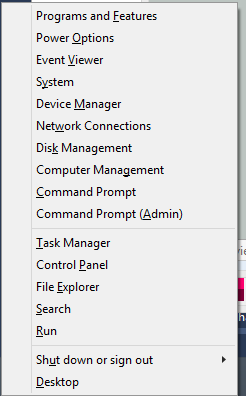
  14. Hold down on the Start button and select Command Prompt (Admin).
  15. Type diskpart to launch the Disk Partition manager.
  16. Type list partition to see the available partitions.
  17. Type select partition X, where X is the number of the approximately 4 gigabyte recovery partition. On my Venue, it was 6.
  18. Make sure you see “Partition X is now the selected partition”!!!
  19. Type delete partition override and hit enter.
  20. You should be greeting with “DiskPart successfully deleted the selected partition.”
  21. Type exit to quit DiskPart, then exit again to quit Command Prompt.
  22. Now that the partition is gone, we need to expand the size of the main partition.
  23. Open an Explorer window and long press This PC, then select Manage.
  24. When Computer Management appears, select Disk Management under Storage.
  25. You should see the 4.64 gigabytes or so we freed up showing as Unallocated.
  26. Long press your C: drive and select Extend Volume….
  27. The Extend Volume Wizard appears. Click Next.
  28. You’ll be asked where the space to extend the volume should come from. Everything should already be filled out to assign the maximum unallocated space. Simply tap Next or adjust as desired and click Next.
  29. The wizard will confirm the extension settings. Click Finish.
  30. There you go! Your C: drive is now almost five gigabytes larger!

UPDATE: You can also back up to a USB drive by acquiring a USB OTG, or “On-The-Go”, adapter. Pick one up from Fry’s, SKU number 7582626, here. This will also enable you to use thumb drives and such on your Dell Venue 8 Pro.

Disable the Annoying Backlight

Dell’s power management settings for the backlight are wretched, making the display dim almost all the time. Let’s get around that, shall we?

  1. Swipe out the charms menu, then select Settings, then Change PC Settings on the bottom.
  2. Select PC and devices.
  3. Select Power and sleep.
  4. Set Adjust my screen brightness automatically to Off.

I recently upgraded my home theatre receiver to support 3D. As part of the process, I had to unplug all my HDMI cables and move them to the new receiver. Much to my chagrin, after I powered on the new receiver, only one out of four devices worked. They were all connected with HDMI, and they all worked with the previous receiver.

After a bit of research, I realized those devices that weren’t working had their cables backwards. Yes, the act of simply using the other side at each end brought my video back to glorious life.

Apparently, this is normal with HDMI cables supporting Audio Return Channel, or ARC, a new feature of HDMI 1.4. Apparently with HDMI 1.3 it didn’t matter. Below is a link to an explanation.

http://www.hdmi.org/manufacturer/hdmi_1_4/arc.aspx

I hope this saves you a lot of wasted energy and frustration! Smile

Many developers have had that “labor of love” project – the kind that keeps them up nights trying to get everything right, figuring out how to pass that one last hurdle. Woz was no different, and the recently open-sourced code – for non-commercial use, of course – brought back memories of the days he worked on it so long ago, finishing in Vegas no less.

Some of you know I used to work for Steve, so I reached out to him with a link to the his code

Here’s his response:

On Nov 13, 2013, at 8:04 PM, ʞɐıuzoʍ ǝʌǝʇs wrote:

The MOST AMAZING code of my life…I could never do anything close to this much ‘out of any box’ stuff ever again…it was as amazing to come up with it as it seems to be reading my code. In some places I put numbers like (5) meaning that 5 cycles would be taken by that instruction – I had to count them all so the loops always sent a byte to the controller every 32 microseconds exactly. And there is no way to explain the 5-bit and 7-bit stuff but it extended the data from 13 sectors to 16 sectors. The 13-sector version was running in Las Vegas. The improvement to this 16-sector code is the part that I worked on every night for a month, nearly finishing each night around 2 AM (Denny’s milkshake) but repeating the whole process the next day because I had to keep getting the entire huge framework in my head each day. Finally I stayed one night until 6:30 AM and got it totally done. Jobs had been asking me every day when it would be done and that morning I told him that it was! This part of the low-level disk code was not Randy’s but I am so thankful for the parts he did so well too that made higher level sense out of this. I consider this code to be more like hardware than software.

TV Asahi covered the CEATEC show and its Innovation Awards panel, of which I’m a member. Apologies for the noisiness… I don’t get an official copy for a few weeks, so I recorded it from the TV in my hotel room Smile

I had the unique opportunity to try the prototypes of the abovementioned personal transporters. The Winglet is similar to the Segway, yet smaller, made with much more plastic, and with a slightly different steering system. The Uni-cub is targeted towards indoor transport, such as for the elderly, and you move by shifting your weight, similar to the Segway again, but in the sitting position. Enjoy the videos.

Riding the Toyota Winglet

Quite the day… have a look!