I struggled with this for a few days while trying to convert a Silverlight video player to HTML5, and finally found an answer. Posting here in case anyone else is having trouble!
How to stream Azure Media Services MP4 to HTML5 Video Player
Posted: August 13, 2015 in UncategorizedTags: azure, development, html5, iOS, media services, microsoft, mp4, mpeg-4, silverlight, streaming, video
Published your ASP.NET MVC site to Azure and SVG files aren’t showing? Here’s the fix.
Posted: May 29, 2015 in UncategorizedTags: angularjs, asp.net, azure, deployment, hosting, microsoft, mime, mvc, svg, svgz, transformations, web.config, woff, woff2
I’m relatively new to Azure deployments, but the more I use them, the more I like the service. Unfortunately, it’s not WYSIWYG with deployments. What you see on IIS Express when development is not always what you’ll get after an Azure deployment. One issue I’ve come across is the MIME mappings aren’t the same, or don’t exist at all, and that’s preventing various file types, such as SVG images and WOFF2 fonts from being served. I also noticed that fixing Azure’s MIME mapping busted my AngularJS support in IIS Express – whoops!
Using the magic of web.config transforms, we can fix this for our release deployments. If you expand your web.config file, you’ll see web.Debug.config and web.Release.config. These files enable you to insert, replace, and remove settings based on your build configuration. Obviously, if you had multiple build configs, such as for different hosting environments, you’d insert those config names in addition web.*.config files.
To add SVG support, we need to insert our additional MIME types into the web.config. There’s no reason to do this in the master web.config, because it’s only necessary during release. This same tactic works very well for swapping the SMTP mail mailSettings section based on the hosting environment’s needs. For example, I swap localhost, where I use PaperCut to monitor sent email, to the actual settings upon deployment.
Below, you’ll see the fully modified web.Release.config from a recent deployment. This one worked perfectly for adding SVG and some missing font file extension support. You’ll notice I’m adding a new section under <system.webServer>. Note that I do not mark the webServer tag with an xdt:Transform. I don’t want to replace the entire section. I simply need to add the staticContent section to override some of the settings already configured in Azure. There are other options for xdt:Transform, such as Remove and Replace. This is a very powerful feature and I encourage you to learn more about it from Microsoft.
<staticContent xdt:Transform="Insert">
I hope this helps!
Snippet
<?xml version="1.0"?> <!-- For more information on using Web.config transformation visit http://go.microsoft.com/fwlink/?LinkId=301874 --> <configuration xmlns:xdt="http://schemas.microsoft.com/XML-Document-Transform"> <system.webServer> <!-- Add support for video files and other non-standard file request types. This breaks AngularJS support in IISExpress, hence why it's here instead. --> <staticContent xdt:Transform="Insert"> <!-- if you don't remove certain extensions first, the site won't load, whoops! --> <remove fileExtension=".svg" /> <remove fileExtension=".svgz" /> <remove fileExtension=".eot" /> <remove fileExtension=".ttf" /> <remove fileExtension=".woff" /> <remove fileExtension=".woff2" /> <mimeMap fileExtension=".mp4" mimeType="video/mp4" /> <mimeMap fileExtension=".ogv" mimeType="video/ogg" /> <mimeMap fileExtension=".webm" mimeType="video/webm" /> <mimeMap fileExtension=".svg" mimeType="image/svg+xml"/> <mimeMap fileExtension=".svgz" mimeType="image/svg+xml"/> <mimeMap fileExtension=".eot" mimeType="application/vnd.ms-fontobject" /> <mimeMap fileExtension=".ttf" mimeType="application/octet-stream" /> <mimeMap fileExtension=".woff" mimeType="application/font-woff" /> <mimeMap fileExtension=".woff2" mimeType="application/font-woff2" /> </staticContent> </system.webServer> </configuration>
“Bad file” and “File not found” issues with Cubify 3D printer software
Posted: May 10, 2015 in 3D Printing, Computers and InternetTags: 3d printer, 3d printing, 3d systems, 3dsystems, bad file, cubify, file not found, technical support
I recently bought a 3D Systems 3rd Generation Cubify 3D printer. I promised a friend we could print his mom a 3D box with her name embossed across a ribbon for Mother’s Day. That’s when this issue reared it’s ugly head: the software would simply say “File not found” or “Bad file” on various STL files – representing various parts of the box – and refusing to print. So what was causing this? I had a Mother’s Day present to print!
It turns out the Cubify software doesn’t like special characters in the STL filenames. So, quotes and dashes appear to be verboten. My guess is they’re running a command line tool in the background in an ill-advised way – ahem, directly instead of through .NET’s proper command calls – and the quotes and dashes end up being interpreted as paths or command line arguments, and failing.
The solution? Rename the file to something simpler and with no special characters.
If you’re running into this issue, please let me know in the comments. I’m fully convinced Cubify doesn’t test their software all that well. I wonder if they are the ilk following the “unit tests passed, therefore it works” mantra.
Is your Wireless Display Adapter not working in Windows 8 or on your Surface?
Posted: March 28, 2015 in UncategorizedTags: bug, miracast, oracle, surface pro 3, virtualbox, widi, windows 8, Windows 8.1, wireless display
I ran into this issue a few weeks ago… The option for “Connect to a wireless display” was no longer available on my Surface Pro 3. It disappeared on my Acer S7 laptop, too. What the heck is going on?!?! Well, I figured it out with some sleuthing on the interwebs… Oracle’s VirtualBox, for whatever reason unbeknownst to me, disables support for WiDi and Miracast in Windows 8. Uninstalling VirtualBox solved the problem. I also read some VPN clients cause this issue to occur, but that didn’t appear to be my case.
I’ve logged a bug with Oracle – this is a usability bug and should be fixed. I’d love an explanation as to why it’s disabled.
Here’s the bug: https://www.virtualbox.org/ticket/13998
I hope that helps anyone having a similar issue!
Best,
-Auri
Another Fix for OneDrive / SkyDrive When Resetting and File Permissions Fixes Fail
Posted: January 8, 2015 in fix, Microsoft, OneDrive, SkyDrive, tip, Windows 8Tags: fix, microsoft support, onedrive, onedrive troubleshooter, reset, SkyDrive, sync, windows 8, Windows 8.1
I’ve discussed at length how to fix SkyDrive sync issues. Check out Another possible solution for OneDrive / SkyDrive sync issues and Possible OneDrive / SkyDrive sync fix for Windows 8. I have found that sometimes even resetting SkyDrive doesn’t fix the problem. Microsoft will charge you for a brute force approach, but I figured out one more option if nothing you’ve tried has started syncing back up again. Before you follow these steps, try the other two – this is a last ditch resort!
1. Make sure all other desktop and “modern” applications are NOT running. Only File Explorer should be running. Word, Chrome, whatever – they should all be closed.
2. Press Windows Key + X, select Command Prompt (Admin), and the Windows command prompt should appear.
3. Make sure the OneDrive app isn’t running – right-click it and select Close if you see it in the taskbar.
4. Type skydrive /shutdown
5. Wait a minute.
6. Right-click the task bar and select Task Manager.
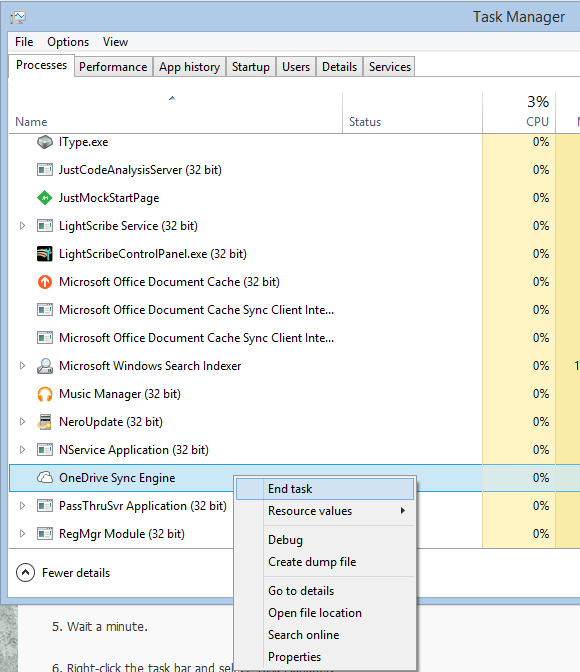
7. Keep trying to end the OneDrive Sync Engine process until it disappears, as shown in the figure below. This may take a few tries.
8. Open the following folder:
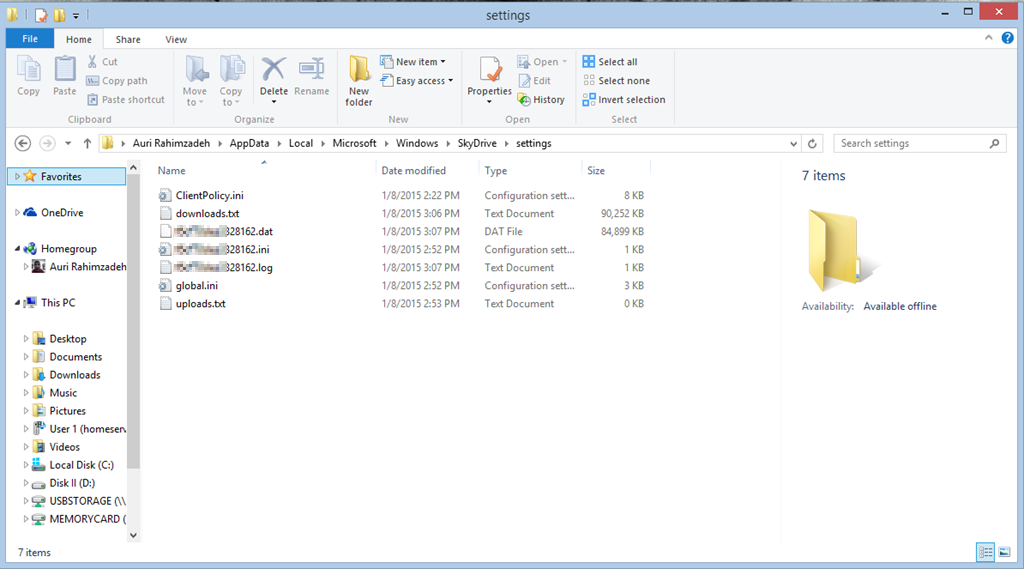
C:\Users\your user account name\AppData\Local\Microsoft\Windows\SkyDrive\settings
and you’ll see something like the figure below:
9. Delete all the files except for ClientPolicy.ini and global.ini.
10. Once they have been deleted, type the following: shutdown -r -t 0
11. Your computer should restart.
12. Log back in and your files should start resyncing. You’ll probably see results within a few hours. This will depend on the total number of files you have on OneDrive. You’ll also see downloads.txt and another funky-looking file start growing in size. If you see that, you know things are working, and OneDrive has started rebuilding everything.
Breaking down the SkyDrive process (Updated)
Posted: January 7, 2015 in hacking, Microsoft, SkyDrive, Windows, Windows 8Tags: breakdown, command line parameters, hacking, ini, log files, microsoft, process, SkyDrive, Windows 8.1
I’ve been underwhelmed by Microsoft’s response for documentation regarding SkyDrive and its inner workings. So, I’m on a mission to break things down. I’ll update this blog post as I find more information. As always, any info provided here is used at your own risk. I take no responsibility if you hose a system.
In case you want to see all the SkyDrive process settings:
C:\Users\<your account name>\AppData\Local\Microsoft\Windows\SkyDrive\settings
There are two files of interest:
global.ini and ClientPolicy.ini
There were some settings that surprised me in ClientPolicy.ini:
- MaxFileSizeBytes = 2147483647 Is the 2 GB max file size mentioned on MSFT’s site? They should probably mention that, since all shipping systems are 64-bit and video files and ISOs can be pretty big.
- Update 7-Jan-2015: It appears Microsoft has upped this to 10 terabytes.
- Tier1MaxFileSizeBytes = 2147483647 These would be Microsoft’s Office file types
- Tier1FileInclusionList = |doc|docm|docx|dot|dotm|dotx|odc|odp|ods|odt|pot|potm|potx|pps|ppsm|ppsx|ppt|pptm|pptx|rtf|vdw|vdx|vsd|vsdm|vsdx|vssm|vssx|vst|vstm|vstx|vsw|vsx|vtx|xla|xlam|xlm|xls|xlsb|xlsm|xlsx|xlt|xltm|xltx|xlw|
- MaxItemsInOneFolder = 150000 I wonder if this caused my earlier sync problems, since I had more than 150K files in a folder, and then I deleted the folder. Maybe that messed up Microsoft’s storage system in the cloud? When I finally had a Microsoft technician look at my account, things magically started working a day later. I didn’t change anything, but what happened on their end?
- MaxClientMBTransferredPerDay = 131072
- Update 7-Jan-2015: It appears Microsoft has upped this to over 250000. Makes sense, given average home broadband speeds.
- MaxClientRequestsPerDay = 500000 So what happens if you reach your limit?
- NumberOfConcurrentUploads = 3 I’d rather have more, but it appears the next setting helps here, even though it’s not accessible via the SkyDrive app.
- AllowUserOverrideOfConcurrentUploads = true
- SyncTelemetryURL = http://wlepsi3.redmond.corp.microsoft.com/SyncDiag.ashx This one bothers me a bit. What is this URL tracking? And why isn’t it over SSL?
- LowDiskSpaceLimitMB = 3072 If you want to override the low disk space limit… I’m going to try this on my Dell Venue Pro 8. Update: It worked! Yay!
- Update 7-Jan-2015: It appears Microsoft has lowered this to 200MB. Much better for tablets! Of course, in the future, tablets will probably have 64GB, 128GB or more by default due to lowered storage costs.
- AutomaticVerboseLoggingEnabled = true I wonder where the log file is. There’s one in this folder, but it’s used by the SkyDrive process. I’ll play with that in a VM so I don’t mess anything up
I’m also curious as to why SkyDrive.exe can’t be opened in a decompiler. If I request it, the file system says the file doesn’t exist. Is c:\windows\system32\SkyDrive.exe simply a shim? Very interesting.
Breaking down the SkyDrive process, I found what appears to be additional command line parameters. I have not tested these as of yet.
/shutdown
/register
/unregister
/installperfcounters
/uninstallperfcounters
/background
/watson
Until next time… enjoy!
Best,
-Auri
One Day With Moto 360: Some Bugs for Motorola and Google to Fix
Posted: September 15, 2014 in Android, Consumer Electronics, Google, Mobile, Motorola, WatchTags: android, android wear, apple watch, bugs, google, gripes, heart rate monitor, issues, moto 360, motorola, pedometer, smart watch
Alright, I found a Moto 360 and I’m enjoying it. The following is not my review. It is a list of bugs Motorola and Google need to fix on this device and across Android Wear. Note this is only what I’ve noticed after one day. I’ll post more as I explore.
- When you take the phone out of the box, it doesn’t turn on or has a low battery. That’s understandable. What’s not alright is no prompt about the battery level or what to do. It’s simply “Connect your device to Android Wear,” or something to that effect. That’s very un-user-friendly. Where were the UX guys with the setup process?
- Only one watch face shows the date. $250 and no date? Seriously?
- Update, thanks to Rich DeMuro: Drag down slightly to see the date.
- When asking the watch to make a call to a contact with more than one number, it asks "Which One?" However, it doesn’t give you a list. Saying "the first one" works, but I don’t know what I selected until it dials.
- There’s no confirmation request when sending a text… it just sends it.
- It sometimes stops listening or lists your options when listening.
- It sometimes starts listening when it shouldn’t.
- Carrier messaging apps break the ability to reply to texts. I had to disable Verizon Messaging entirely.
- Facebook support for displaying the new comments would be nice, like the email display feature.
- There’s no battery level meter anywhere on the device, or at least that’s obvious.
- Update, thanks to Rich DeMuro: Drag down slightly from the top to see battery level.
- The Android Wear app doesn’t show battery level, but Moto Connect does. Weird?
- Sometimes Google search results take precedence over actions. For example, saying "play ebay by weird al" brings up YouTube results. However, "play technologic by daft punk" plays the song. It’s hit or miss.
- So far, adding a calendar entry hasn’t worked.
- There needs to be a notification center to control which notifications are sent to the phone. Yes, you can do it via the App Manager, but it’s horrible.
- The accelerometer doesn’t always sense the wrist has been moved to a viewing angle.
- When driving, the accelerometer appears to trigger the display to turn on *a lot*. It’s not good when driving kills your battery.
- A speaker would be helpful for prompts.
Added 9/15 afternoon:
- The Motorola Feedback website doesn’t list the Moto360 as a product. So, how do I register it or get support?
- The device occasionally says its Offline when the phone is only three feet away. I’m thinking this is a bug in the Google Now integration and not an actual communications issue.
- Asking the device "What is the battery level" always causes the phone to report it’s offline
Added 9/17:
- Saying “Call <insert name here> on cell” doesn’t work most of the time, but saying the same “on mobile” is generally reliable.
- Calling “Send text to <insert name here>” sometimes asks “Which one?” but only shows the phone numbers. I wasn’t sure if I was sending to the right person because the name wasn’t listed.
- Most of the time, when the screen turns on when moving even the slightest, the watch starts listening, even if I don’t say “Ok, Google”. It’s very annoying.
- It would be nice if “Ok, Google” could be changed to something else. I feel like I’m advertising Google every time I use my watch.
- The pedometer seems inaccurate, rendering phantom steps as far as I can tell. The inaccuracy extends to the heart rate monitor. After a long workout, the monitor said I was at 74 bpm, then 90. I took my own pulse, and it was quite off the mark.
Added 9/30:
- The latest build, 4.4W.1 KGW42R, has greatly improved battery life. On an average day of use, unplugging the watch at around 7am, I was still at 20% at roughly 9:45pm. Great job, Motorola!
- Even with Messaging as the default app, I have no option to Reply to texts when the notification appears. This may be due to HTC overriding some default app, but I’m unsure.
A few tips:
To launch apps, go to the Google screen, then go to Start… and you can select an app.
You can say the following things and it’s really cool:
- Call <person’s name> on mobile
- Play the song <song name>
- Play the song <song name> by <artist name>
- What is the current stock price of <company name>
Having trouble with Telerik Kendo Grid Datasource Read function?
Posted: September 3, 2014 in Development, Microsoft, MVC, Telerik, tip, WebTags: asp.net, client side, datasource, development, example, grid, javascript, kendo, microsoft, mvc, read, refresh, stack overflow, telerik
I went back and forth between my code and various Telerik and Stack Overflow demos of how the Kendo grid is supposed to refresh its datasource without reloading the entire grid. Finally, Telerik sent me a code example that included a function that’s not in their API documentation, but darn well should be. So, if you’re having the same issue I did, where you want to call read() on your grid’s datasource, but it simply isn’t working, here’s an example from Telerik that may help you.
The function: getKendoGrid()
Now, I keep my createDataSource() function around so I can swap out the data I’m paging. Their example uses some sample data, but you could simply use their example of creating a datasource to call your back-end JsonResult action in MVC and things can still work magically.
I hope this helps others ![]()
<body>
<div id="grid" />
<script>
function createDataSource() {
return new kendo.data.DataSource({
transport: {
read: {
url: "/echo",
dataType: "json",
method: "POST",
// Simulate response
data: {
"json": JSON.stringify([{
firstName: "John",
lastName: "Smith",
age: 25
}])
}
}
},
pageSize: 10
});
}
var ds = createDataSource();
$("#grid").kendoGrid({
dataSource: ds,
autobind: false,
scrollable: false,
columns: ["firstName", "lastName", "age"]
});
$("#grid").getKendoGrid().dataSource.read();
</script>
</body>
</html>
And here’s a colorized version:
Link
—
Posted: July 1, 2014 in Uncategorized
Tags: beginner, development, programming, software, tips, tricks
Why isn’t OneDrive smart about tablets?
Posted: May 30, 2014 in Apps, Dell, Microsoft, OneDrive, SkyDrive, tablet, Venue Pro, Windows 8Tags: coding practices, devices, disk space, microsoft, onedrive, opinion, SkyDrive, windows 8, Windows 8.1
Quick thought for the day: Microsoft’s OneDrive doesn’t appear to act “smart” when it’s installed on a tablet, or what I prefer to call a Limited Storage Space Device. The premise of OneDrive is clear: store your stuff in the cloud and keep your device clean of clutter, holding local only what you need. Google made the same business case with their Chromebooks and Google Drive, but “cloud-first” is in its teenage years.
On a Limited Storage Device, such as a tablet or a phone, OneDrive should be smart enough to take offline, locally cached files, and make them “online only” again, freeing up the space. It doesn’t do this, and thus silently, and sometimes quickly, eats up storage on the device. Case in point: I recently drove Tail of the Dragon and took hundreds of photos. About one gigabyte of these I copied from my camera to OneDrive. One day later, my Dell Venue Pro 8 tablet started complaining of low drive space. OneDrive had copied the files from the cloud to the device, automatically, even though there was no reason to do so. The device wasn’t requesting those files. Yet, even if for whatever reason there was a valid request, shouldn’t OneDrive have “put them back” in the Cloud?
Microsoft – if you ever listen about device categories you’ve had a tough time understanding – you can’t treat these limited storage devices like mainstream PCs. You have to, pardon the pun, “think differently” and make your software do the same. The above scenario, where your Cloud solution makes a non-mainstream device relatively unusable due to a mainstream PC approach, is very common amongst your current product offerings. My gosh, just look at Office on a tablet.
Thanks for listening ![]()
-Auri